AU-OPR-AureFloFT-EN,
Rev H
17
iii) Auto Snapshot Return: select to
automatically return to the Realtime
screen after taking a [Snapshot]
from Realtime. The Snapshot screen
will be displayed for 3 seconds before
returning to Realtime.
iv) Demo Mode: select in order to view
the complete functionality of the
AureFlo without compromising real
patient data. Example patients can be
selected from [Patient Settings] and
example data view under [Portfolio].
When completed, uncheck [Demo
Mode] and press [OK]. FlowTrace will
automatically shut down and must
be restarted to return to the normal
mode for measuring actual patients.
2. HELP MENU
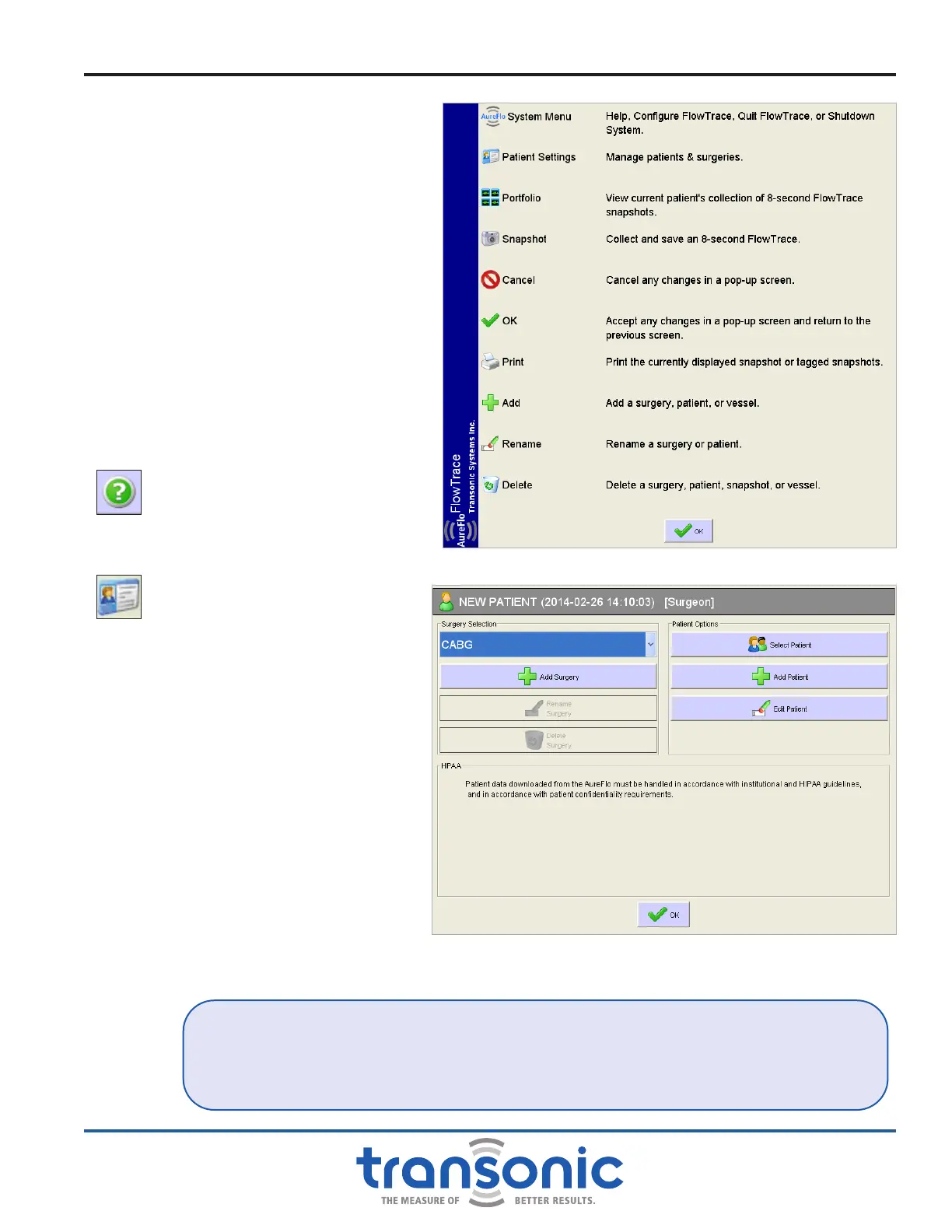
Select [Help] to view information
about the functionality of the major
icons (Fig. 5.3).
B. Patient Settings Menu
Selecting [Patient Settings] located
at the bottom left of the FlowTrace
®
screen opens the Patient Information
Box which is divided into Surgery
Selection and Patient Options (Fig.
5.4). The current Patient name is listed
at the top of the box.
1. SURGERY SELECTION
The dropdown box at the top of the
Surgery Selection group displays the
type of surgery chosen. FlowTrace
®
defaults to the last selected surgery
in the last case. To view other surgery
selections, tap the drop down box,
and a list of other types of surgery
will pop up. Tap on a specic surgery,
the list will disappear, and the surgery
selected will display in the drop
down box. Tap [OK] at the bottom of
the dialog window to conrm the surgery
selection, and exit the patient settings menu.
Fig. 5.3: FlowTrace
®
Help menu
Fig. 5.4: Patient Settings screen
User Interface Menus
FAQ: WHENEVER FLOWTRACE
®
SOFTWARE IS LAUNCHED, IS THE SURGERY ALWAYS CABG?
Answer: No, the last surgery selected prior to shutting off the system is the default surgery.
To change the surgery, go to [Patient Settings], then use the drop down dialog box to
change the surgery. If the surgery is not found in the list then select [Add Surgery] to add.



 To Next Page