42 AU-OPR-AureFloFT-EN,
Rev H
Appendix D: ReTrace Software
Access ReTrace software from the desktop [ReTrace] icon on the AureFlo
®
Monitor. Initially, only [Quit
ReTrace] and [Find Patient] available. All other buttons become active once a patient is selected.
ReTrace is designed to permit review of waveforms, changing of patient information or managing the
database of patients outside of the surgical suite. By using ReTrace, it is possible to change surgery and/
or patient names and delete patient records. To launch ReTrace, it is rst necessary to quit FlowTrace
®
software on the AureFlo
®
Monitor’s touch-panel display by tapping the [Systems Settings] menu located
in the upper left of the touch-panel display. Tap [Quit FlowTrace].
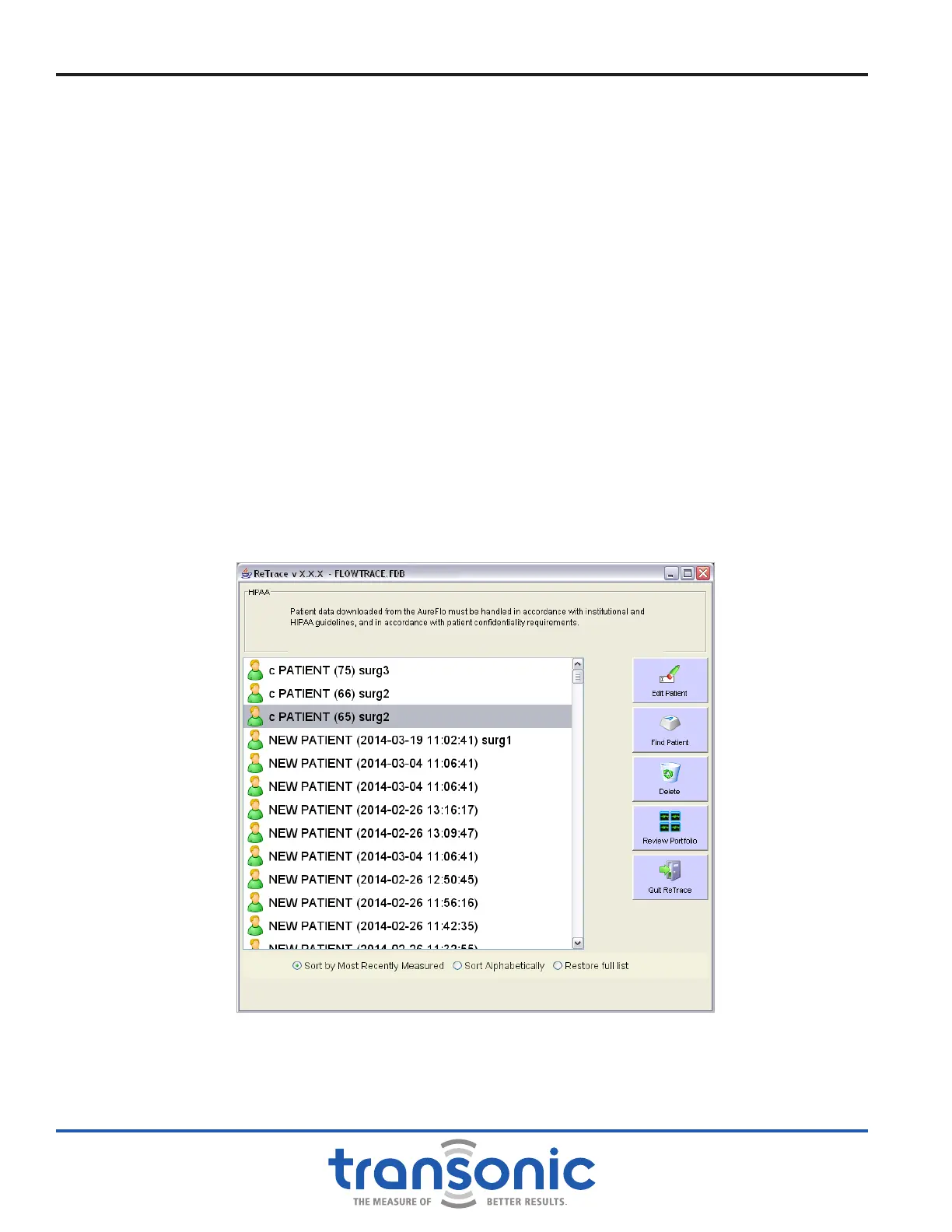
● EDIT PATIENT – Patient name, ID and surgeon can be added or changed by selecting a le record and
using the touch screen or standard keyboard.
● FIND PATIENT - Search for a Patient using name, ID, surgeon, surgery type, or surgery date.
● DELETE – Selected patient les can be deleted. It is necessary to conrm the intention to delete the le.
● REVIEW PORTFOLIO – Brings up the Portfolio window for any selected patient’s record. Select the
[Snapshot] tab to view Snapshots. Select the [Recordings] button to view Recordings. Press [OK] to
return to the list of patient les. Surgery type can be changed under [Review Portfolio] as well.
● MANAGE SNAPSHOTS – View, create, delete, or print Snapshots.
● QUIT RETRACE – Closes ReTrace and returns to the Windows Desktop.
Fig. D.1: ReTrace Menu allows for editing and reviewing of patient information



 To Next Page