AU-OPR-AureFloFT-EN,
Rev H
19
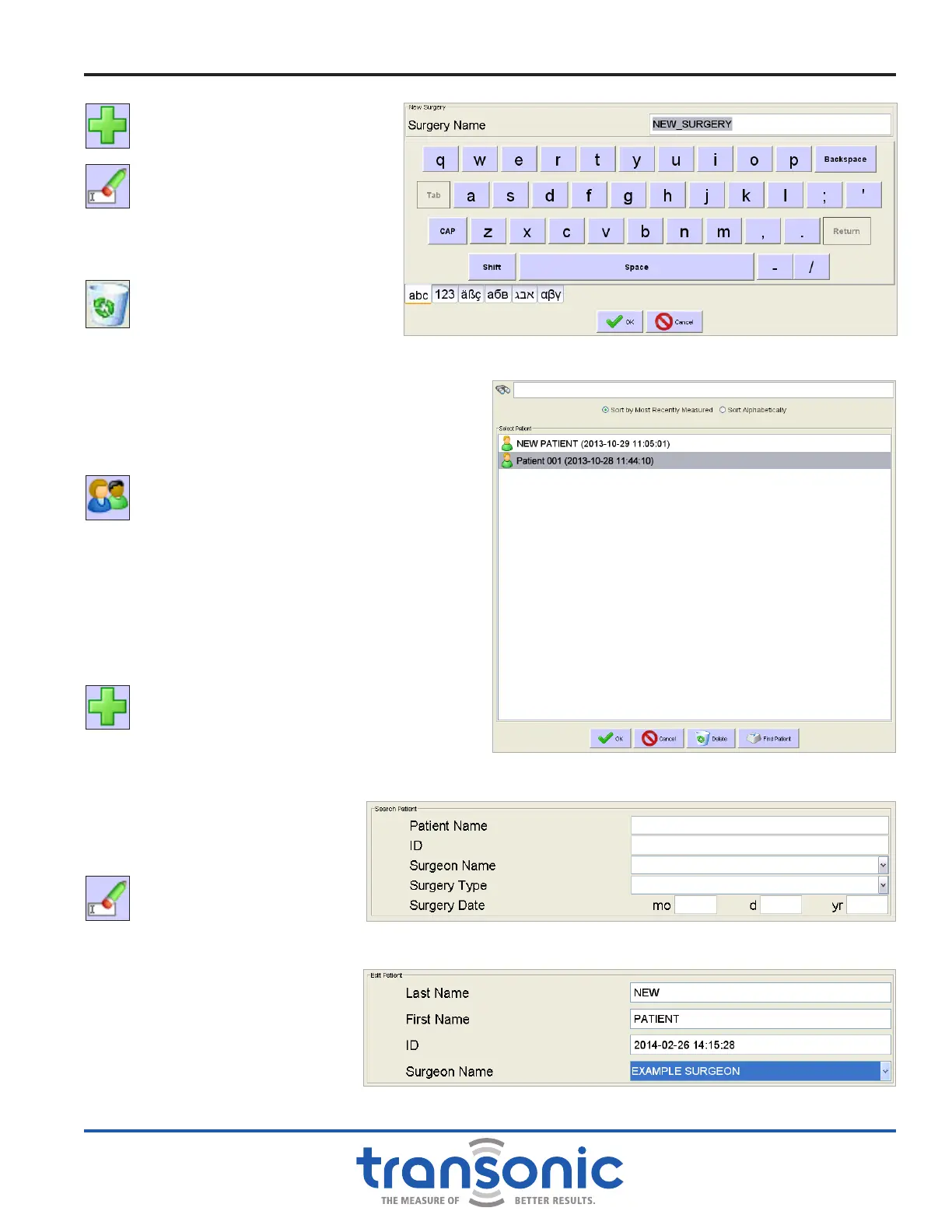
● When [Add Surgery] is tapped, a
virtual keyboard pops up on which
to add a custom surgery (Fig. 5.7).
● When [Rename Surgery] is
tapped, a dialog box pops up on
which to rename the currently
displayed custom surgery (displayed
in dropdown box). Default surgeries
cannot be edited.
● Use [Delete Surgery] to delete
an existing custom surgery. A
dialog box will pop up to ask if are
you sure you want to delete the
“selected surgery.” Tap the [Yes]
button and tap [OK] to conrm the
deletion. Default surgeries cannot be deleted.
2. PATIENT OPERATIONS
● Select Patient: When [Select Patient] is tapped
a dialog box of a list of existing patients pops
up. This list may be sorted by most recently
measured or alphabetically. To select a patient
as the current patient, tap the name and then
tap [OK] at the bottom of the dialog box.
Advanced search options are available by
selecting [Find Patient]. Search by name, ID,
surgeon, surgery type or surgery date (Fig. 5.9).
Note: only one parameter may be search at a
time.
● Add Patient: To add a patient to the database,
tap on [Add Patient]. A virtual keyboard pops
up on which to add a patient’s last name, rst
name, identication number (Fig. 5.10). Note:
The default is New Patient for name and a time
stamp for the ID number. All previously entered
surgeon names are available in
the dropdown. New surgeon
names can be added from the
[FlowTrace
®
Settings].
● Edit Patient: When [Edit
Patient] is tapped, a virtual
keyboard pops up on which to
change the current patient’s
last name, rst name, ID number
and surgeon name (Fig. 5.10).
All previously entered surgeon
names are available in the
dropdown. New surgeon
names can be added from the
[FlowTrace
®
Settings].
Fig. 5.7: Add Surgery entry box with keyboard. The rename surgery screen
contains the same elds.
Fig. 5.8: Select Patient dialog box
User Interface Menus
Fig. 5.9: Search boxes above keyboard for Finding Patients
Fig. 5.10: Entry box above keyboard for Adding or Edit Patient



 To Next Page