Videojet DataFlex 6530 Operator Manual - Rev AA 6-15
Job Editor
Examine the sample prints from each position until you find the optimum print quality at
the required print speed.
4. Touch to return to the Home screen.
6.5.6 Setting Interleaved Printing
This feature allows you to select a lower ‘draft’ quality print mode which halves the ribbon
consumption of the machine.
To set to interleaved printing mode, proceed as follows:
1. Navigate to Tools > Setup > Printhead. The Printhead screen is displayed (Figure 6-8 on page
6-10).
2. Touch Ribbon Saving Mode and select Interleaved Images. Select
to set this feature.
3. Touch to return to the Home screen.
6.6 Deleting a Job from the Jobs Database
To remove jobs that are no longer required, proceed as follows:
1. Navigate to Tools > Database.
2. Select the required database (internal or external) and touch .
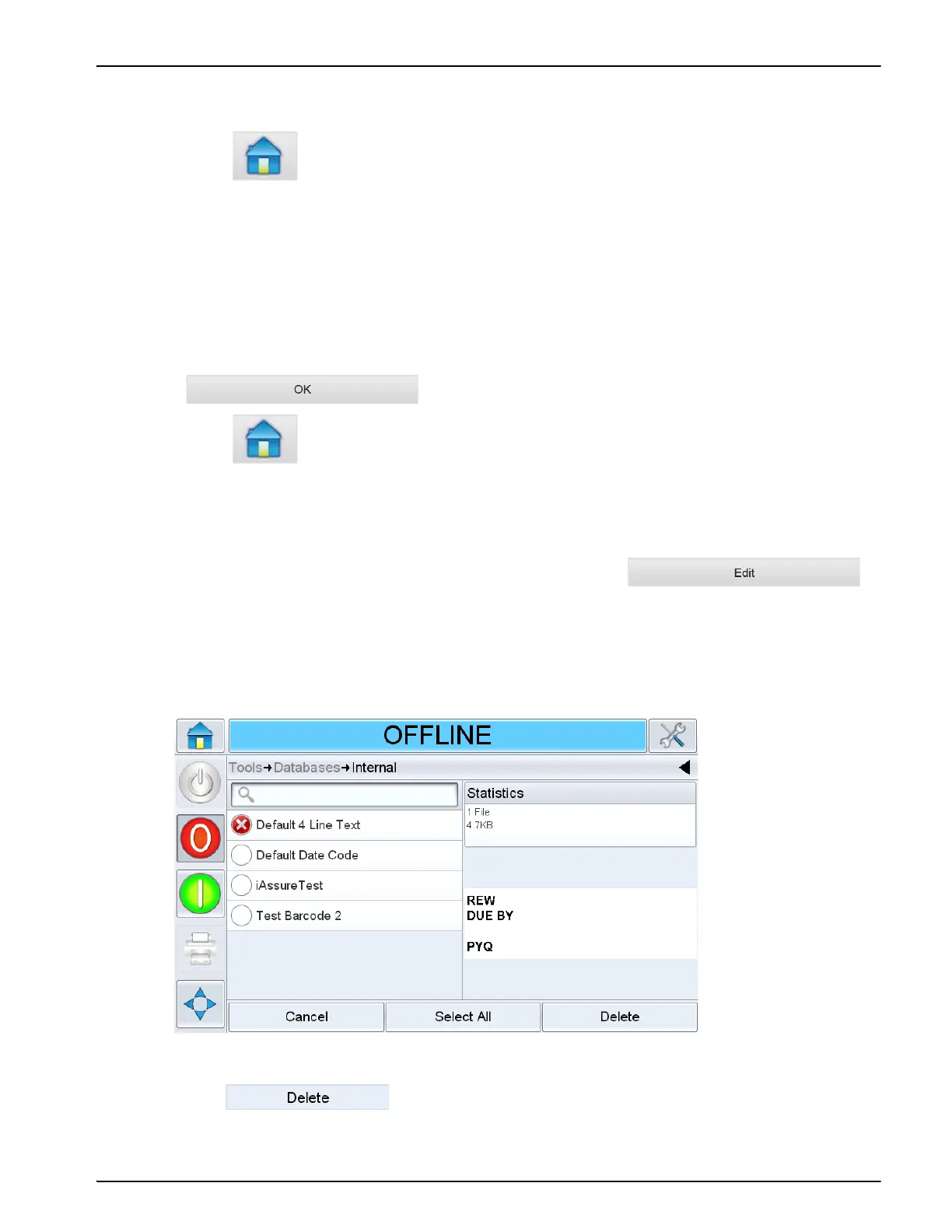
3. The internal job list screen is displayed (Figure 6-12). This screen contains a list of all the
available print jobs along with details of the space available for the storage of new jobs.
4. Touch the name of the job that you want to remove from the list of jobs. The job image appears
in the preview window. Ensure that only the selected job(s) are to be deleted.
5. Touch to delete the job.
Figure 6-12: Database Delete Window



 To Next Page