PIPS MULTI-PIP
107
MULTI-PIP
You can use any of the four input sources to provide the images that appear in the
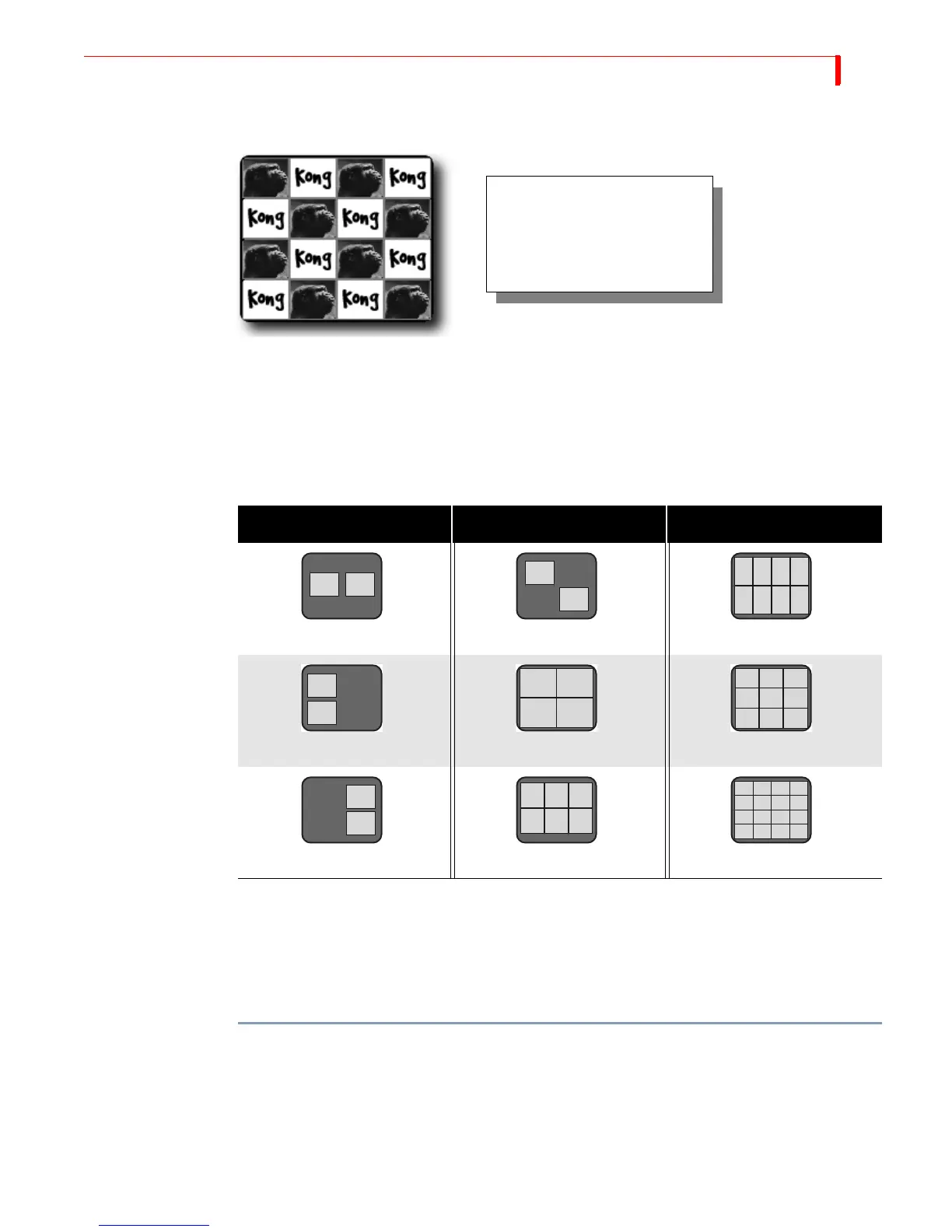
tiles. You might, for example, have the same image appear in eight of the tiles, and
another image appear in the remaining eight tiles in a 16-tile configuration.
You can choose from 9 different multi-PIP configurations by pressing the number
keys shown in the following table.
When using configurations 1 through 4, the background always appears as a solid
color. When using configurations 5 through 9, the tiles fill the entire screen, so there
is no background.
The following procedure explains when to specify which configuration you want to
use.
To create a multi-PIP image such as the one shown above:
1 Assume the image of Kong originates on input source A. Press
CUT/A to make source A
the CURRENT source. It serves as the primary input.
If you want, instead, to make the background a solid color, press
CUT/COLOR. See
“Using Color Backgrounds” on page 54 to learn how to select colors.
In Multi-PIP, as many as 16
separate images can share the
screen at the same time. Each
image appears inside a
separate tile.
Table 13: Multi-PIP Screen Configurations
NO. CONFIGURATION NO. CONFIGURATION NO. CONFIGURATION
147
2 5 8
369



 To Next Page