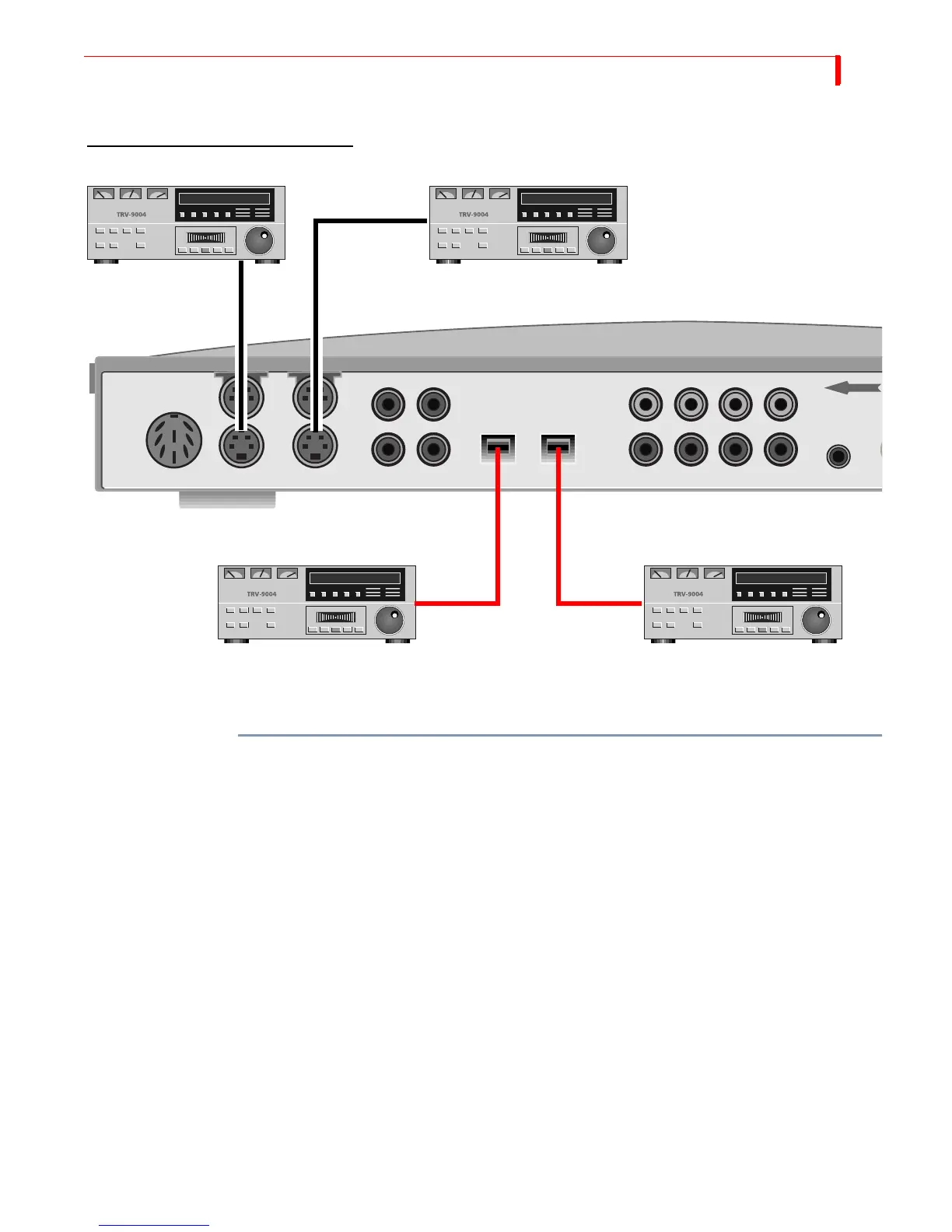
FUNCTIONS CHANGING THE ROUTING
93
Changing the Routing
To change the routing,
1 Press
ROUTE to display the Route menu.
The MXProDV has four internal channels: A, B, C and D. The route menu lets you
select which of the ten inputs are connected to each of the four channels.
Audio sources can be routed to the same four channels (A, B, C and D) and in addi-
tion, can be routed to the color channel or the background audio channel (see Chap-
ter 12, Working with Audio, for more information.)
2 Select the channel (A,B,C or D) you want to change by pressing
NEXT/A, NEXT/B,
NEXT/C, NEXT/D, NEXT/COLOR, or SHIFT+NEXT/COLOR (for Background Audio). The cur-
rently selected channel is highlighted.
3 Select the Video you want to display for this channel. Use the
UP ARROW/DOWN ARROW
keys to move to the Video row, then use the
LEFT ARROW/RIGHT ARROW keys to select a
video source.
a The first two choices are the DV sources (DV IN1 and 2).
b The remaining choices are the composite (V) and Y/C (S) sources attached to
Video IN 1 through 4.
c Video from the selected source displays in the small window on the left end of the
Video row.
Y/C IN 3 routes to Channel C
DV IN 1 routes to Channel A
DV IN 2 routes to Channel B
Y/C IN 4 routes to Channel D
DEFAULT SETTINGS FOR ROUTE FUNCTION
POWER
1
3
1
1
1234
2
L
R
L
R3
2
4
2
4
VIDEO
IN (Y/C)
VIDEO IN
DV IN
AUDIO
IN
H. PHONE
PR
IN



 To Next Page