MXPRODV USER GUIDE CHAPTER 5
62
BASIC TRANSITION CONCEPTS
Transitions create on-screen effects used when switching from one source to another
(that is, one scene to another). The most basic type of transition is the cut, where the
first frame from the NEXT source immediately replaces the last frame from the CUR-
RENT source. Cuts produce abrupt changes. Other types of transitions use special
effects to produce a smoother, more artistic change from one source to the next. The
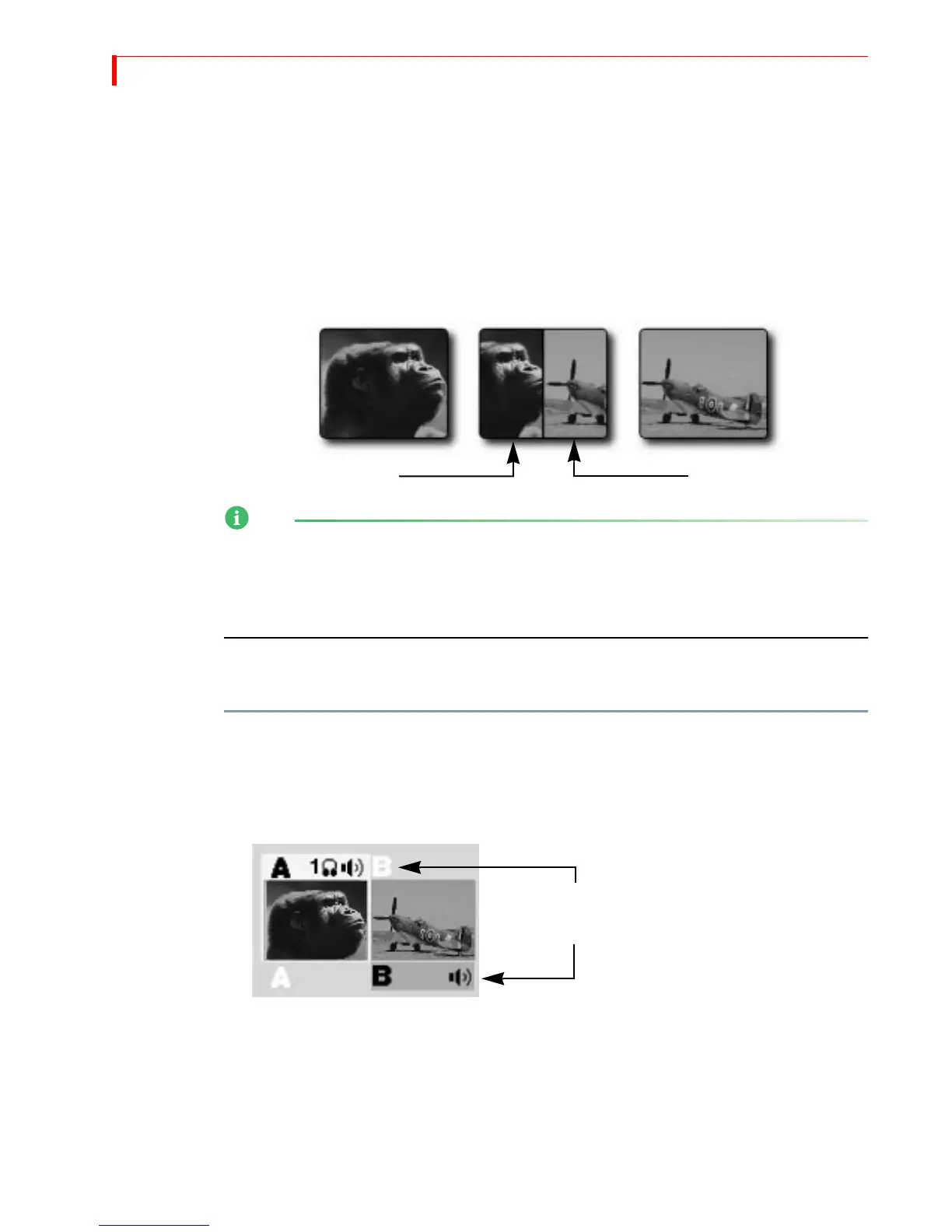
following illustration shows a horizontal wipe transition.
When discussing transitions, we use the letters a and b to differentiate the beginning
scene (a) from the ending scene (b). These letters often appear in the transition icons
to indicate the direction in which the transition travels. These letter indicators have
no relationship to the A, B, C, and D letters used to differentiate between MXProDV
channels.
The following basic steps explain how to run a transition with MXProDV. Each step
is described in more detail later in this chapter.
To run a transition:
1 Display the CURRENT source on the output screen. For example, press
CUT/A to make
A the current source.
2 Select the NEXT source — the one you want to appear on the output following the
transition. For example, press
NEXT/B to make that the next source.
3 Select a transition to use. For example, press the
BASIC Transition Category button,
then select a wipe transition from the menu.
4 Prepare the sources (such as VCRs and camcorders) and let them roll.
5 At the right moment, use either the
T-BAR or the PLAY button to run the transition.
Transition
in Progress
CURRENT NEXT
ab
Highlights above and below the source previews
indicate CURRENT and NEXT sources, respectively.



 To Next Page