MXPRODV USER GUIDE CHAPTER 12
138
AUDIO DEVICES YOU CAN USE
You can:
• Use the digital audio connected to the DV IN jacks.
• Use dedicated audio input sources, such as audio cassette players, compact disc
players, and even live microphones. (See “Using a Microphone with MXProDV”
on page 40 for installation instructions.)
• Use the audio signal coming from combined input sources, such as the audio track
contained on a video tape.
• Separate the audio signal to record only the audio track from a video tape, laser
disk player, and so forth.
WAYS YOU CAN CONTROL AUDIO
Basically, you can:
• Control the way audio transitions between scenes.
• Mix the audio coming from input sources
CONTROLLING AUDIO TRANSITIONS
You control audio transitions somewhat the same as video transitions. However,
MXProDV gives you the ability to control audio and video separately. The two com-
ponents for managing audio transitions are the
VIDEO/AUDIO selector (on the key-
board) and the top of the Preview screen.
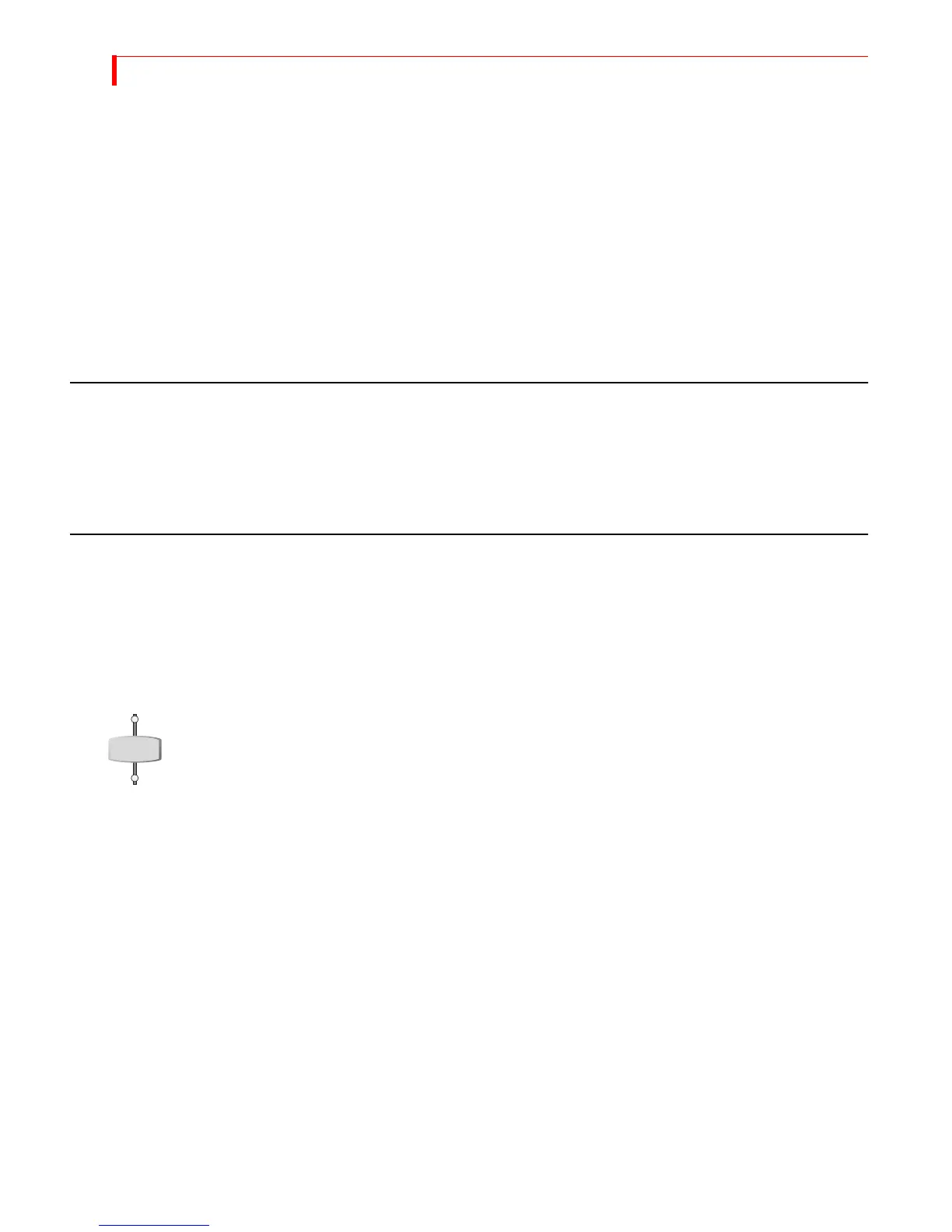
VIDEO/AUDIO Selector
Small lights appear above and below the VIDEO/AUDIO selector labeled VIDEO and
AUDIO. The lights tell you whether the next transition will affect the video, the audio,
or both. By pressing the
VIDEO/AUDIO selector you can choose between the following
states:
• To have the next transition affect both the video and audio, press
VIDEO/AUDIO
until both lights are on.
• To have the next transition affect only the audio (leaving the video unaffected),
press VIDEO/AUDIO until only the AUDIO light is on.
• To have the next transition affect only the video (leaving the audio unaffected),
press
VIDEO/AUDIO until only the VIDEO light is on.
You’ll learn more about using the
VIDEO/AUDIO selector to achieve a sound mix under
“Ways to Use Audio” starting on the next page.
VIDEO
AUDIO



 To Next Page