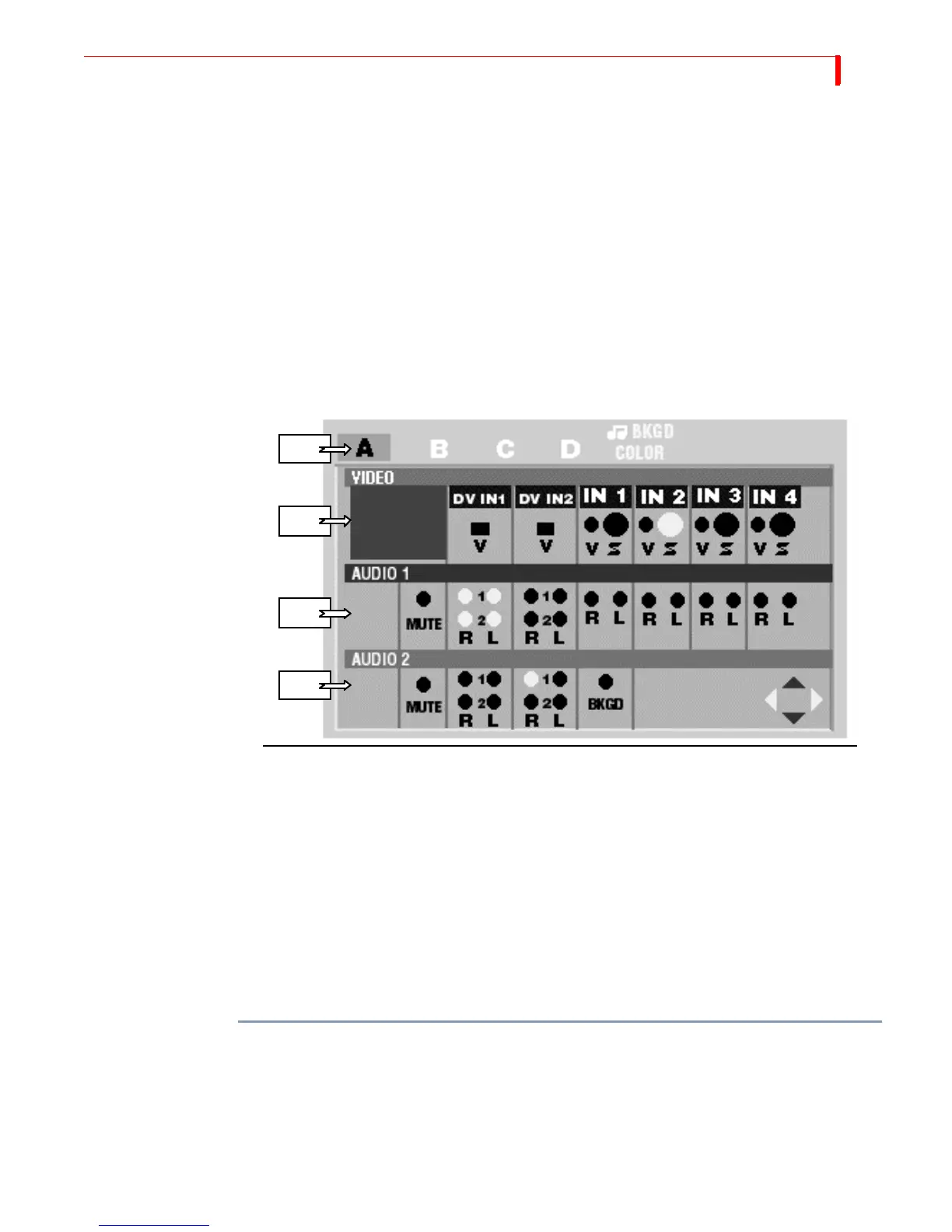
FUNCTIONS EXAMPLE: CHANGING THE ROUTING
95
b Audio 2 is output on DV audio channels 3 and 4 and on analog outputs L2 and R2
if 2-channel audio output is selected in Setup.
6 Repeat Steps 2 through 5 for any other channels you want to change.
7 Press
OK or ROUTE to exit the Route menu.
Example: Changing the Routing
Change the Routing for Channel C. Make video come from DV IN1, make AUDIO1
come from L1 and R1 of DV IN1, and make Audio 2 mute.
1 Press
ROUTE to display the Route menu.
2 Select the channel by pressing
NEXT/C. Verify that channel C is highlighted.
3 Select the Video. Use the
UP ARROW/DOWN ARROW keys to move the red highlight bar
to the Video row, then use the
LEFT ARROW/RIGHT ARROW keys to select DV IN1.
4 Select the Audio 1 source. Use the
UP ARROW/DOWN ARROW keys to move to the Audio
1 row, then use the
LEFT ARROW/RIGHT ARROW keys to select DV IN 1 R1 + L1.
5 Select the Audio 2 source: If 2-channel Audio Output is selected in the Setup menu,
you cannot access Audio 2 (because it is used to select the audio source for channels
3 & 4). If 4-channel audio is available, use the
UP ARROW/DOWN ARROW keys to move
to the Audio 2 row, then use the
LEFT ARROW/RIGHT ARROW keys to select MUTE.
Routing Audio Through Color or Background Channels
Don’t forget that you can route audio through the Color and Background Channels.
These are useful for fading to colors while maintaining the same audio source or mix-
ing words with a music background.
To route audio through the Color or Background Channels:
1 Press
NEXT/COLOR to select Color or SHIFT+NEXT/COLOR to select Background Audio.
2 Use the
LEFT ARROW/RIGHT ARROW keys to select the audio to use from the Audio 1
row.
If 4-channel audio output is selected in the Setup menu, you can select Audio2 for the
Color Channel. Background audio comes from Audio 1 only.
2
3
4
5



 To Next Page