MXPRODV USER GUIDE CHAPTER 5
70
ADJUSTING TRANSITIONS
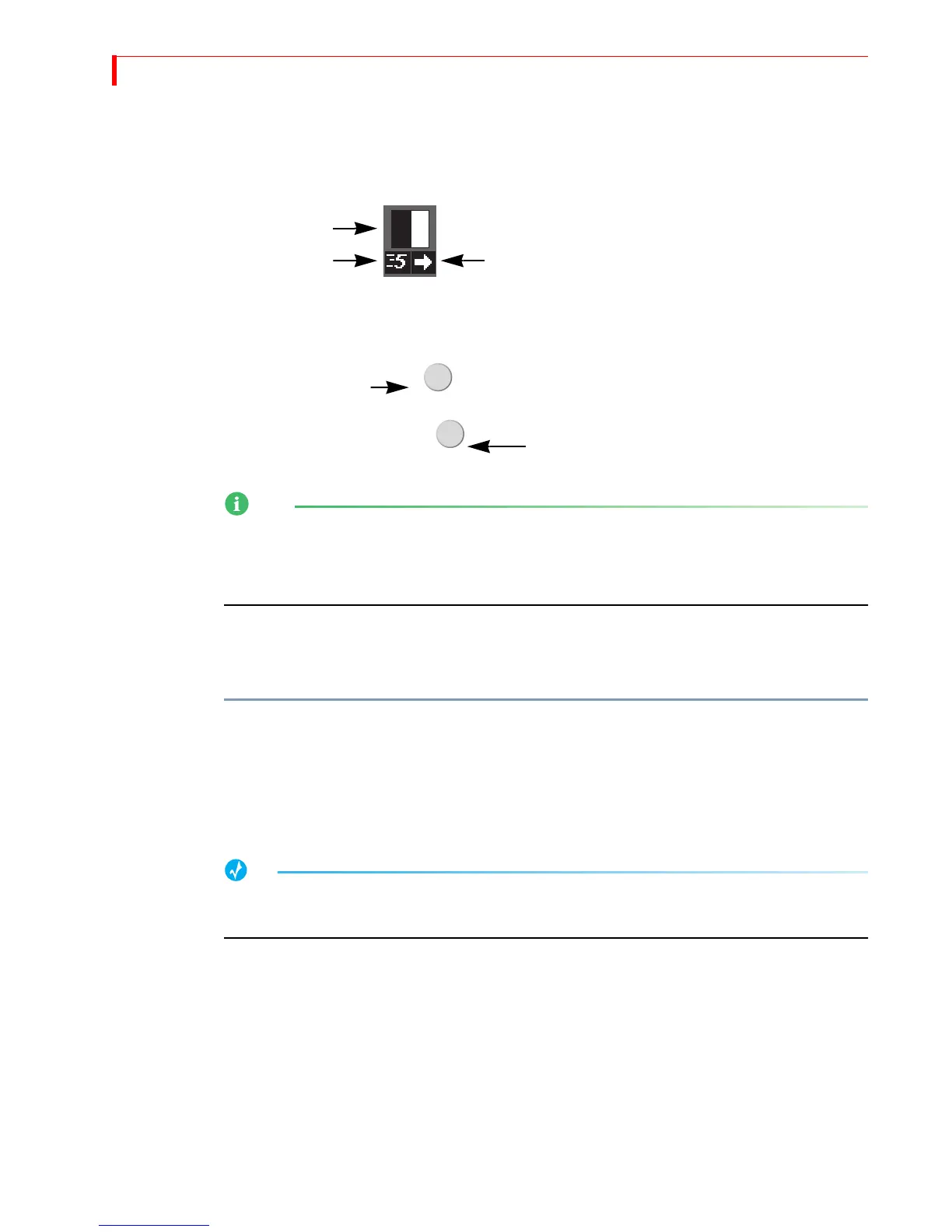
Every transition runs at a pre-set speed and direction. Symbols appear below the
transition icon in the Transitions Menu indicating the current speed and direction.
Use the
SPEED and REVERSE buttons to change the speed and/or direction of a transi-
tion.
When you change a transition’s speed and/or direction, the change applies to all
other transitions until you specifically change it. For example, if you set the speed
of the current transition to 4, all subsequent transitions run at this same speed until
you again change the speed factor. This also applies to transition direction.
Changing Transition Speed
Transition speed values can range from 0 (slowest) to 9 (fastest).
To change the transition’s speed:
È Press SPEED. Each press increases the speed by one unit. Press SHIFT+SPEED to decrease
the speed by one unit.
MXProDV changes the Transition Speed indicator below the transition icon to the
currently selected value. You can change the speed any time either prior to running
the transition, or while it runs (which allows you to make adjustments “on the fly.”)
To directly set the speed to a specific value, press and hold the SPEED button while entering a
value from 0 to 9 on the numeric keypad.
Changing Transition Direction
Transitions can run in two directions — forward and reverse. If you use the PLAY but-
ton, transitions run, by default, in the forward direction. If you use the
T-BAR, moving
it up runs the transition forward; moving it down runs it in reverse. For example, a
simple wipe transition might move a vertical border across the screen from right-to-
left or left-to-right, replacing scene a with scene b.
Transition Speed Transition Direction
Transition Icon
REVERSE
SPEED
Transition Direction
Transition Speed



 To Next Page