BASIC OPERATIONS CHANGING THE DISPLAY CONFIGURATION
47
Changing the Display Configuration
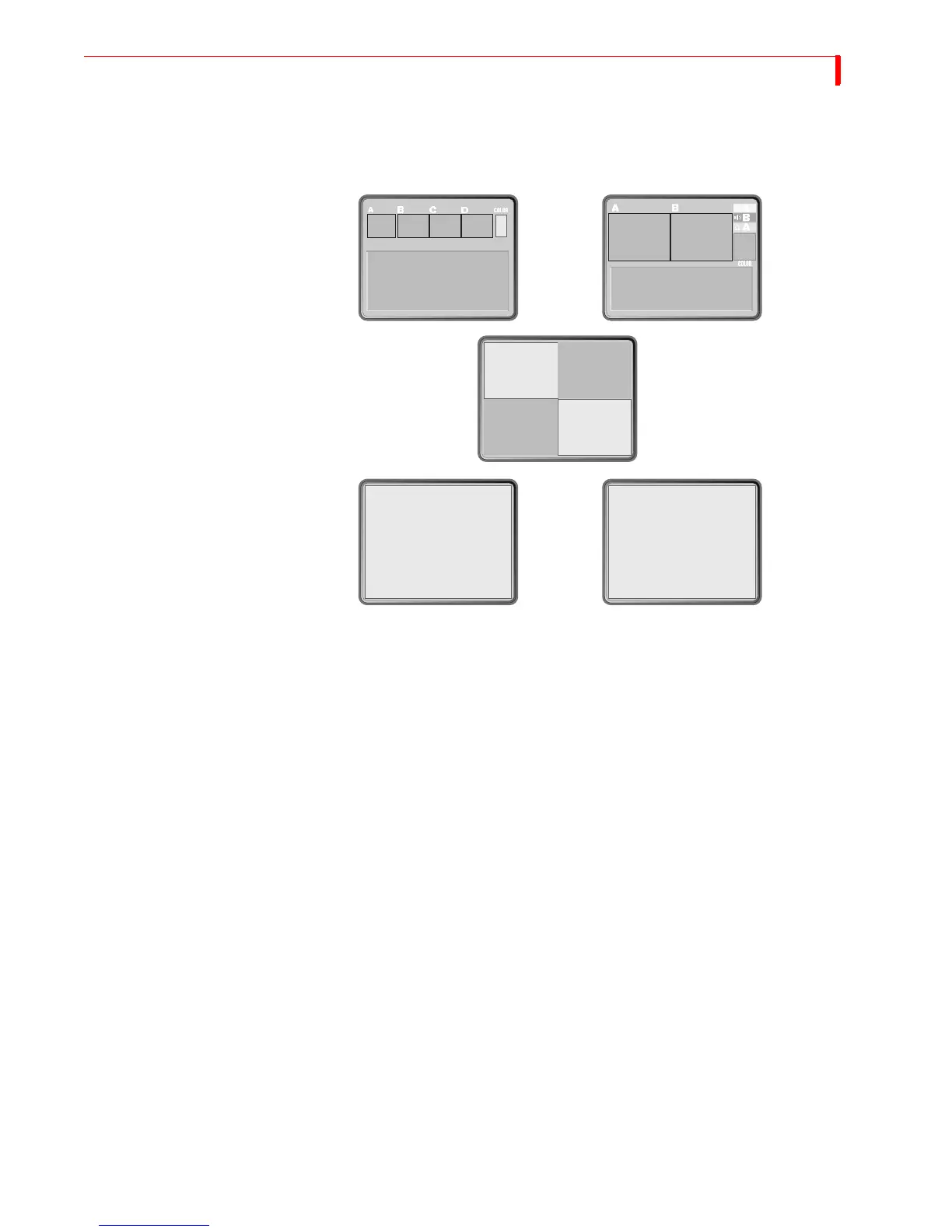
Press the DISPLAY button to repeatedly cycle through five different configurations for
the Preview screen, or use the shortcut key indicated for each:
• Standard — (
SHIFT+1) Shows preview images for all four input sources and up to
30 different transition options.
• Two Channel — (
SHIFT+2) Shows only enlarged CURRENT and NEXT input source
Previews and two rows of the Transitions menu.
• Full – (
SHIFT+3) Displays only the input source Preview windows, each in a larger
size. Transitions menu not displayed.
• Next — (
SHIFT+4) Displays full-screen image of the NEXT input source. Transi-
tions menu not displayed.
• Current — (
SHIFT+5) Displays full-screen image of the CURRENT input source.
Transitions menu not displayed.
See “Display” beginning on page 87 for more information. Unless stated otherwise,
this guide assumes you are using the Standard preview.
Input Source Previews
A small, preview image from each input source appears in a separate window. Use the
previews to direct the action, position cameras, find a particular sequence on a video
tape, and so forth. The preview images do not show input effects (see Chapter 6, Input
Effects).
Transitions
Transitions
Input
Source
Input
Source
Input
Source
Input
Source
NEXT Input Source CURRENT Input Source
Standard Two Channel
Next Current
(SHIFT+1)
(
SHIFT+4)(SHIFT+5)
(
SHIFT+2)
Full Display
(
SHIFT+2)



 To Next Page