TRANSITIONS SELECTING TRANSITION SOURCES
67
SELECTING TRANSITION SOURCES
An important step in setting up a transition is to identify the CURRENT and NEXT
sources. Use CUT and NEXT to choose the two sources. MXProDV provides feedback
in a couple of different ways to confirm your choices.
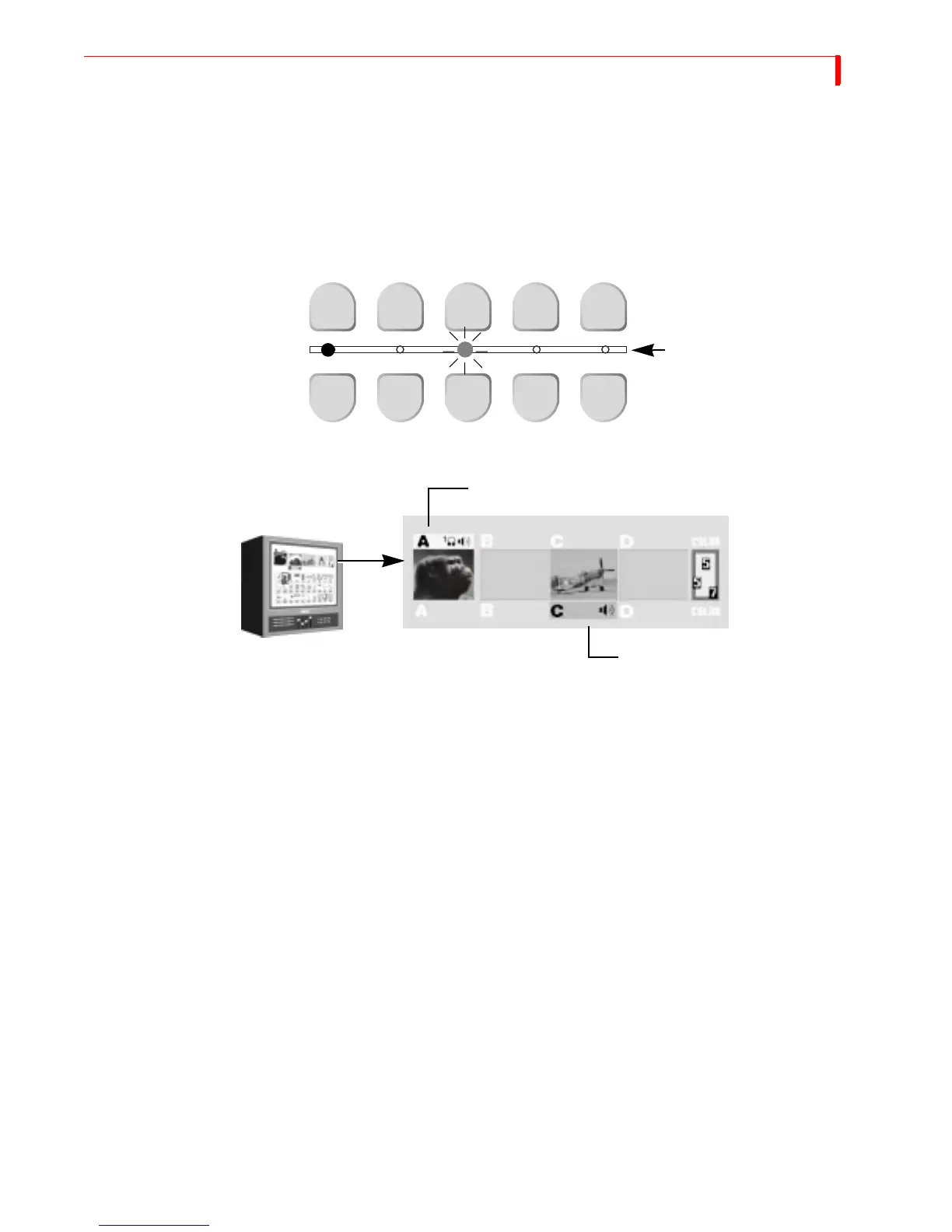
MXProDV identifies the CURRENT source by a yellow highlight on the Preview
screen and a steady light beneath the corresponding
CUT button. It identifies the
NEXT source by a green highlight on the Preview screen and a flashing light above
the corresponding
NEXT button.
If you make CURRENT and NEXT the same source, the source light (between the two
rows of buttons) flashes as though it were just the NEXT source.
Setting the CURRENT Source
In many cases you don’t need to select the CURRENT source because the ending
source from the previous transition automatically becomes the new CURRENT
source (see the diagram on page 63). However, if you want to change the CURRENT
source, press the corresponding
CUT button. For example, pressing CUT/D makes D the
CURRENT source, and the Program monitor immediately displays D’s signal.
Setting the NEXT Source
To specify the NEXT source, press the corresponding NEXT button. For example, to
make D the next source, press
NEXT/D.
CUT
NEXT
A B C D COLOR
A B C D COLOR
The lights between the rows of
CUT and NEXT buttons act as
indicators. A steady light
identifies the CURRENT source
(A) – a flashing light identifies
the NEXT source (C).
Selecting Sources and Getting Feedback
Yellow highlights the CURRENT source (A)
Green highlights the NEXT source (C)



 To Next Page