WORKING WITH AUDIO USING THE AUDIO MIXER
141
USING THE AUDIO MIXER
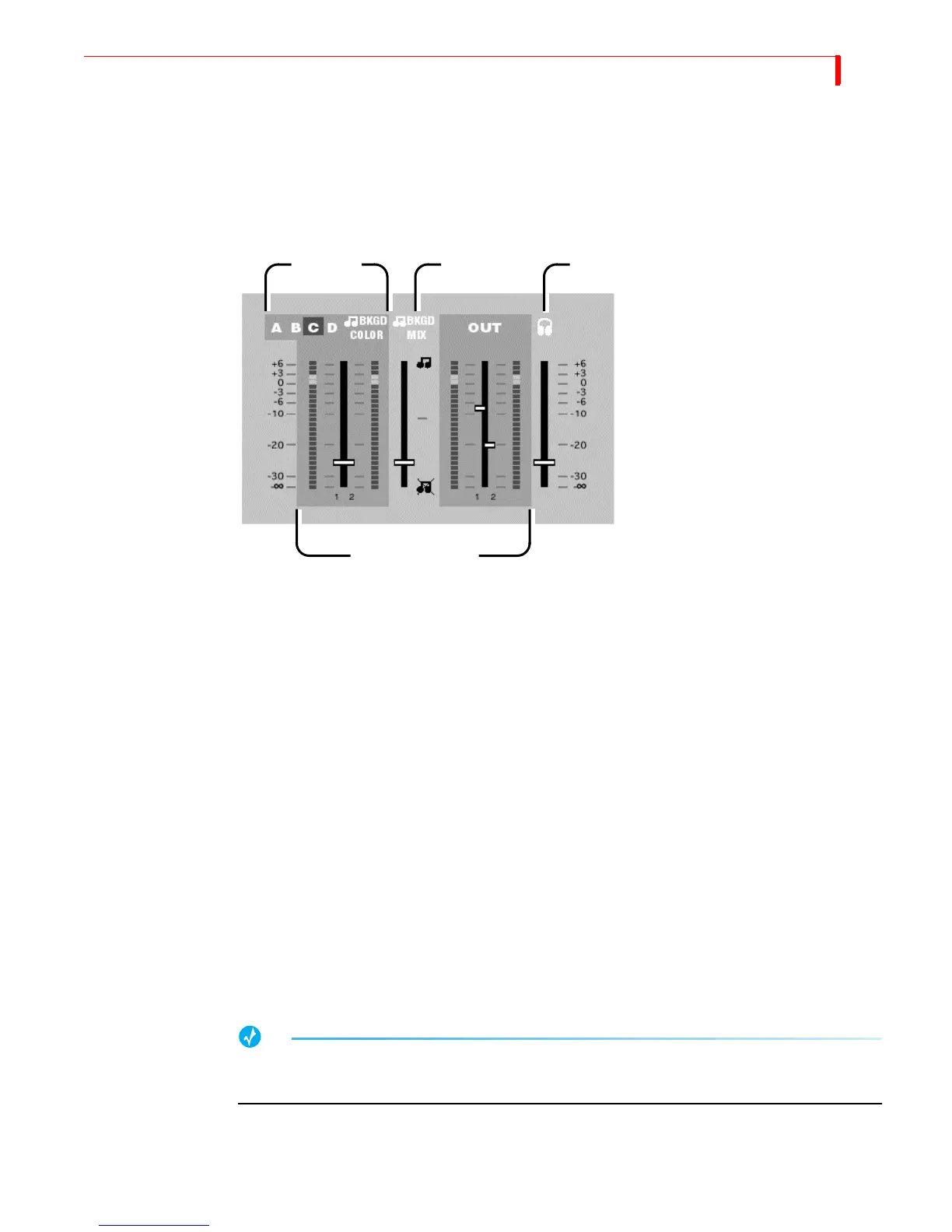
MXProDV’s Audio Mixer provides extensive control over all audio channels. You can,
for example, subdue the audio on one channel (such as background music) and
pump up the audio on another (such as the narrative).
To access the Audio Mixer, press
AUDIO MIX in the Functions button group.
Audio Channels—Select the audio channel you want to adjust or monitor by using
the NEXT keys (
NEXT/A, NEXT/B, …, NEXT/COLOR, or SHIFT+NEXT/COLOR for the back-
ground audio channel). If there is no audio on the channel you select, verify the
Route information using the Route function.
Volume Slider and Level Meters—Use the level meters to visually monitor the output
audio signal for the selected input channel. Use the slider to adjust the volume. If 4-
channel audio output is selected (Setup menu), the slider is divided into two halves.
The left half controls the volume for Audio 1 (channels 1 & 2); the right half controls
the volume for Audio 2 (channels 3 & 4). A middle position lets you adjust both
Audio 1 and Audio 2 simultaneously.
Background Mixer—Use this slider to control the mix between the current audio
source and the background audio.
• If the slider is all the way down, there is no mix: 100% of the audio comes from
the selected audio channel.
• If the slider is all the way up, 100% of the audio comes from the background
audio channel. (You define what audio is used for background audio in the Route
menu.)
• If the slider is somewhere in between, part of the audio comes from the current
channel (A, B, C, D or Color) and part of it comes from the Background Audio
channel.
If Background Audio is not being used, be sure to set the Background Mixer slider all the way
down.
Headphone Slider—Use this slider to control the volume of the audio played in the
headphones.
MixerChannels
Volume Sliders and
Audio Background
Headphone volume
Level Meters



 To Next Page