MXPRODV USER GUIDE CHAPTER 9
114
MANIPULATING TILES
You can place foreground tiles anywhere you want on the screen. You can set their
size, fill them with color or images, and set their border characteristics.
Remember, once you place and define a foreground tile you cannot change it. Plac-
ing the tile occurs once you move the Compose Cursor (or, rectangle) to any other
position on the screen. You’ll learn about the Compose Cursor in this section.
Positioning Tiles
When you press the COMPOSE button to enter Compose mode, MXProDV shows your
choice of background on both the Preview and Output monitors. MXProDV also dis-
plays a flashing rectangle at the center of the Preview screen. This flashing rectangle
is called the Compose Cursor.
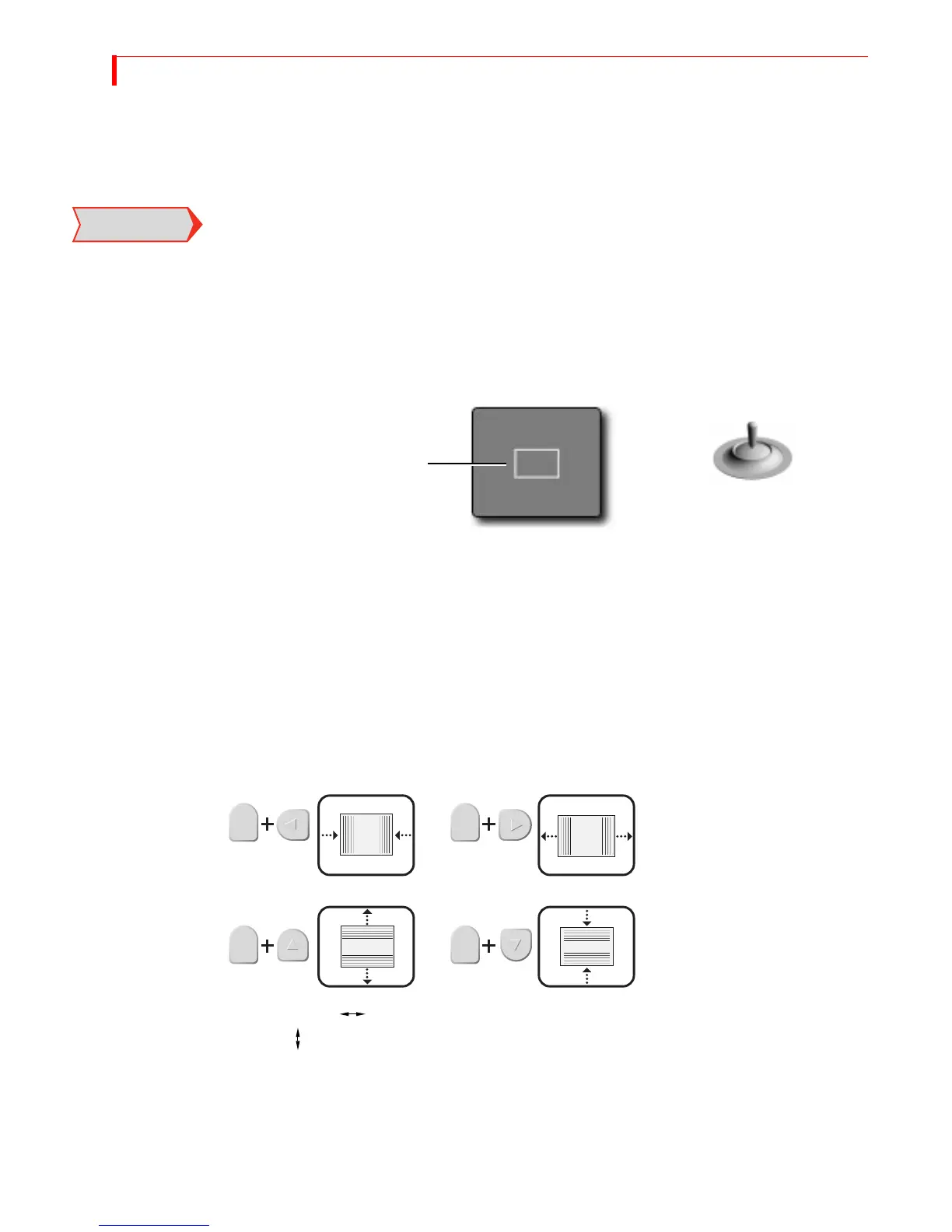
Use the
JOYSTICK to move the Compose cursor where you want it on the screen. You
can also use the
ARROW keys to make fine adjustments.
Sizing Tiles
You can make foreground tiles any size you want, from covering the entire screen to
a thin horizontal or vertical line.
Always establish the size of the tile before filling it with a solid color, moving video,
or a still image.
Use the
SHIFT key in conjunction with one of the ARROW keys to adjust tile size. Enter
SHIFT+0 (zero) to restore the tile to its default size.
Enter
SHIFT+FLIP to reproportion the tile based on its current width. Enter
SHIFT+FLIP to reproportion the tile based on its current height.
IMPORTANT
INFORMATION
JOYSTICK positions Compose Cursor
The Compose Cursor (a
flashing rectangle) appears on
the Preview screen when you
enter Compose mode.



 To Next Page