COMPOSE COMPOSITION R ULES
115
COMPOSITION RULES
Observe the following rules when creating compositions.
• Select and define the image you want to use as the background before entering
Compose mode.
• A composition can contain one background and anywhere from one to 16 fore-
ground tiles.
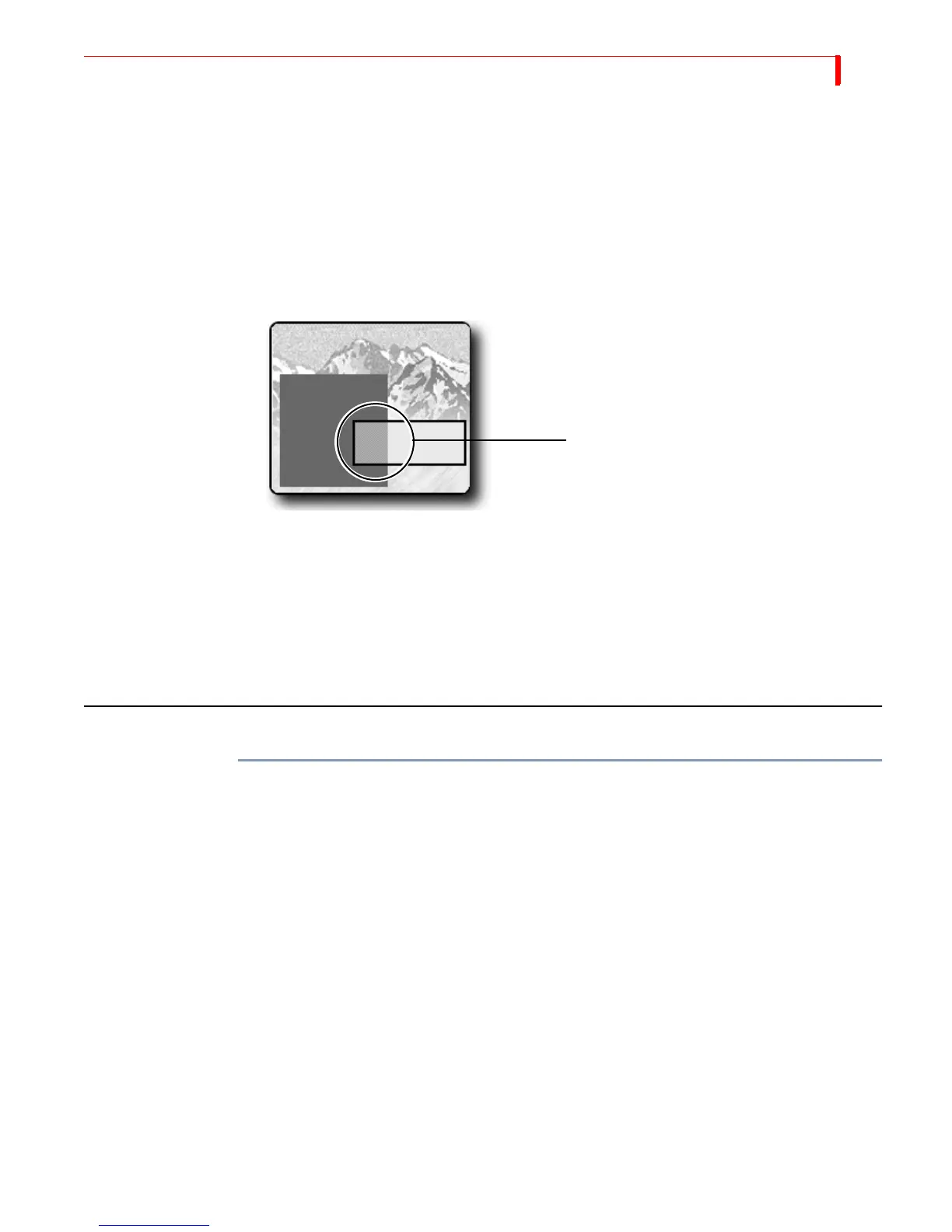
• When you create a foreground tile that overlaps an existing solid color rectangle
or still image, the overlapping portion erases whatever it overlaps.
• Reducing the size of a still or moving video image normally introduces minor
pixel artifacts, thus reducing quality.
• Once you place (or, stamp) a foreground tile into place, you cannot move or
change it.
• To use a composed image, you must record or display it on the output. There is
no other way to save the composition.
• You cannot use composed screens in conjunction with Learn mode.
CREATING A COMPOSED IMAGE
To create a composition:
1 Create or choose the background on the Preview screen. Do this before entering
Compose mode because the CURRENT source at the time you enter compose mode
automatically becomes the background for the composition.
a Solid Color Background – Use the
BG COLOR button to select the color you want.
Then press
CUT/COLOR or use a transition to make COLOR the CURRENT source.
b Moving Video Sequence – Use the appropriate
CUT button to make the desired
input source the CURRENT one. For example, to use a moving video sequence
from source C as the background, press
CUT/C.
c Still Image – Use the appropriate
CUT button to make the desired input source
the CURRENT one. For example, to use a frame from source B as the background,
press
CUT/B. When the frame you want to use as the still image appears on the
Preview screen, press
FREEZE to create the still image.
d Color Bars – Press
SHIFT+NEXT COLOR while in Compose mode to display color
bars in the background.
e Input Effects – Apply any Input Effects you want to the background source before
entering Compose mode. Input Effects can only be applied to the background
source.
The larger tile is drawn first. When the
second tile is drawn, it overlaps part
of the larger one. The overlapping
portion of the smaller tile erases that
portion of the larger tile where the
two overlap.



 To Next Page