WORKING WITH AUDIO SELECTING AUDIO SOURCES
139
Selecting Audio Sources
Select audio sources the same way you select video sources, using the CUT and NEXT
buttons and the highlights at the top of the Preview screen.
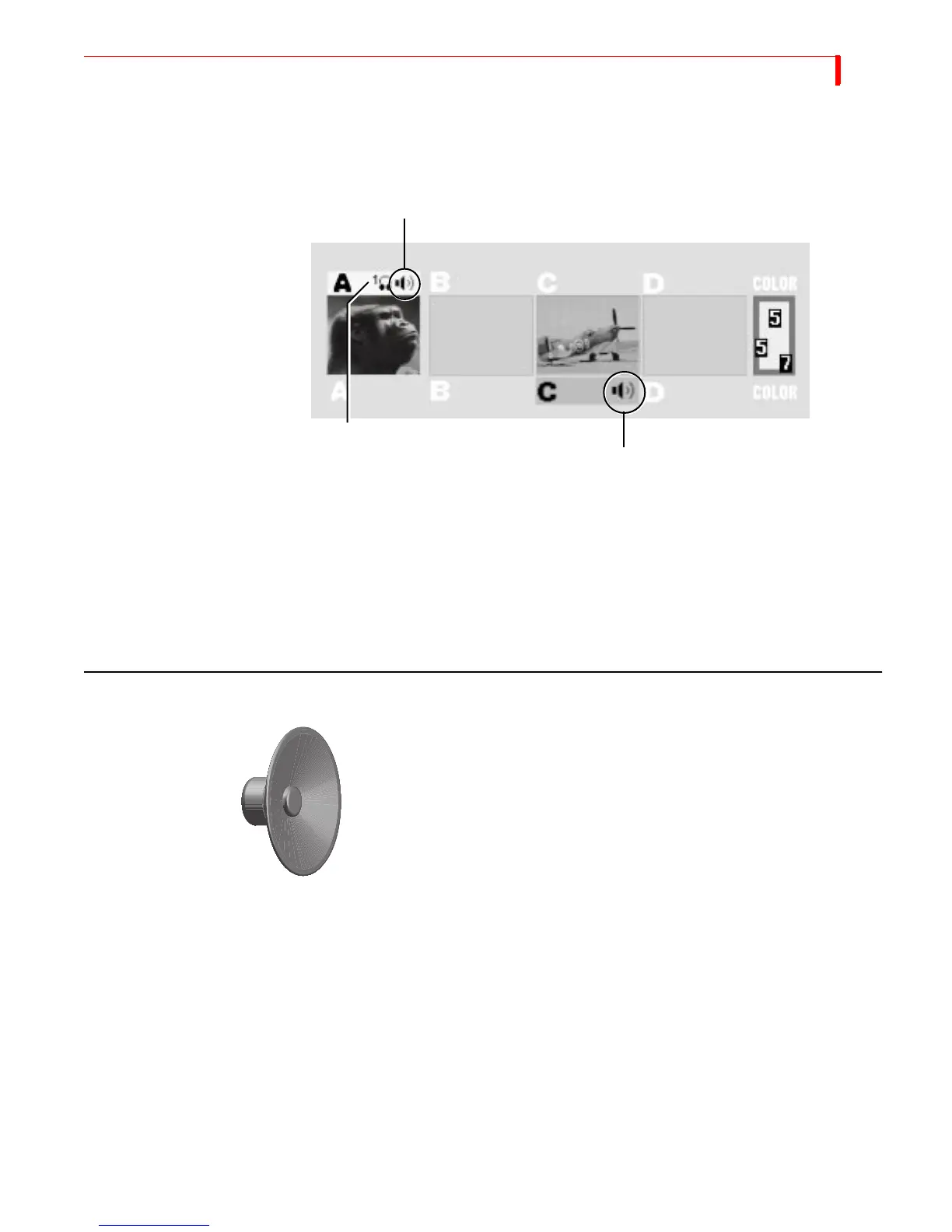
Remember, MXProDV highlights the CURRENT video source in yellow (above the
Preview window). The speaker icon inside the highlight indicates that the current
audio is on channel A. MXProDV highlights the NEXT video source in green (below
the window). The speaker icon in this location means after you run the next transi-
tion, channel C’s audio plays through.
In addition, the headphones icon indicates you can monitor this particular audio
through the MXProDV headphone jack, located on the rear of the unit.
WAYS TO USE AUDIO
You can manage audio in several different ways during video transitions. This section
explains some of the more useful methods.
Audio Accompanies Video
When you transition from one source to another, you might want the native audio
(that is, the sound recorded on the original media) to transition right along with the
video.
Suppose you want to dissolve from a shot of a car arriving in front of a house to a shot of
the person entering the house through the front door. In this case, you might want to
hear the car drive up, then hear the door to the house open.
CURRENT Audio Source
NEXT Audio Source
Indicates that source can be
monitored through MXPro’s
headphone jack



 To Next Page