MXPRODV USER GUIDE CHAPTER 8
106
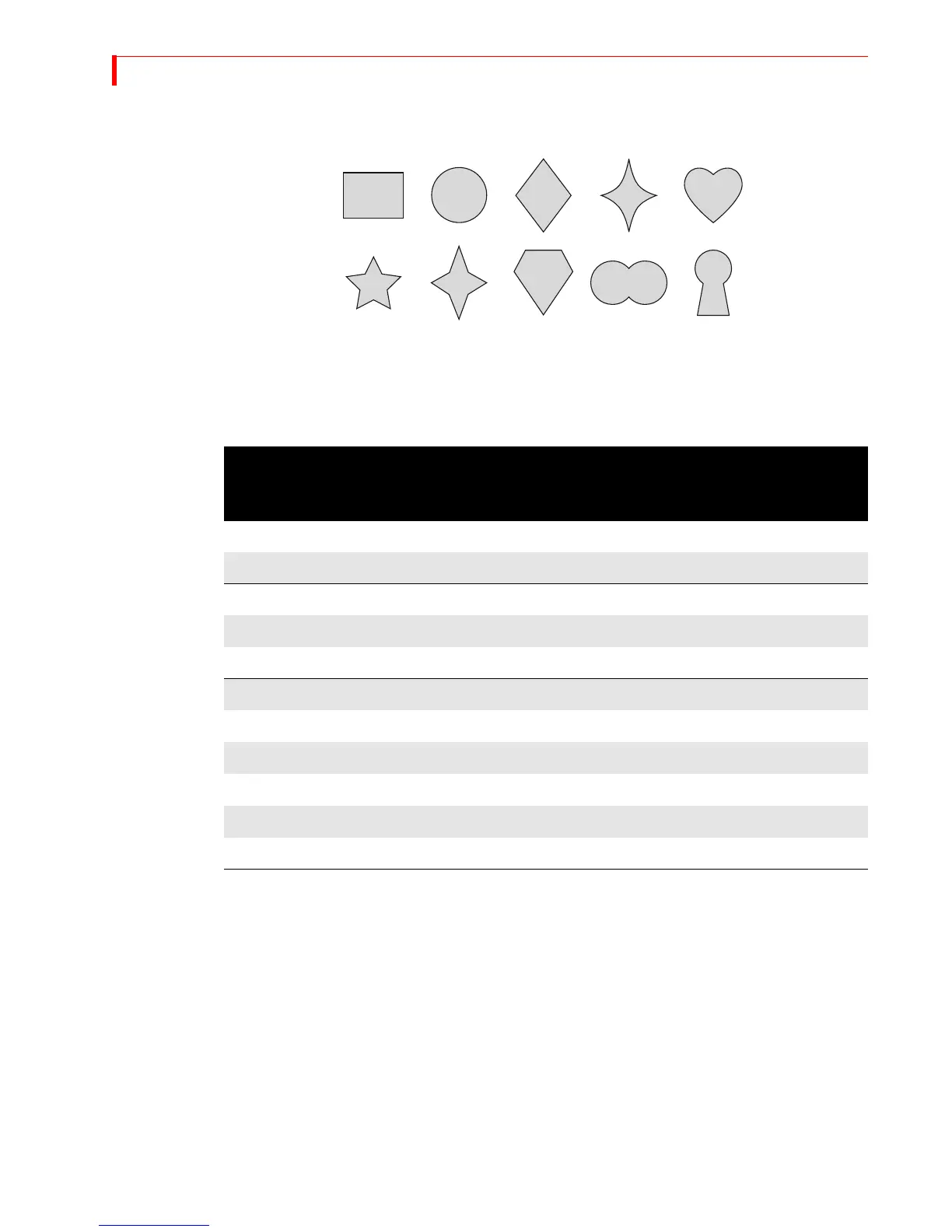
You can apply the following shapes to PIP tiles. To select a shape, press the numeric
key (0 through 9) that corresponds to the shape you want, as indicated below.
Manipulating the
Mask
The mask changes shape, size, and position when you change the corresponding
attribute of the foreground tile. You can, however, manipulate the mask indepen-
dently, as discussed in this section.
Using Other Effects with Single PIPs
Input Effects You can apply any of the input effects (see Chapter 6, Input Effects) to the background
and any except color correct to the foreground tile). Apply the input effect(s) you
want prior to entering PIP mode.
The Freeze Effect You can apply the Freeze effect (see “Freeze” on page 97) to the background and/or
foreground tile.
Press
FREEZE while in PIPs mode to freeze the background. Press FREEZE again to release
the freeze effect.
Press
SHIFT+FREEZE while in PIPs mode to freeze the foreground tile. Press SHIFT+FREEZE
again to release the freeze effect.
When you exit PIPs mode, MXProDV removes the freeze effect from the foreground
source.
Table 12: Manipulating PIPs Mask
TO
CHANGE
MASK…
USE OR PRESS… NOTES…
Position
SHIFT+JOYSTICK
Change mask position.
Style (Press keys repeatedly to cycle through available colors and styles.)
BORDER COLOR
Change mask border color.
BORDER STYLE
Change mask border style.
Size
SHIFT+T-BAR
Change mask size.
SHIFT+UP ARROW
Increase vertical size of mask.
SHIFT+DOWN ARROW
Decrease vertical size of mask.
SHIFT+RIGHT ARROW
Increase horizontal size of mask.
SHIFT+LEFT ARROW
Decrease horizontal size of mask.



 To Next Page