MXPRODV USER GUIDE CHAPTER 5
64
TRANSITION CATEGORIES AND MENUS
To help manage the 500+ transitions, MXProDV separates them into five logical cate-
gories — User, Basic, Edges, Trailing, and Shapes. Use the Transition Category but-
tons to access the different categories.
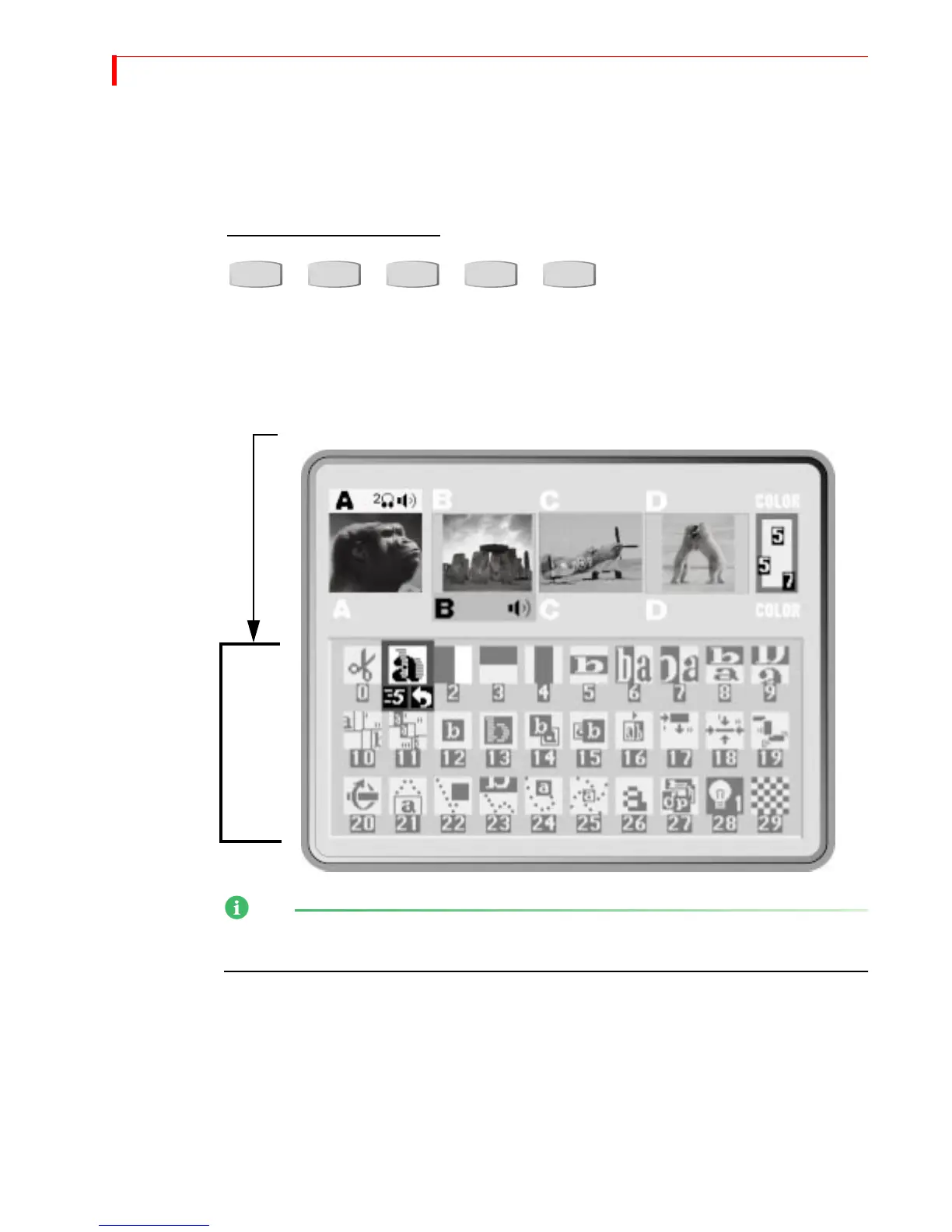
When you press a Transition Category button, MXProDV displays the transitions
available in that category in the Transitions Menu. The content of the menu differs
depending on which category you select. However, the menus have a common struc-
ture and always appear in the same place.
The Transitions Menu does not appear when you work with the Full, Current, or Next
Preview screen. See “Display” beginning on page 87 for more information.
Use the ARROW keys to navigate the Transitions Menu. If the category contains more
transitions than can appear in the menu at one time, use the
UP and DOWN ARROW
keys to scroll through them. You can scroll through only those transitions in the cur-
rent category.
MXProDV color codes the transition icons in the menu:
Basic White
Edges Blue
Trailing Yellow
Shapes Red
USER BASIC EDGES TRAILING SHAPES
TRANSITION CATEGORY BUTTONS
The content of the Transitions Menu differs depending on the Category selected.
Transitions
Menu



 To Next Page