MXPRODV USER GUIDE CHAPTER 5
68
SELECTING TRANSITIONS
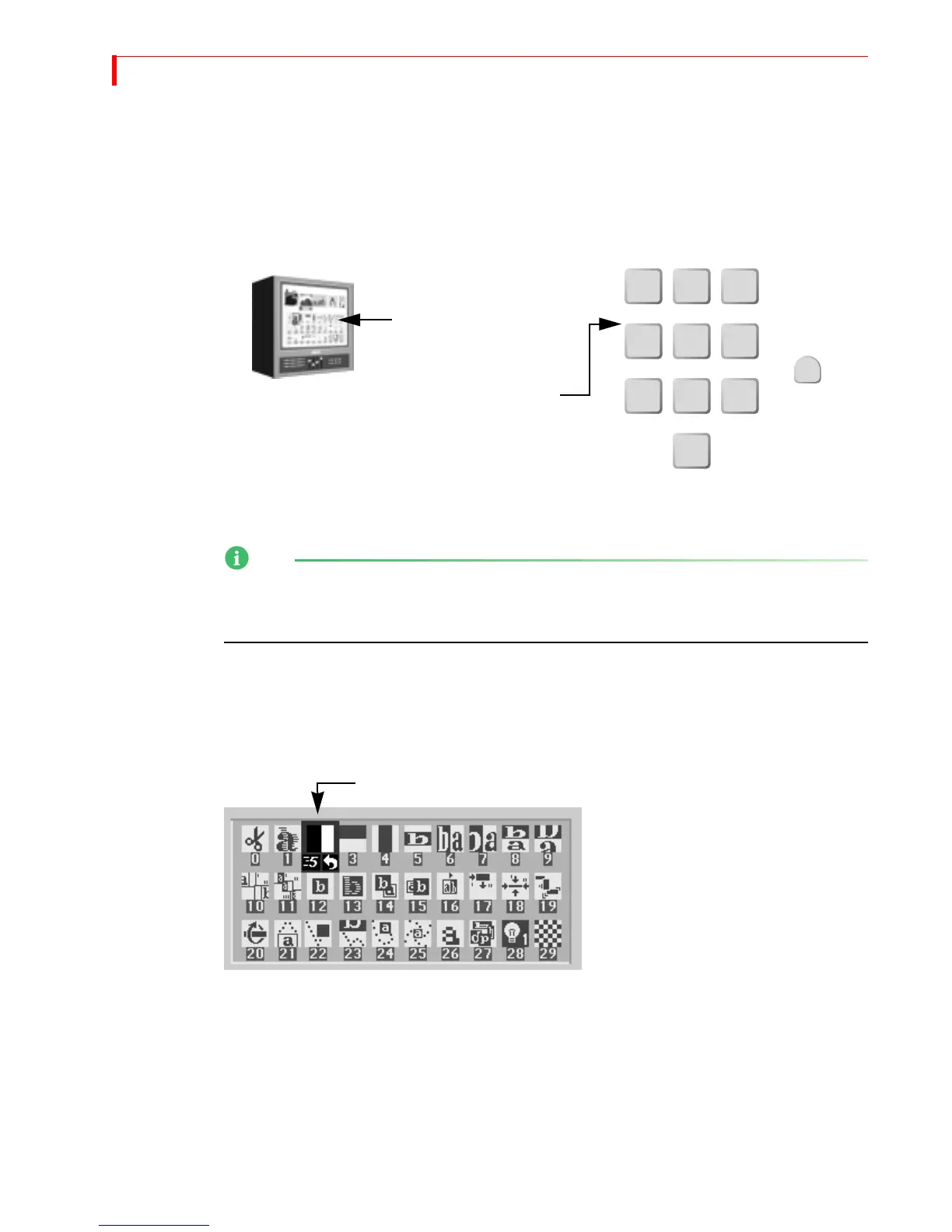
To select a transition to use between the CURRENT and NEXT sources, do one of the
following:
• Use the
ARROW keys to select from the Transitions Menu on the Preview screen; or,
• Enter the transition’s assigned number on the MXProDV numeric keypad, then press
OK.
When selecting from the USER category, you must always use the ARROW keys to select a
transition from the Transition Menu on the Preview screen. Entering a transition
number and pressing OK replaces the current transition with the one you select.
Using the Transitions Menu
The Transitions menu appears just below the preview images on the Preview screen
when you set the Preview to Standard or Two Channel mode (see “Display” begin-
ning on page 87 for more information about Preview modes).
1
4
7
2
5
8
0
3
6
9
OK
Preview
Screen
Numeric
Keypad
Use
ARROW keys to select a
transition from the
Transition Menu on the
Preview Screen…
or
…enter the transition
number on the keypad…
then press
OK.
…
Blue highlights the selected transition
Each icon in the
menu represents
one transition.



 To Next Page