MXPRODV USER GUIDE CHAPTER 4
50
3 Select a transition to use when switching from the CURRENT to NEXT source, such as
a right-to-left wipe.
Use the
ARROW keys to highlight the transition in the Transitions Menu. See “Selecting
Transitions” beginning on page 68 for additional methods of selecting transitions.
4
Roll the CURRENT source to the spot where the transition should run, then press PLAY.
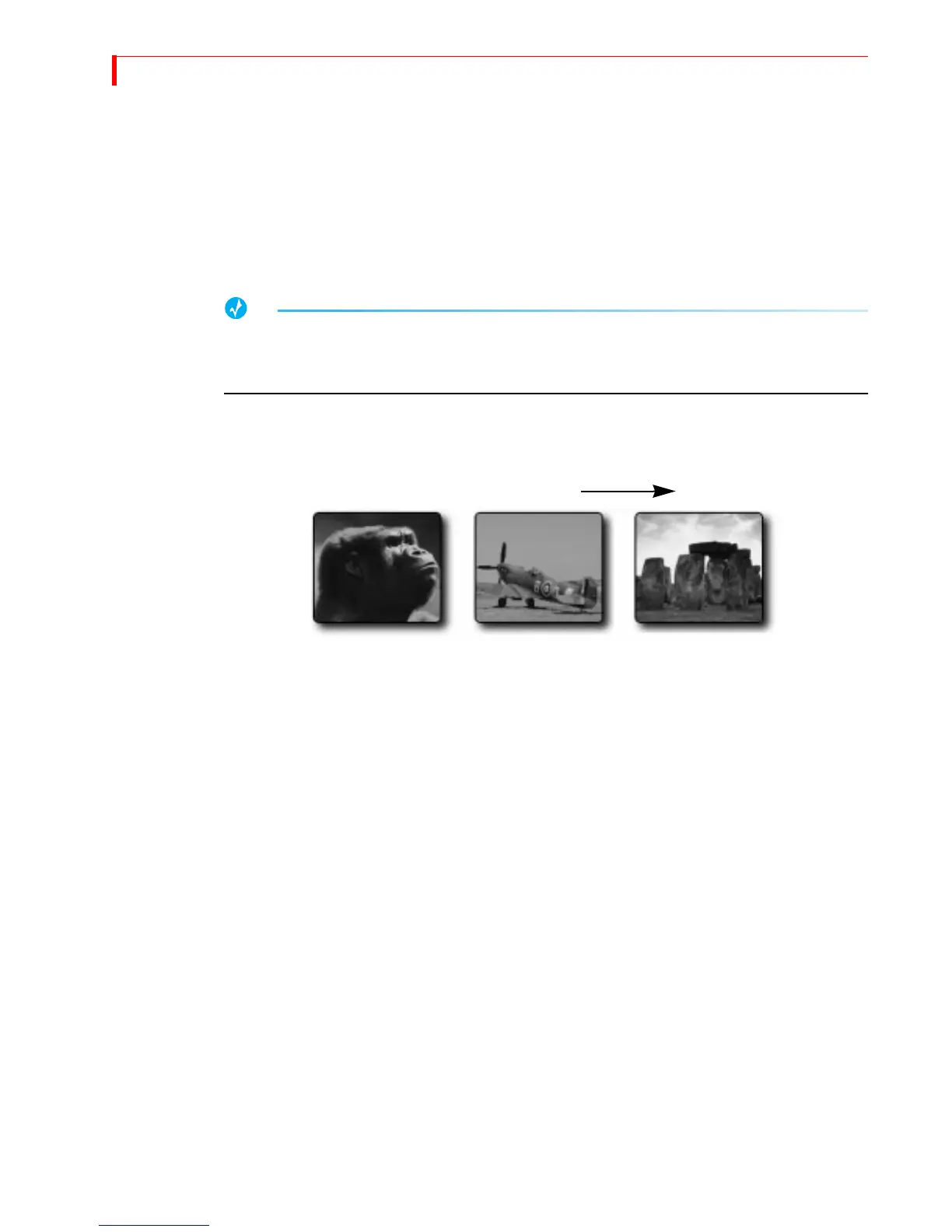
Immediately upon completion of the transition, MXProDV makes the CURRENT
source (Kong) the NEXT source, and makes the NEXT source (the fighter plane) the
CURRENT source.
You can use this automatic swapping of CURRENT to NEXT and vice versa to your advantage.
When you want to cut back and forth between only two sources, the automatic swapping
always selects the next source for you.
For this procedure, however, you need to make Stonehenge the NEXT source so that
when transitioning out of the fighter plane, Stonehenge comes on screen.
5
Press NEXT/C to select Stonehenge as the NEXT input source.
6 Select a transition to use this time to switch from CURRENT to NEXT source, such as a
slow dissolve. The CURRENT source (the fighter plane) continues running, and contin-
ues to appear on the output device.
7 To transition to Stonehenge, hold down the
SHIFT button and move the T-BAR to the
bottom of its slot, release the
SHIFT key, then swing the T-BAR upwards at whatever
speed you want the dissolve to happen.
The
T-BAR and the PLAY button run the same transition, except that the T-BAR lets you
manually control the speed at which the transition runs.
CURRENT NEXT
Source B
Source C
Source A



 To Next Page