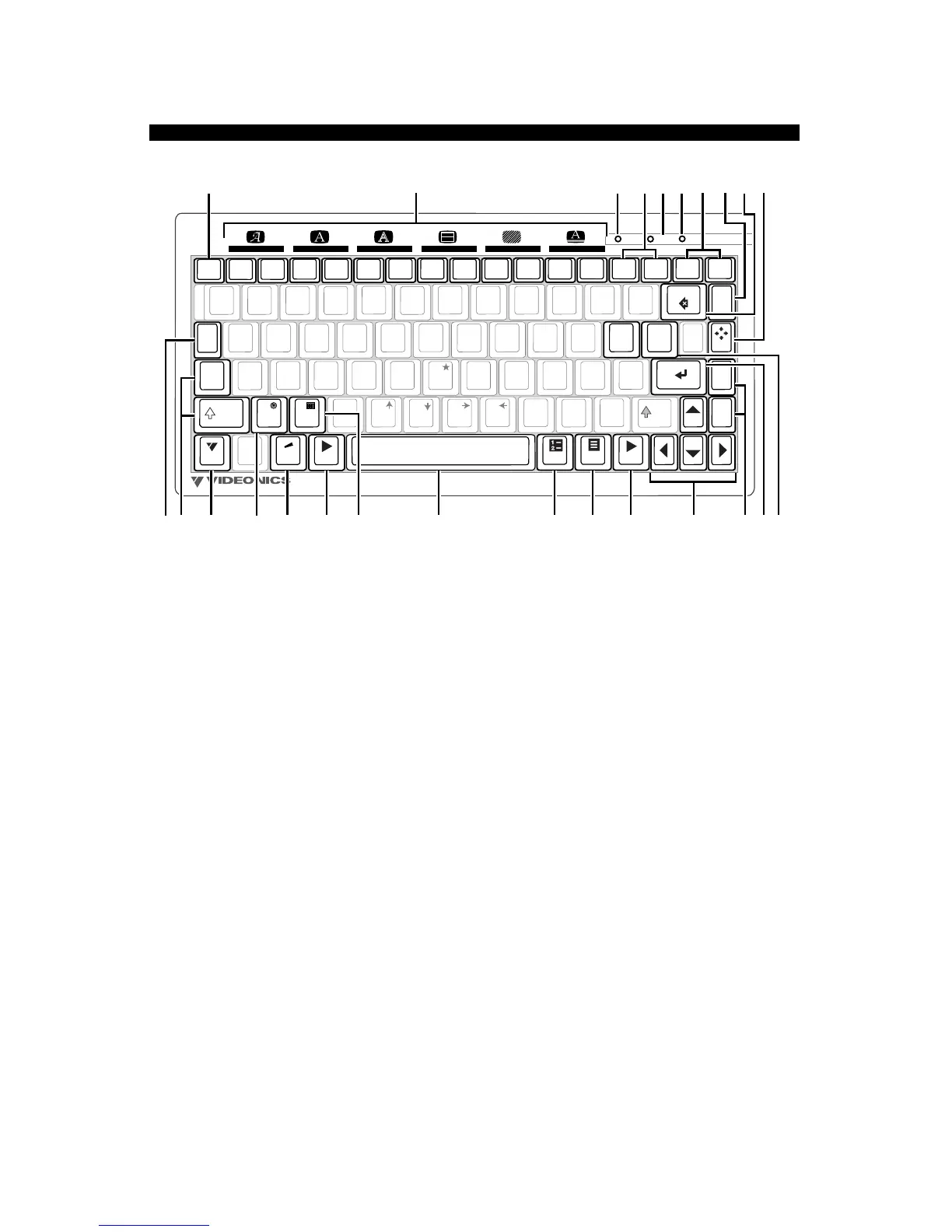
CONTROLS
1
2345
678
9
11
12
13
14
15 16 17 18 19 20 21 22
10
25
2423
IN OUTSTYLE
FONT &
SIZE
undo
movecopy
COLOR
PATTERN
COLOR PATTERN COLOR PATTERN COLOR STYLE
mark
start
mark
end
POWER
DEMO
PLAY PLAY
page
down
page
up
posn
new
line
shift
new
page
shift
page
index
OK
caps
lock
tab
delete
cmd
!
1
Q
@
2
#
3
$
4
%
5
^
6
&
7
*
8
(
9
)
0
—
–
+
=
W
E
R
T
Y
U
I
|
\
O
P
{
[
A
Z
S
D
F
G
H
J
K
L
:
;
"
'
X
C
V
B
NM
<
,
>
.
?
/
}
]
¡
´
`
¨
˜
^
°
"
Ø —
¢
£ ¥ ® ™
©
•
Œ
«»
Æ ß § ♥ ✓ ◆
■
■
‘
’
Ç
“
”
¿
accent
EFFECTSFONT BACKGROUNDLETTER OUTLINE BORDERS
markposition caps lock
^
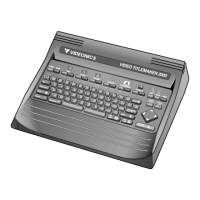
1. POWER. Power key turns on the keyboard once the POWER SWITCH (rear panel of
TM-3000 unit) is in ON position.
DEMO. Demonstrates features. Press ACCENT + DEMO for English version; SHIFT +
DEMO for International version. You can also copy the demo into the editing area, to
modify it or study how its effects were accomplished. (Chapter 5)
2. MENU KEYS. Menus change color, font, style, etc., of lines or pages that contain
marked text or cursor. Use either MARK START, MARK END, TAB, or the bracket keys,
( [ )( [ )
( [ )( [ )
( [ ) and
( ] )( ] )
( ] )( ] )
( ] ) , to change sub-menus; arrow keys to highlight the desired choice; and
NEW LINE/OK or PLAY to implement changes. Press UNDO to cancel the menu and
leave titles unchanged. (Chapters 11-18)
3. POSITION LIGHT. Used in conjunction with the POSN key (10). Indicates that page
or line positioning may be done (see POSN key).
4. COPY and MOVE. To copy or move text, mark the text using MARK START and MARK
END, move cursor to desired location, then press COPY or MOVE. (Chapters 7-9)
5. CAPS LOCK LIGHT. When the CAPS LOCK light is on, typing a letter key (A-Z) causes
the SHIFTed version to appear. Other keys (numbers, symbols, etc.) are unaffected.
Press the CAPS LOCK key to turn the CAPS LOCK light on and off.
6. MARK LIGHT. Indicates that the mark function has been enabled (i.e., MARK START
or MARK END has been pushed).
7. MARK START and MARK END. Mark text to modify, delete, copy, or move it. Posi-
tion cursor before first character and press MARK START. Position after last character
and press MARK END. Notice cursor becomes wider to remind you something is marked.
Use UNDO to remove marks. SHIFT, used with a mark key, marks start or end of the
page; COMMAND plus a mark key marks start or end of all text in current project.
(Chapters 7-9)
8. UNDO. If you accidentally delete something, press UNDO immediately.
9. DELETE. Erases marked text, if any. Otherwise, erases the character before the cursor.


 To Next Page