16. FIRMWARE UPDATE
16 Firmware Update
Workswell WIRIS Pro system is supplied with the latest rmware. As me goes on, newer rmware could appear
in order to bring the user new funcons, improve the old ones or x bugs. For this purpose, the system allows
the user to update the rmware.
To update WIRIS Pro, follow these steps:
1. Download the update le from hps://www.workswell‐thermal‐camera.com/rmware‐update/.
2. Copy the update le update-wiris-pro.tar to USB ash drive, SD Card or internal SSD (make sure the
lename is correct).
3. Connect the memory with update to WIRIS Pro.
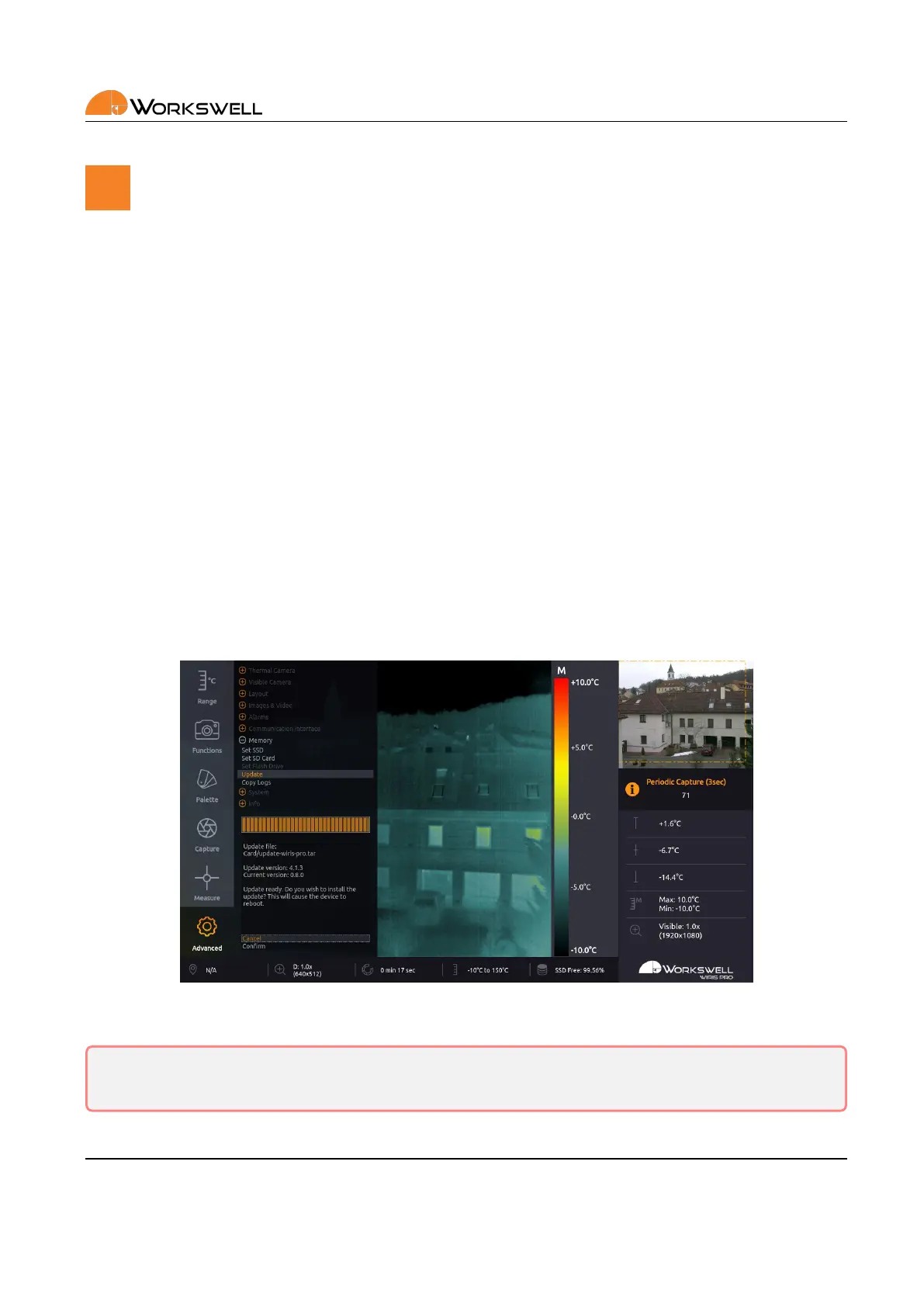
4. Select ADVANCED > MEMORY > UPDATE.
5. Conrm the update installaon.
16.1 Firmware Update Process
Aer the ADVANCED > MEMORY > UPDATE choice is selected, the device will search all three storage devices for
valid update les. If an update le is found, the user will be prompted one last me to conrm or cancel the
update. Once the update is iniated, it may take several minutes.
Figure 16.1: Update menu – rmware update available.
Warning: Do not turn o the system and do not unplug the power supply during the rmware update
process. Otherwise, damage to the system may occur.
E‐mail and Web
info@workswell.eu
www.workswell.eu
Mobile:
+420 725 877 063
ID:
Reg. No.: 29048575
VAT No.: CZ29048575
Headquarters
U Albrechtova vrchu 12
155 00, Prague 13
Czech Republic
Version: 201215 EN, 15
th
Dec, 2020
All pictures are only for illustraon.
Real values may vary.
63



 To Next Page