13. MAIN MENU (SETTINGS)
13.3 Funcons
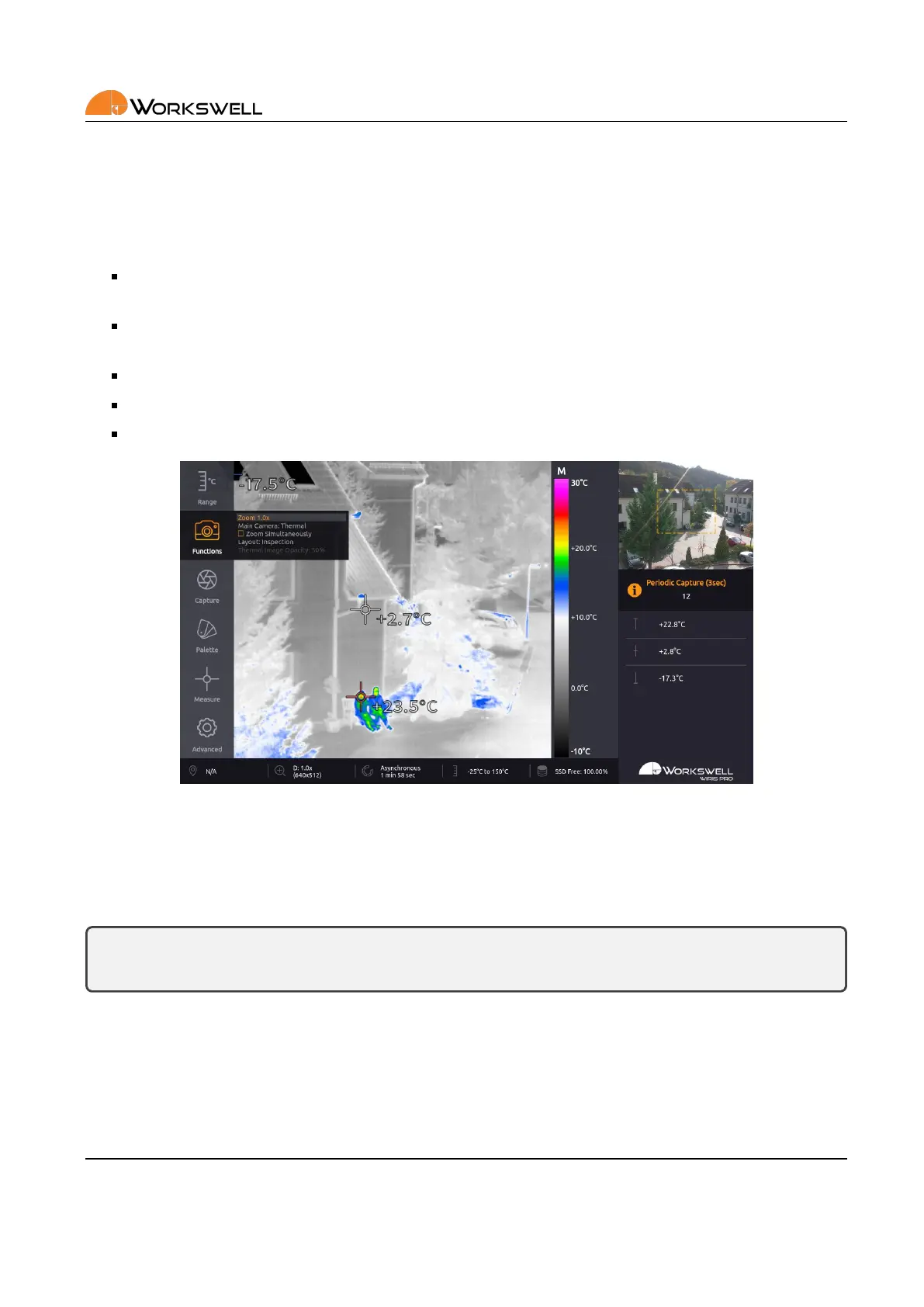
FUNCTIONS submenu allows you to manually set the zoom level of the primary camera, switch which camera is
the primary and to switch between the available screen layout opons.
ZOOM ‐ set the zoom value on the main camera (physical zoom on the visible spectrum camera, digital
zoom on the thermal camera).
MAIN CAMERA ‐ toggle which camera (thermal or visible light) is displayed as the primary (main) screen
and which is in the secondary (preview) screen.
ZOOM SIMULTANEOUSLY ‐ Zoom both cameras simultaneously
LAYOUT ‐ cycles between the available layout modes; (INSPECTION, SECURITY, FULLSCREEN and PiP Fusion).
THERMAL OPACITY ‐ Opacity of thermal camera image in PiP Fusion mode
Figure 13.4: Funcons sengs
The SECURITY layout removes the status bar at boom of the primary view as well as the temperature legend on
right side of the thermal camera. The FULLSCREEN layout further removes the secondary screen, showing only
one camera type.
Note: Zoom level set for the camera in primary screen will be maintained for the same camera type once
it’s toggled into the secondary screen.
E‐mail and Web
info@workswell.eu
www.workswell.eu
Mobile:
+420 725 877 063
ID:
Reg. No.: 29048575
VAT No.: CZ29048575
Headquarters
U Albrechtova vrchu 12
155 00, Prague 13
Czech Republic
Version: 201215 EN, 15
th
Dec, 2020
All pictures are only for illustraon.
Real values may vary.
39


 To Next Page