Installation and User Manual ADPRO Presidium by Xtralis
74 Doc. 12384_05
2. Select the System Info button to display the Presidium’s IP address and subnet.
Presidium Does Not Appear in List of Local Units
If the Presidium does not appear in the list of local units:
1. Ensure that the connected PC has a compatible IP Address. This may be performed by
following the procedure on page 45, Configure the PC Network Connections.
2. Restart the Presidium Setup Utility.
The Presidium should now appear in the list of local units.
Reboot the PC or reinstall the Presidium Setup Utility if the Presidium does not appear.
4.6.4 Password Forgotten
If the Presidium password has been forgotten:
1. Connect the Presidium to a PC with the Presidium Setup Utility installed.
2. Open the Presidium Setup Utility.
3. Highlight the required Presidium in the list and press Connect.
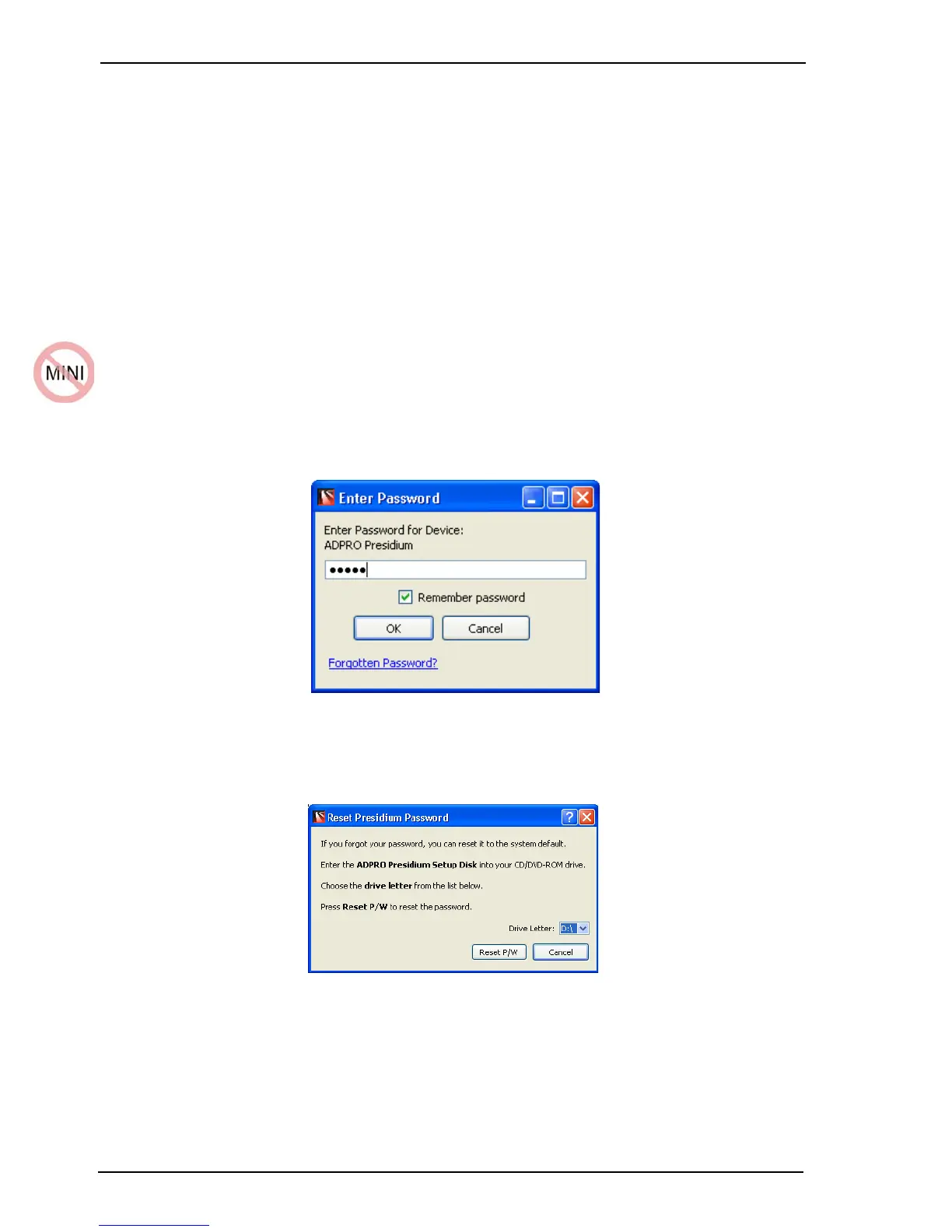
The Enter Password window is displayed.
Figure 66: Enter Password Window
4. Select Forgotten Password?.
The Reset Presidium Password window is displayed.
Figure 67: Reset Password
5. Insert the ADPRO Installation and Upgrade DVD into the PC.
6. Select the drive letter from the drop down list.
7. Select Reset P/W.
8. Select OK at the confirmation screen.
The password is reset to ‘admin’.



 To Next Page