EasyManua.ls Logo

3M XT-1 - User Manual

3M XT-1
76 pages
Print Icon
To Next Page IconTo Next Page
Loading...
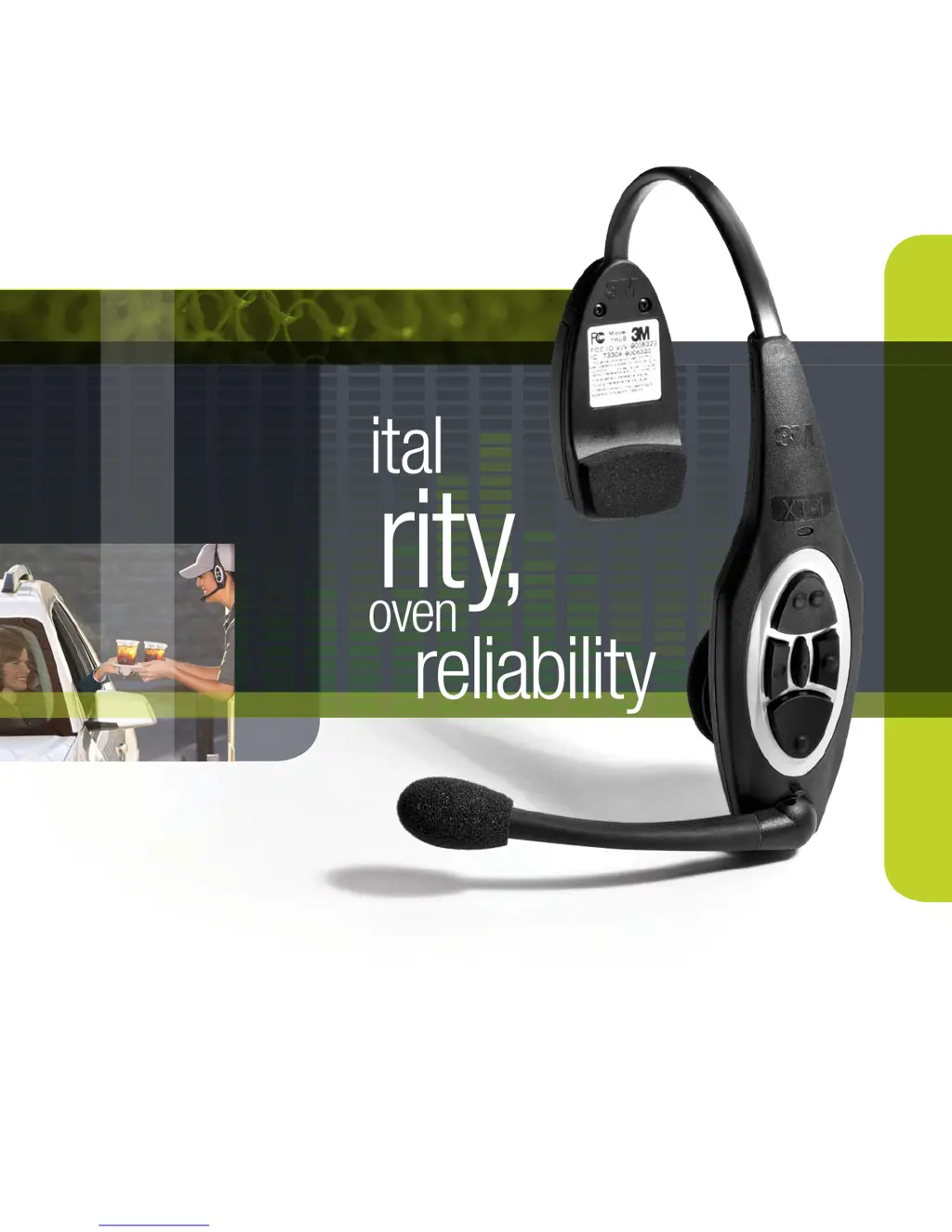
clarit y,
Digital
proven
reliability
3
3M Building and Commercial Services Division
3M
TM
Wireless Communication System Model XT-1
Store Manager Operating Instructions

Table of Contents

Other manuals for 3M XT-1

Questions and Answers

  • M
    Mary CurrySep 5, 2025
    Why doesn't the “hands free” function work on my 3M Intercom System?
    • N
      Nathan GoldenSep 5, 2025
      The “hands free” function may not work if the system is operating in half duplex mode, as Hands Free is disabled in this mode. Also, ensure that hands free order taking mode is selected in the base station.
  • A
    archermadisonSep 5, 2025
    What to do if no lights come on when a battery is inserted into the 3M Intercom System charger?
    • B
      brownrobertSep 5, 2025
      If no lights come on when a battery is inserted into the charger, try the following: Clean the contacts on both the battery and the charger. Ensure the power transformer is plugged into the charger and a “live” outlet. Try a known good battery.
  • J
    Jay BurchSep 4, 2025
    What causes louder talk volume or feedback from a single 3M Intercom System headset?
    • J
      Jason PearsonSep 4, 2025
      If you're experiencing louder talk volume or feedback from a single headset, it may be because the volume setting on the headset is too high. Power off and then power on the headset to reset the volume level.
  • B
    Brian WigginsAug 25, 2025
    How to fix low talk volume on my 3M Headset?
    • L
      Linda DanielAug 25, 2025
      If you are experiencing low talk volume on a single headset, reposition the headset microphone. Also, power off and then power on the headset to reset the volume level.
  • A
    alicediazSep 3, 2025
    Why does inbound audio cut out on my 3M Intercom System (but outbound audio is okay)?
    • R
      Rhonda ByrdSep 4, 2025
      If inbound audio cuts out, but outbound audio is okay, it could be due to the AEC level being too high. Try reducing the AEC level. Alternatively, the headset may be too close to loud ambient noise; move the headset away from these sources.
  • Q
    qatkinsonSep 3, 2025
    Why can't I talk or listen from the menu sign when using the backup wired intercom on my 3M Intercom System?
    • B
      briannaweeksSep 3, 2025
      If you cannot talk or listen from the menu sign when using the backup wired intercom, ensure that the backup switch on the base station is turned ON. Also, check if the backup intercom has power and is turned on, or plug in its power transformer. Finally, make sure the volume controls on the backup intercom are turned up.
  • A
    Allison HernandezSep 2, 2025
    What does it mean if a single headset on my 3M Intercom System has a green LED flashing?
    • M
      Mr. Ryan Liu MDSep 3, 2025
      If a single headset has a green LED flashing, it could indicate that the headset is not registered to the base station. Try registering the headset. If other headsets register OK, the single headset may need repair.
  • M
    Michael PorterSep 2, 2025
    How to fix audio that cuts out on all 3M Intercom System headsets?
    • M
      mgonzalesSep 2, 2025
      If the audio on all headsets cuts out or is interrupted, there are a few potential causes. First, make sure the Backup Intercom switch on the base station is disengaged. Also, the Base Station antennae may be poorly located, so relocate the Base Station or antennae.
  • D
    Danielle WilsonSep 2, 2025
    Why won't all 3M Intercom System headsets go into standby when the vehicle leaves the menu sign?
    • P
      powersdanaSep 2, 2025
      If all headsets do not go into Standby (silence) when the vehicle leaves the menu sign, consider these possible causes: * If using a pulse (air switch) type of vehicle detector, press the Page switch to silence the menu microphone. * If a loop is used, check for and remove any large metal objects near the loop in the driveway. * Reset the loop detector by unplugging it from the AC outlet and plugging it back in. * The system could be in Always On order taking mode, so change the talking mode.
  • W
    wallacedavidSep 1, 2025
    What to do if there is no vehicle alert tone in all headsets of my 3M Intercom System?
    • D
      Danielle PaulSep 1, 2025
      If there is no vehicle alert tone in all headsets, here are a few things you can check: 1. Ensure the external vehicle detector is receiving power by plugging it into a power outlet or replacing the detector fuse. 2. Try resetting the vehicle detector by removing power for a few seconds. 3. Adjust the alert tone volume on the base station. 4. Verify that the system is not in Always On order taking mode by changing the talking mode.

Summary

System Overview and Safety

Safety Information and Warnings

Details safety rules, warnings, intended use, and product safety labels.

Other Conventions and FCC Information

Explains manual conventions and FCC/Industry Canada compliance details.

Base Station Configuration

Accessing and Navigating Configuration

Guides on entering configuration mode, navigating menus, and interpreting display information.

Button Functions and PC Configuration

Describes button functions and configuring the base station using a PC.

Volume Settings and Adjustments

Adjusting inbound, outbound, monitor, and greeter volumes.

Headset and System Management

Registering, removing, and managing headsets, plus noise reduction and echo cancellation.

System Date, Time, and Global Settings

Setting date/time, language, duplex mode, base station count, and prompts.

Order Point, Lane, and Detector Settings

Configuring order point language, lane modes, detector types, and noise reduction.

Site Scheduling and Information

Setting site schedules, information, self-monitoring, passcodes, and installer setup.

System Setup and Defaults

Covers two base station setup, loading settings, factory defaults, and rebooting.

Operating the Wireless Communication System

Headset Operation and Maintenance

Details headset components, indicator lights, fitting, battery, range, and cleaning.

Base Station Run Mode Operations

Navigating the base station, changing order taking modes, and lane modes.

Order Taking Modes and Volume Control

Explanation of order taking modes and manual volume adjustments.

System Maintenance and Care

Headset and Battery Charger Maintenance

Procedures for replacing headset pads and maintaining the battery charger.

Battery Care and Handling

Guidelines for battery care, charging, low battery alerts, and proper disposal.

Troubleshooting System Issues

Headset Indicator Light Issues

Diagnosing headset problems using indicator light patterns.

General System Troubleshooting

Solutions for common problems like no communications, alerts, or audio interruptions.

Battery and Charger Troubleshooting

Addressing issues with battery charging, battery life, and charger functionality.

Declaration of Conformity

Base Station Specifications

Physical and Electrical Specifications

Details base station dimensions, power requirements, and RF specifications.

Base Station Functional Limits

Lists maximum number of order points, headsets, and modules supported by the base station.

Greeter Module Setup and Customization

Greeter Configuration Menu and Navigation

Instructions for accessing and navigating the Greeter Module setup menus.

Message Recording and Activation Procedures

Guides for recording, scheduling, and activating greeter and reminder messages.

Headset Playback and Message Properties

Controlling headset playback for messages and configuring message properties.

Alert Messages and External Triggers

Settings for alert/reminder messages, external trigger inputs, and message names.

Timer Module for Drive-Thru Performance

Timer System Configuration and Customization

Setting up drive-thru layout, customizing names, and defining time periods for reports.

Time Reports and Threshold Settings

Configuring time reports, goal times, valid times, detection types, and thresholds.

Remote Displays and Global Settings

Managing remote display settings, report groups, and global timer parameters.

3M XT-1 Specifications

General IconGeneral
Brand3M
ModelXT-1
CategoryHeadsets
LanguageEnglish

Related product manuals