3. Completion
i. TrackNames
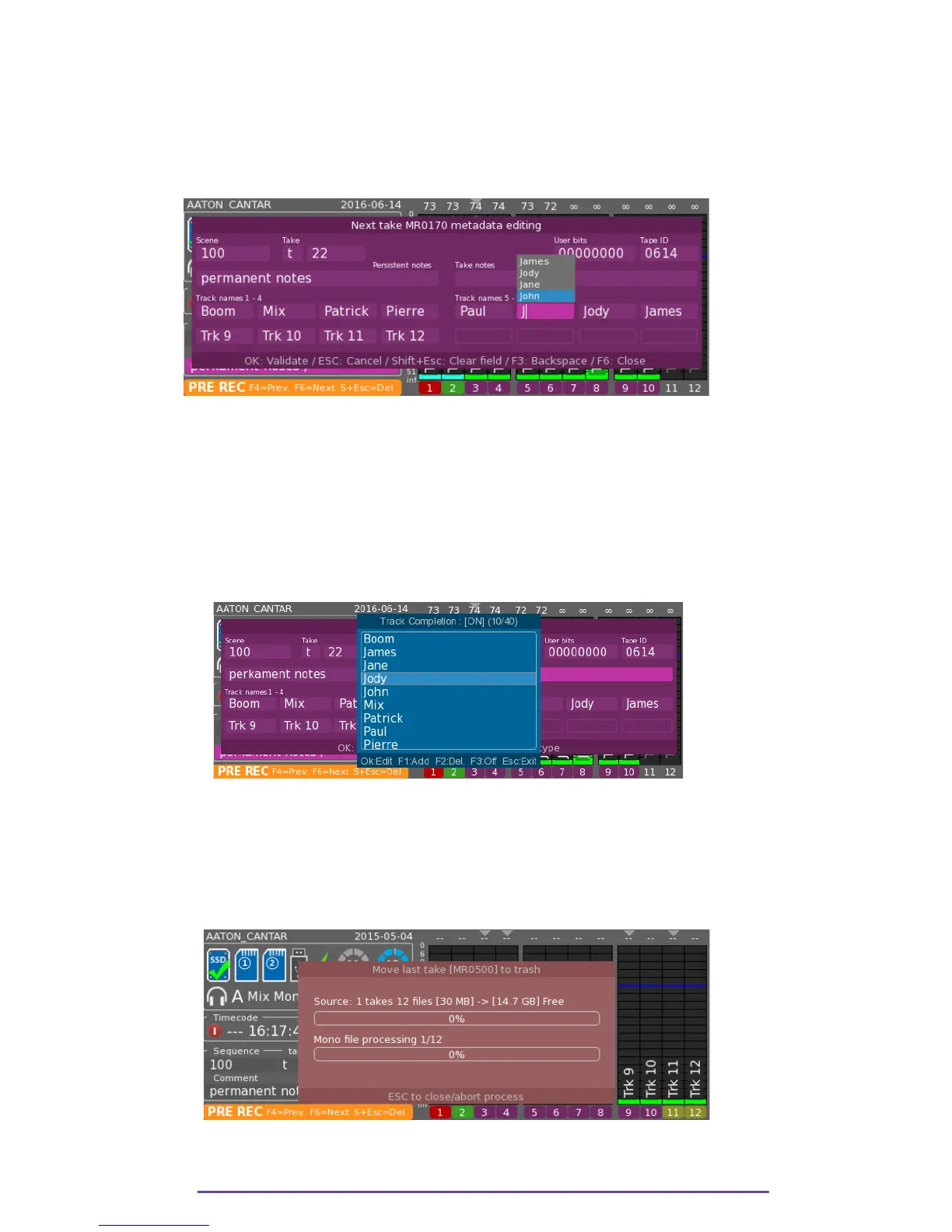
While typing tracknames, a list with previous entered tracknames is displayed according to the
first characters typed in.
Select the desired proposition using the Up and Down buttons and validate it by pressing the Ok
button.
Pict. 30
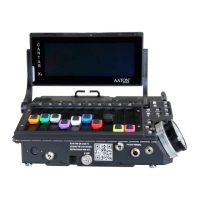
By pressing the F2 key, the Track Completion Management is displayed.
Previous entries may be edited (select the desired entry with the Up and Down buttons and press
the Ok button) or deleted (select the desired entry with the Up and Down buttons and press the
F2 button) or new entries may be added (press the F1 button).
It is also possible to activate or deactivate the Track Completion feature by pressing the F3
button. Once deactivated, the completion list is not displayed while tracknames are typed in and
the Completion Management window is grayed.
Pict. 31
V.Audio Trash
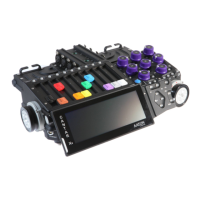
Cantar lets you trash the last Take, e.g. a false start or aborted remix. In Pre-Record position (11
o'clock), press the Shift + ESC buttons. The Take is not erased, but moved to a folder name
“AUDIO_TRASH”.
The next Take will carry the same Take Number as the erased one.
Pict. 32
NB: • This Trash function is also available in the Browse File Menu.
• A trashed Take can be moved back to the day folder in the Backup Menu.
Cantar X3
25


 To Next Page