PLAY
Play Menu is while the Main Selector is in the 8 o'clock position.
This Menu enables to play the audio files contained in the Project and Day Folder chosen into
Browse File Menu.
For Cantar-X3 files, it displays a waveform (calculated while recording) and the possible sync
points marked.
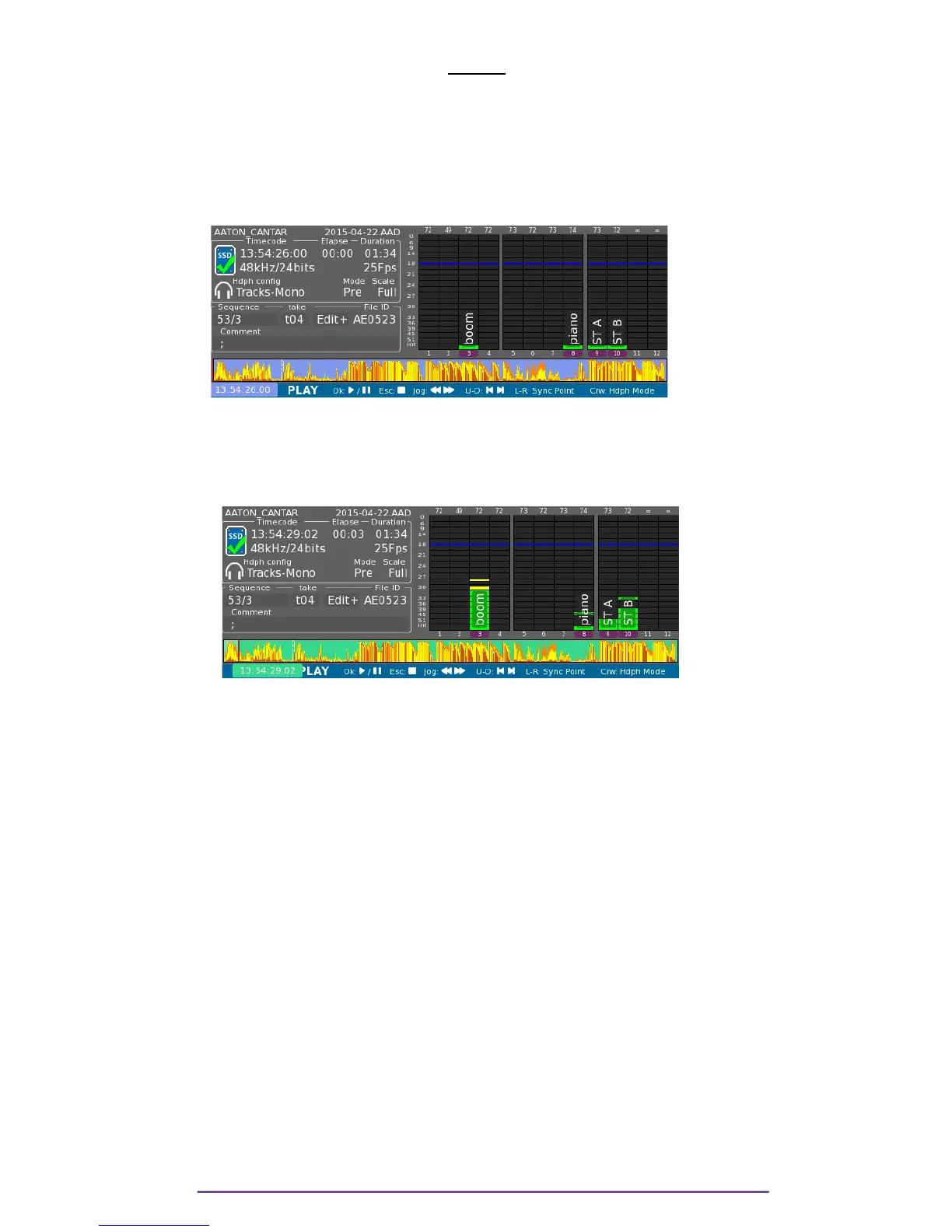
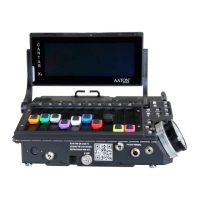
Pict. 82
I. Commands
During Stop or Pause, the background of the timeline is blue (Pict. 59), during play it's green
(Pict. 60).
Pict. 83
• Toggle Play-Pause: press the OK button.
• Stop: press the ESC button.
• Scroll in file: rotate the Jog wheel.
• Next/Previous file: press the Up or Down buttons.
• Go to next/previous sync point: press the Left or Right buttons.
• Change Headphone Mode: rotate the Left Crown.
• View current Headphone Outmap: press the F2 button.
• Pre / Post fader monitoring: press the Shift + F2 buttons.
• Edit Metadata: press the F4 button.
• View Take's Ingrid: press the F1 button.
II. Headphone Modes
In Play, 3 Headphone Outmap modes are available:
• “Recorded Mixdown”: Mixdown Tracks, Mono
• “Tracks--Mono”: Non-Mixdown Tracks, Mono
• User Outmaps “A” to “Z”: Tracks according to User defined Outmap.
Tracks are played Pre or Post fader according to the selected mode (Shift + F2 buttons to toggle).
Cantar X3
47


 To Next Page