HEADPHONE
Headphone Outmaps can be modified while the Main Selector is in the 6 o'clock position.
You can configure up to 26 Headphone Outmaps (from 'A' to 'Z').
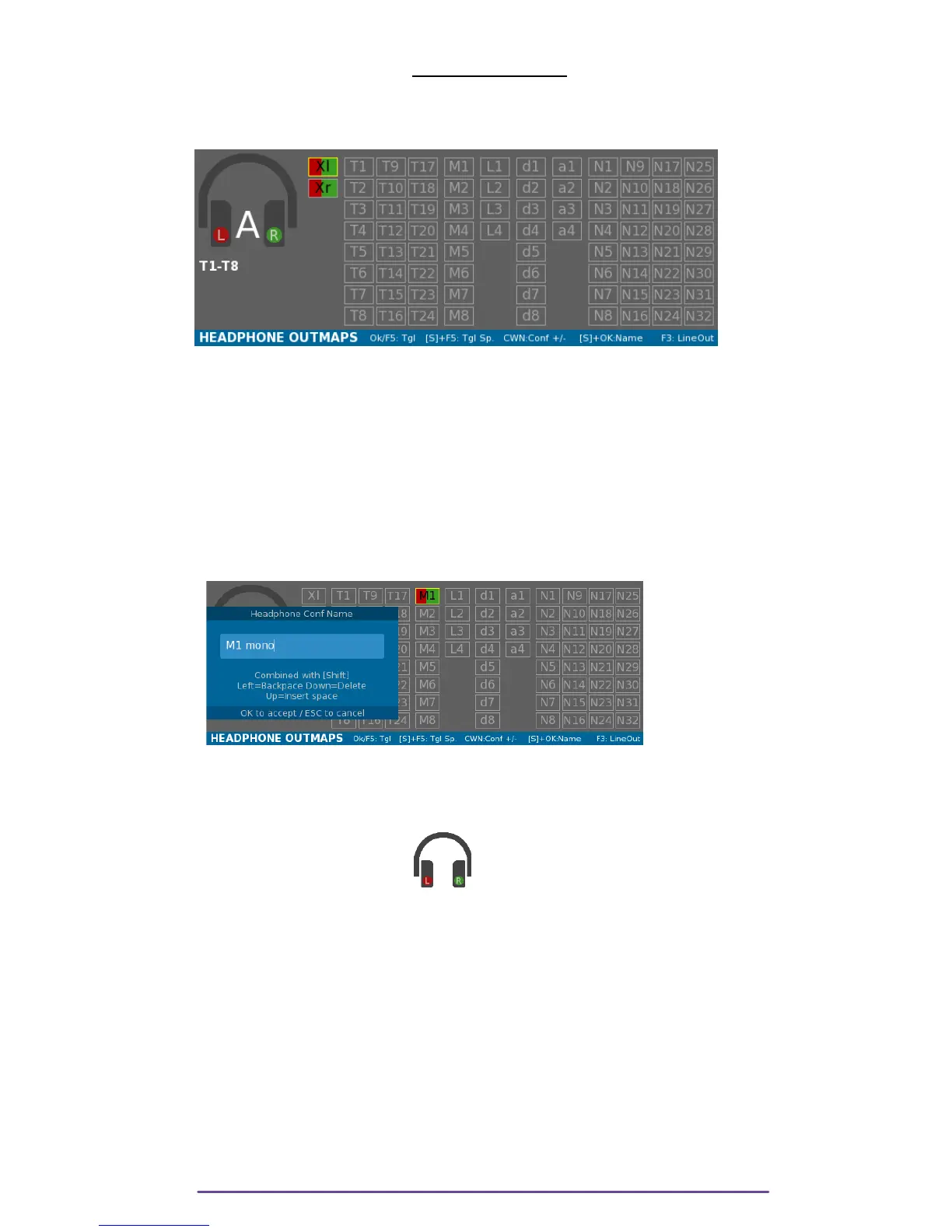
Pict. 05
I. Current Outmap
To go to the next or previous Outmap, use the Left Crown.
Nota Bene (NB): Copy and Paste.
By pressing the Shift+F4 buttons, the current outmap is copied to the clipboard.
Paste it over any Outmap by pressing the Shift + F6 buttons.
II. Name
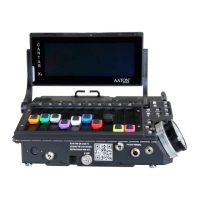
Each Outmap can be named (max: 12 characters). Press the Shift+OK buttons to modify it.
Pict. 06
III. Inputs
Each input can be sent to the Left and/or Right Ear.
The Left Ear is represented in RED.
The Right Ear is represented in GREEN.
You can navigate through the input grid with the direction buttons (Left-Right-Up-Down) or using
the Jog wheels.
Enable or disable Left mapping by pressing the F4 button.
Enable or disable Right mapping by pressing the F6 button.
Toggle between Left-Center-Right-Nothing by pressing the F5 button.
An input sent to Left Ear will be colored in RED.
An input sent to Right Ear will be colored in GREEN.
An input sent to both Left and Right Ear will be colored in both colors.
Example:
- In Pict 01, Outmap 'A' : Mixdown Left and Right are sent to both ears.
- In Pict 03, Outmap 'C' : Mic 1 is sent to the Left Ear and Mic 2 to the Right Ear.
Cantar X3
8


 To Next Page