Users, Continued
Adding Users
Follow the steps in the table below to add an account:
Step Description
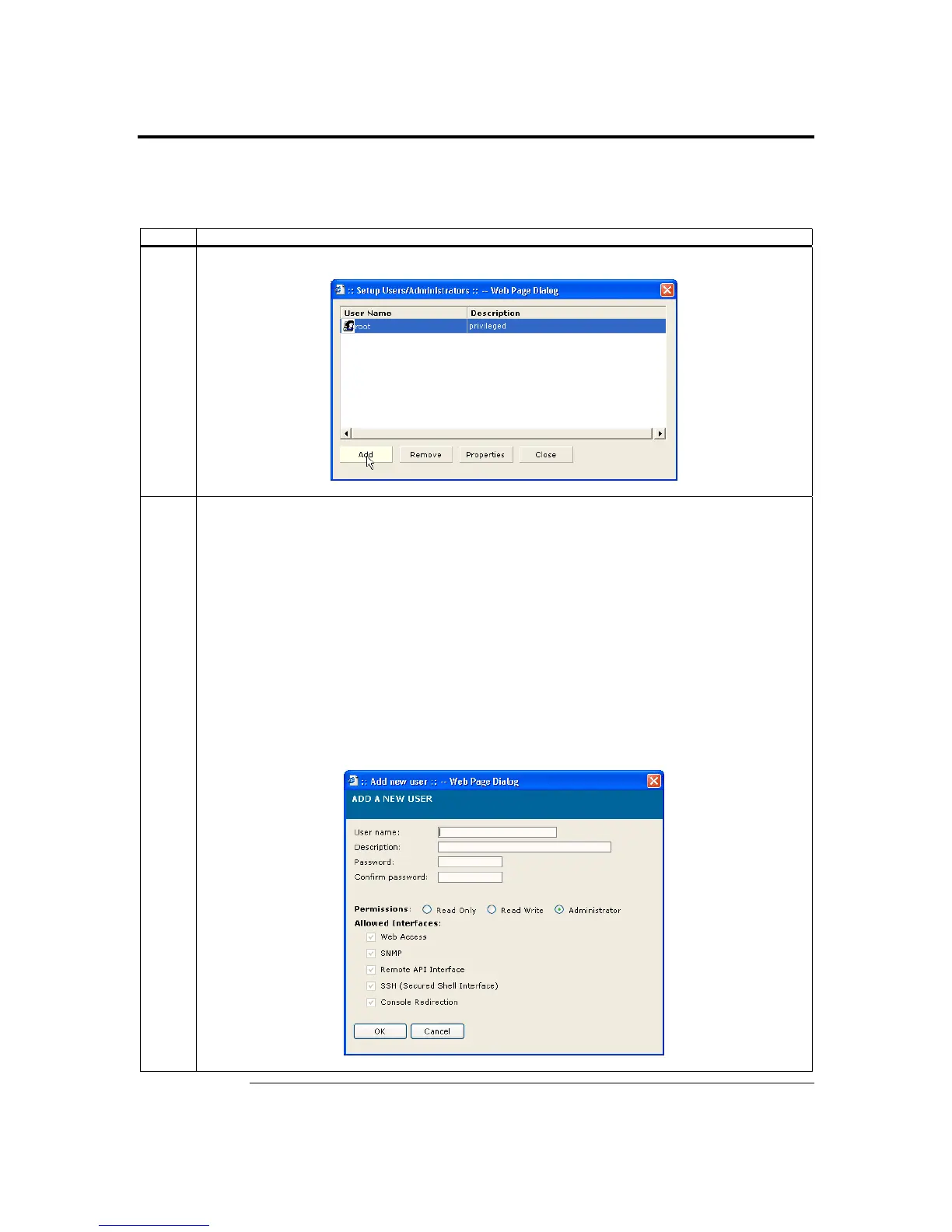
1 Left click the Add button.
2 Enter a user name in the Username field. Your user name must be at least four characters long and
no more than 32 characters long. User names are case-sensitive and must start with an alphabetical
character. You can also enter a short description of the account in the Description field. Enter a
password in the Password field. Your password must be at least eight characters long. Confirm your
password by entering your password again in the Confirm Password field.
Note: The password must be a minimum of eight characters and a maximum of 32 characters. Use a
mixture of alphanumeric and special characters for better security. The password is case-
sensitive.
Assign permissions and access rights. After you enter the new administrator’s information, left click
the OK button.
Note: Only user accounts with administrative rights are allowed to add, edit, and remove users. Non-
administrator users can only change their own password. If a new user is given administrative
privileges, permissions are automatically granted for all interfaces.
Cont’d
Chapter Four : Using Your ARMC/2
85



 To Next Page