Chapter 3 Locating Your ARMC/2 Card
Overview
The Acer ARMC family of server and system remote management cards can be accessed
from anywhere on your Intranet through an Internet browser. This is a great way to
maintain your critical server when you are nowhere near it.
This chapter explains how to locate your ARMC/2 card on your local network.
Locating Your ARMC/2 Card
In order to connect to the ARMC/2 card, you must access the ARMC/2 from another
system on the same network. This document refers to this other system as the client
system. To do this, you must know the ARMC/2 card’s IP address. If you have installed
the ARMC/2 on a network that uses DHCP, you can search the network for the ARMC/2
card. To locate and find out its IP address, you must run ARMC2RMseek Locator.
Note: To get or set the IP address on your ARMC/2 card in a Windows 2000 environment, you
can also run the ARMC2ConfigApp program on the host system. See Appendix B,
ARMC2ConfigApp for more information on how to use the ARMC2ConfigApp program.
Note: Make sure that you have already installed the ARMC/2 Windows Software Components
on the system that you want to use to locate the ARMC/2 card.
Follow the steps in the table below to connect to the ARMC/2 from a remote client
system:
Step Description
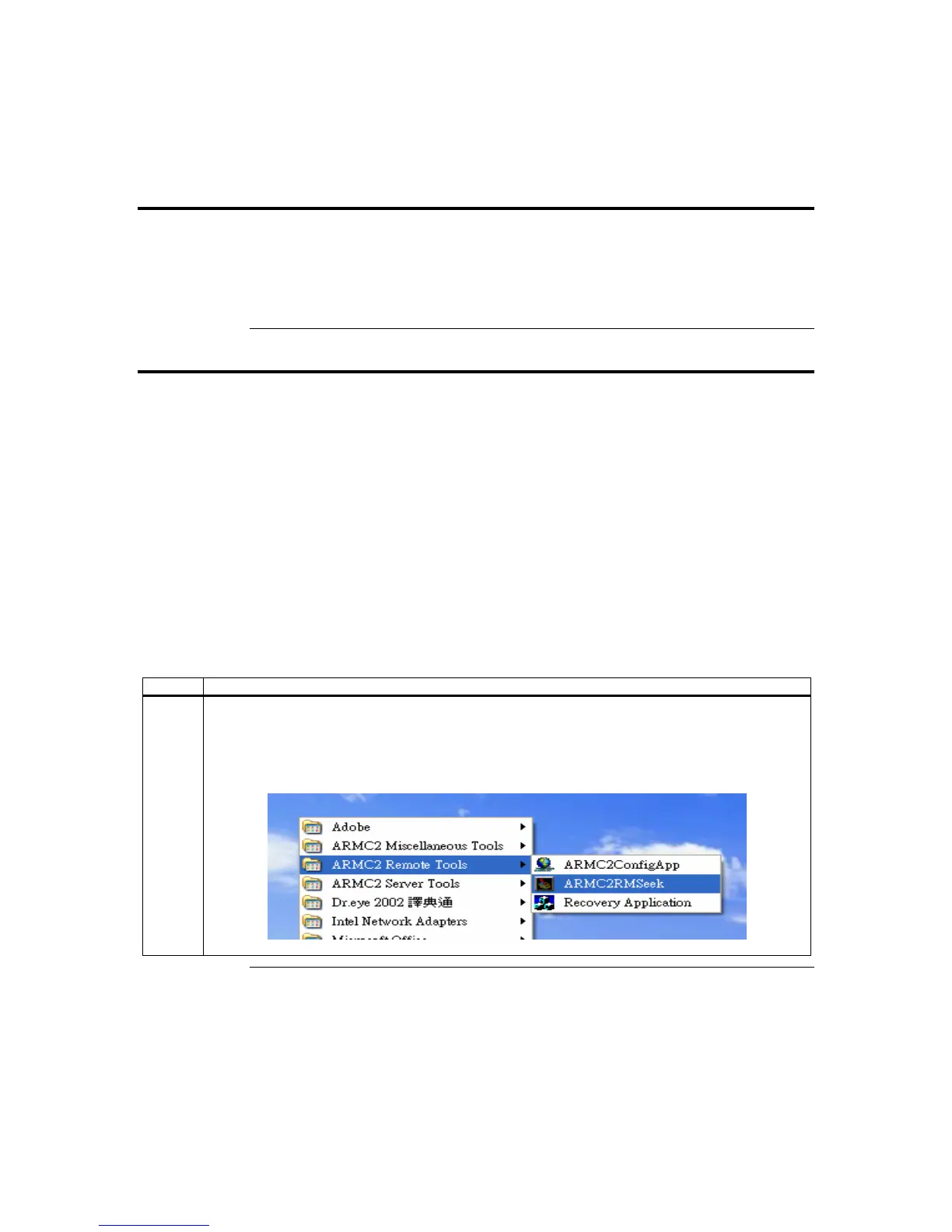
1 Locate the ARMC2RMseek program on your remote client system. Run the ARMC2RMseek
program by double left clicking on it.
Path : Press “Start” -> Programs -> ARMC2 Remote Tools -> ARMC2RMseek
Cont’d
Chapter Three : Locating Your ARMC/2 Card
31



 To Next Page