Appendix B ARMC2ConfigApp
Overview
The ARMC/2 card is normally configured through the Internet browser-based Remote
Access Companion for ARMC/2. You can also configure your ARMC/2 card through the
ARMC2ConfigApp utility. The ARMC2ConfigApp utility is a GUI-based program that
runs in Microsoft Windows.
ARMC2ConfigApp
Step Description
1 The ARMC2ConfigApp program allows you to configure the ARMC/2 card. You can run the
ARMC2ConfigApp program from the host system or from a client system. The client system is the
system that will connect to the ARMC/2 card remotely through the network. This is basically
WinCuri with a GUI.
To run the ARMC2ConfigApp program, double left click the ARMC2ConfigApp.exe icon located
in either of the following directories on your ARMC/2 CD:
• CDROM\RemoteTools\Win32\
• CDROM\ServerTools\Win32\
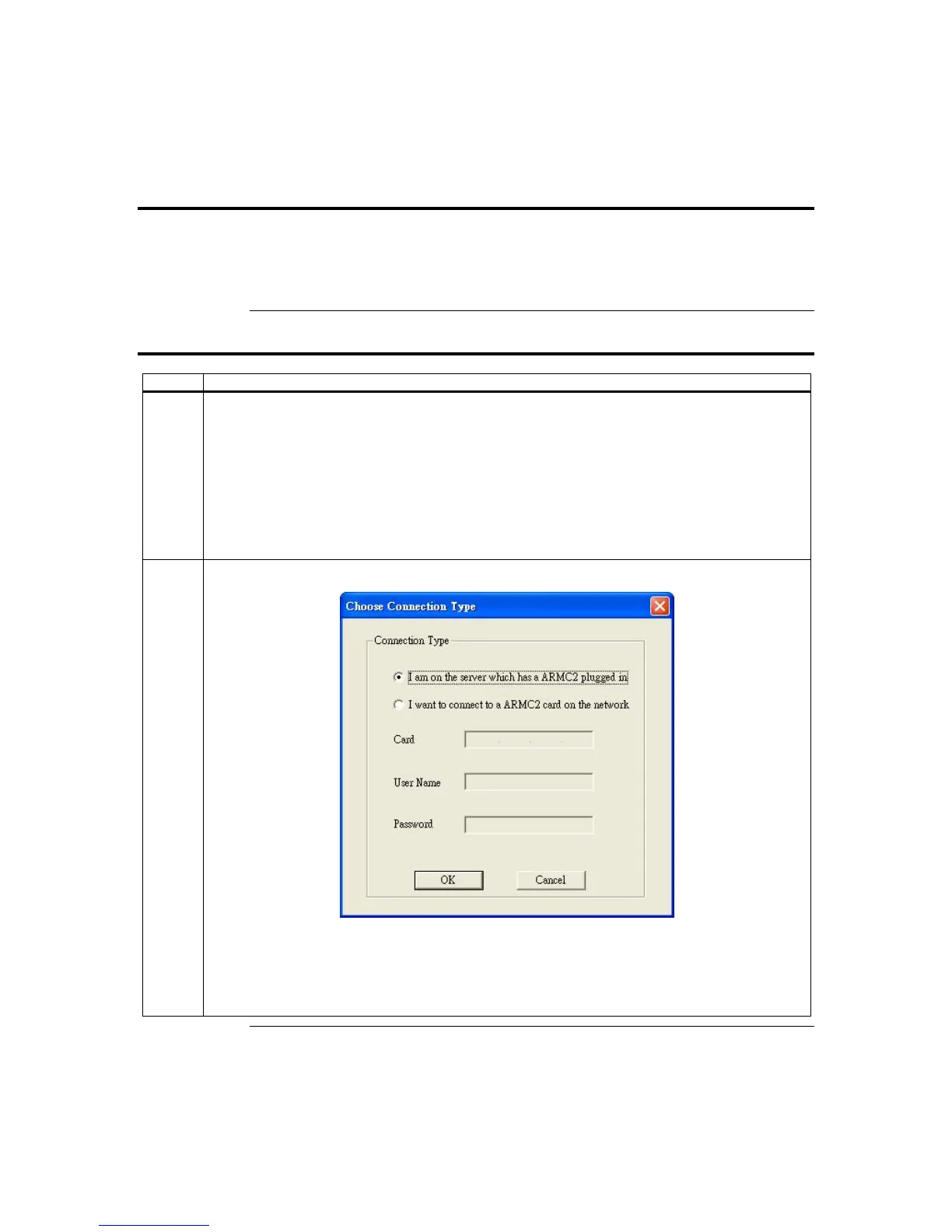
2 The following window appears:
If you are running the ARMC2ConfigApp program from the host system, select the first radial
button labeled ‘I am on the server which has a ARMC2 plugged in’ and left click on the Ok button.
Note: Make sure that the
ARMC/2 card is connected to the host system’s motherboard through the
USB cable.
Cont’d
Appendix D : Troubleshooting
113



 To Next Page