MNR-310 System Administrator’s Manual
68
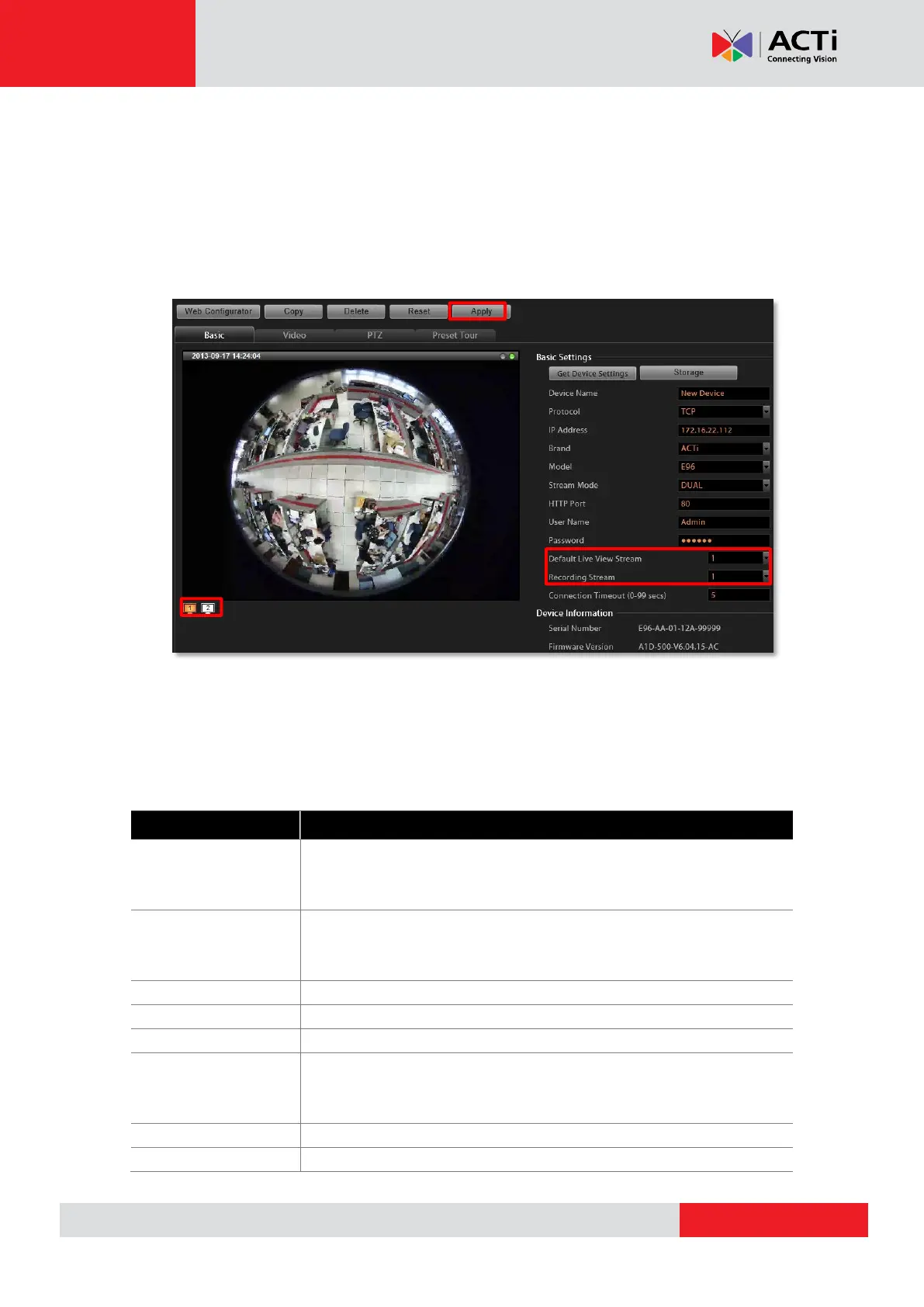
2. Click “Get Device Settings” to have NVR contact the device and get the live view. Once
connected to the device, NVR will get all the device properties such like Brand, Model,
Device Serial Number, Firmware Version. If the device supports dual stream, Stream
Mode selection field will be revealed, and you may select a different streaming mode and
configure relative options. You may click “Apply” to save it.
3. To directly access the device configurator webpage, simply click “Web Configurator” on
the top right to open it. Certain detailed settings are only available through the web
configurator.
Basic Settings Attributes
Select the media type of the camera, choosing either “Standard” or
“ONVIF”. To connect with a camera using ONVIF, please make sure
the camera device supports ONVIF.
Enter the name of the camera, which will be shown in the Device list
on the left in Live View. This name should be descriptive so that you
know where the camera is located.
Select a streaming protocol to connect the camera with.
Enter the camera’s IP address or host name.
Select the manufacturer of device.
Select the device model of the IP cameras / video servers. In most
cases, this is automatically filled in after you perform Get Device
Setting for ACTi cameras.
Select one of the streaming modes this device supports.
The channel ID you set for a stream of a multi-streaming device.


 To Next Page