26
2.1.1 Status bar
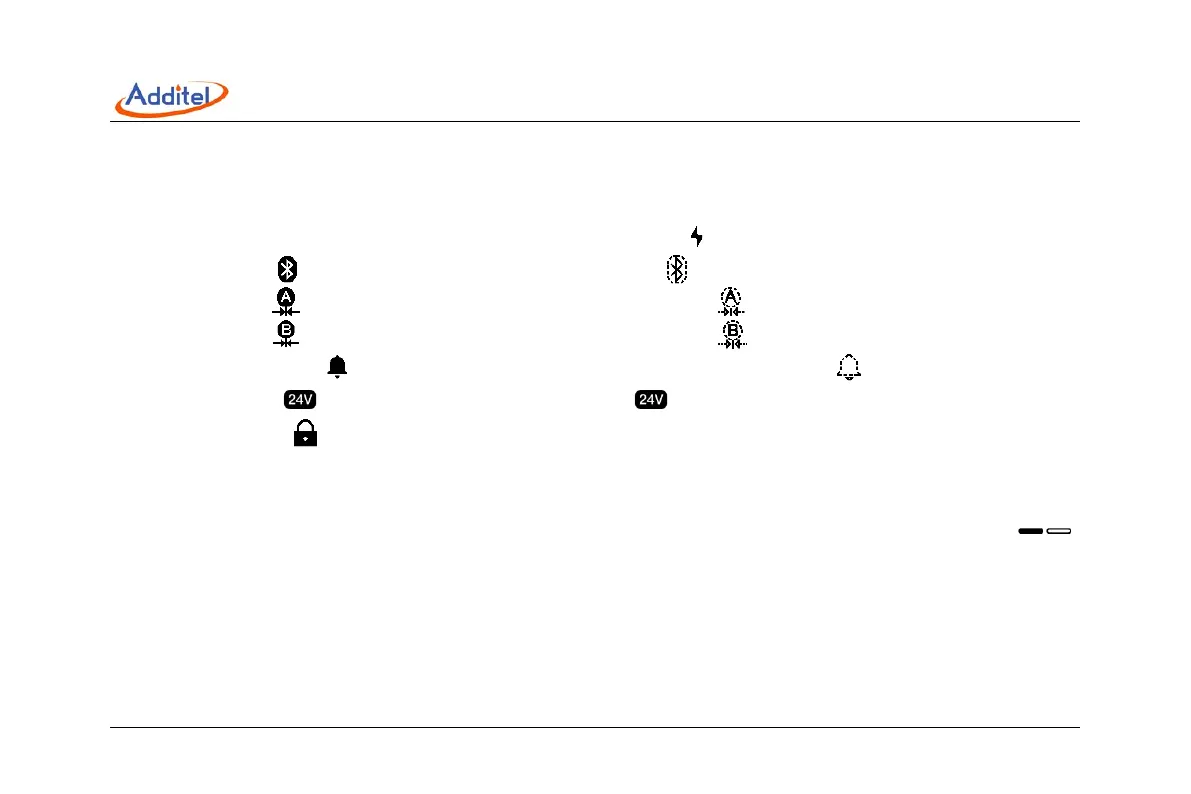
On the top of the main interface shows the status information, including:
1. System time: real-time of the system;
2. Battery: real-time display the battery level and charging status. Icon indicates the adaptor is connected.
3. Bluetooth: icon indicates Bluetooth function is on, while icon indicates off;
4. Module A: icon indicates the external module A is connected, while indicates not connected;
5. Module B: icon indicates the external module B is connected, while indicates not connected;
6. Message center: icon flashes means there is message, warning or abnormal, icon means no message;
7. 24V status: icon indicates 24V power supply is on, icon disappears indicates the 24V power supply is off;
8. Screen lock: icon means the screen is locked.
2.1.2 APPs list
The APPs list shows all the applications provided in the device, including Task, HART, Pressure Delta, Leak test, PSV
test, Sensor library, Unit converter, Simulate transmitter, Thermal calculator and Wiring diagram. Click the button ,
or use the left and right key to switch between interfaces of the APPs list.
2.1.3 M
ain function guide
The main function guide at the bottom of the interface provides access to three main functions of the device: calibrator,
settings and document management.


 To Next Page