EasyManua.ls Logo

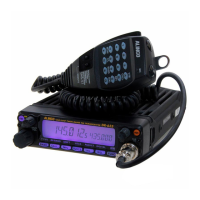
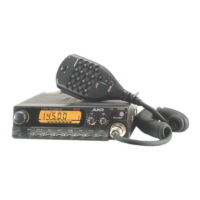
Alinco DR-735T/E - User Manual

Alinco DR-735T/E
84 pages
Print Icon
To Next Page IconTo Next Page
Loading...
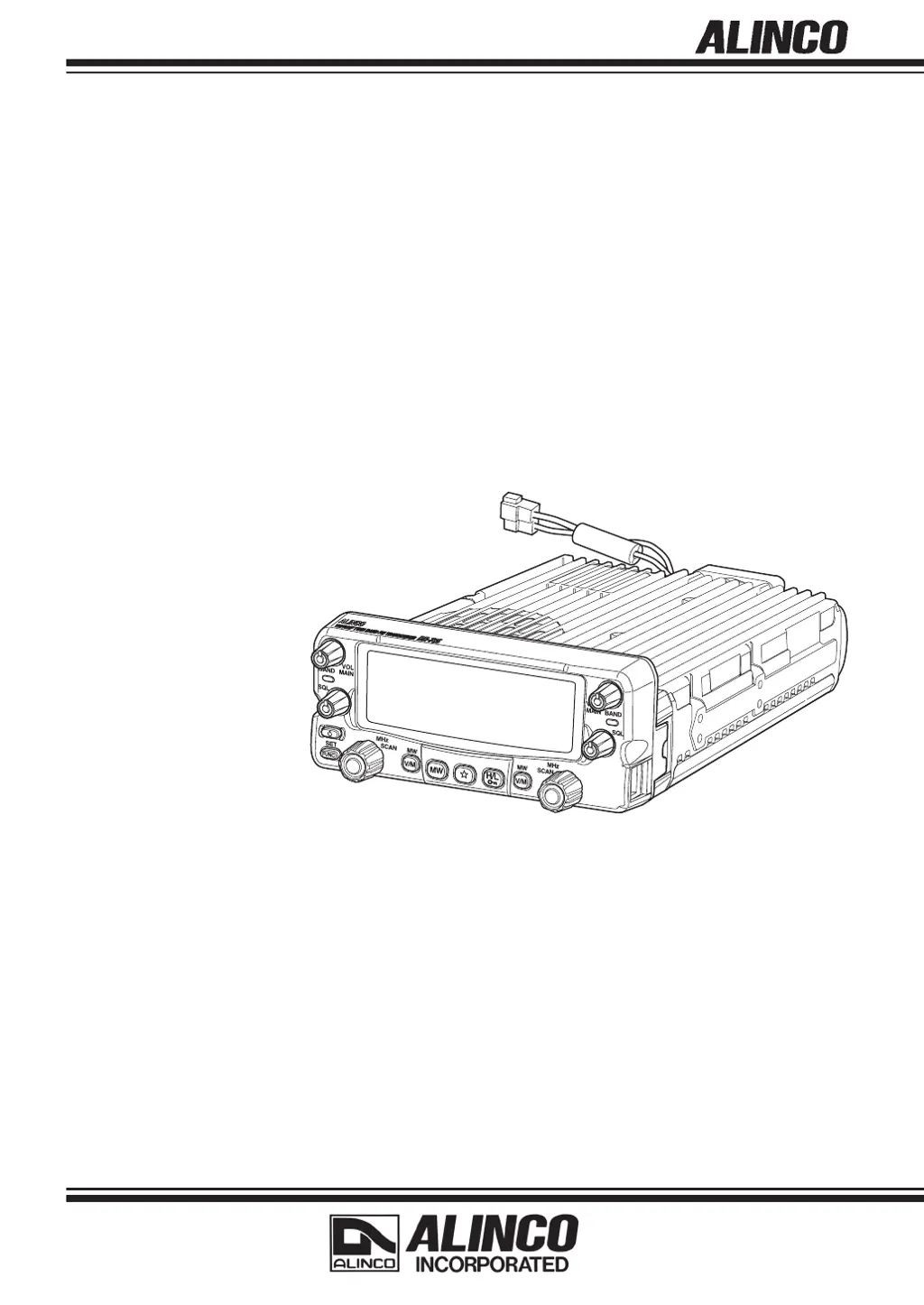
DR-735T/E
Instruction Manual
Thank you for purchasing your new Alinco radio.
This Instruction manual contains important safety and operating instructions. Please read
this manual carefully before using the product and keep it for future reference.
VHF/UHF TWIN BAND FM RADIO

Table of Contents

Questions and Answers

  • R
    Randall BellJul 31, 2025
    What to do if Alinco Tuner won't turn on?
    • S
      stevensonjeremyJul 31, 2025
      If your Alinco Tuner won't turn on, there are several potential causes. First, check that the + and – polarities of the power connection are correctly connected. The red lead and the black lead of the DC power cable should be connected to the appropriate terminals. Second, verify the fuse isn't blown; if it is, address the reason for the blown fuse and replace it with a new fuse of the same rating. Finally, ensure that the power supply or DC/DC converter is turned on.
  • B
    Brittany MartinAug 3, 2025
    Why Alinco Tuner PTT pressed but doesn’t transmit?
    • A
      Abigail Curtis DVMAug 4, 2025
      If the Alinco Tuner's PTT is pressed but it doesn’t transmit, or it transmits but can’t communicate, check these items: First, ensure the microphone terminal is properly inserted. Second, verify that the antenna is correctly connected. Finally, if '[OFF]' appears on the display, cancel SHIFT or set the frequency within the band.
  • C
    Carrie MuellerAug 8, 2025
    Why no sound comes from Alinco Tuner speaker?
    • D
      Danny SalazarAug 8, 2025
      If no sound is coming from the Alinco Tuner's speaker and the unit isn't receiving, consider these possibilities: * The audio level may be too low, so adjust the volume knob. * The squelch may be muted, so decrease the squelch level. * Tone or DCS squelch might be active, so turn them off. * The PTT key of the microphone may be pressed for transmission, so release the PTT switch. * The external speaker could be defective, so remove and inspect it.
  • C
    Catherine WeissAug 13, 2025
    What to do if rotating dial will not change Alinco Tuner memory channel?
    • R
      Raymond JarvisAug 13, 2025
      If rotating the dial on your Alinco Tuner doesn't change the memory channel, it could be due to a couple of reasons. First, no memory channels may be programmed, so you should program memory channels. Second, the unit might be in CALL mode, so press the V/M key to cancel CALL mode.
  • E
    Emily HornAug 16, 2025
    What to do if Alinco Tuner keys and dial do not function?
    • M
      Mr. Gary Ali DDSAug 16, 2025
      If the keys and dial on your Alinco Tuner do not function, it's possible that the key-lock function is activated. If you see an indication that key-lock is on, cancel the key-lock function.
  • H
    heathermillerAug 21, 2025
    What to do if Alinco Tuner UP/DOWN key will not change frequencies?
    • J
      Jason FreemanAug 21, 2025
      If pressing the UP/DOWN key on your Alinco Tuner does not change frequencies or memory channels, it could be because the unit is in CALL mode. Press the V/M key to cancel CALL mode. Another possibility is that the lock switch on the microphone is ON, so turn off the lock switch on the microphone.
  • J
    James HarmonAug 26, 2025
    How to fix a dim Alinco Tuner display?
    • B
      Brian JonesAug 26, 2025
      If the display on your Alinco Tuner is too dim, the dimmer setting level is likely low. You should make the dimmer level setting higher.

Summary

Notice and Compliance Information

WARNING

Environment and Condition of Use

Safety guidelines for operating the radio in different environments and conditions.

WARNING

Handling and Power Supply Safety

Precautions for safe handling, power connection, and emergency situations.

Before Operating the Radio

Key Safety and Operational Notes

Important attention points including hazardous materials and lightning protection.

Introduction

Key Features

Overview of the radio's innovative features and dual-band capabilities.

Standard Accessories

Included Items and Warranty Policy

Lists of standard accessories provided with the radio and warranty policy details.

Initial Installation

Microphone, Antenna, and Base Station Setup

Instructions for connecting peripherals and setting up for base station use.

Initial Installation

Mobile Station Setup and RF Hazard Warning

Guidance on installing the radio in a vehicle and warnings about RF exposure.

Controls, Connectors, and Display

Front Panel Controls Overview

Identification and function of primary controls on the front panel of the radio.

Controls, Connectors, and Display

Rear Panel Connections

Description of rear panel connectors for external speakers, power, and antenna.

Controls, Connectors, and Display

Display Indicators and Symbols

Explanation of various icons and indicators displayed on the radio screen.

Basic Operations

Unit Power, Band Switching, and Audio Adjustment

Procedures for powering the unit, switching bands, and adjusting audio levels.

Basic Operations

VFO Mode and Frequency Tuning

Using VFO mode to change frequencies via dial or microphone keys.

Basic Operations

Memory Channel Programming

Procedures for programming new memory channels into the radio.

Basic Operations

Dual Memory Channel Programming

Steps for programming dual memory channels for simultaneous band operation.

Basic Operations

CALL Channel Operation

Utilizing the dedicated CALL channel for quick access to specific frequencies.

Basic Operations

Reverse Function and Transmission

Using the reverse function for repeater monitoring and basic transmission procedures.

Basic Operations

Selecting Output Power

Adjusting the radio's transmission power level (High, Mid, Low).

Set mode

Setting Mode Menu Overview

Introduction to the Set mode for customizing radio parameters and features.

Set mode menu

Channel Step, Modulation, and Gain Settings

Configuring channel step increments, modulation modes, and microphone gain.

Set mode menu

Scan Modes and Beep Sound Level

Configuring scan resume conditions, memory scan modes, and beep sound levels.

Set mode menu

VFO Beep and Pager (Bell) Features

Enabling/disabling VFO beep sounds and the pager (bell) notification feature.

Set mode menu

Display Color Settings (Stand-by, Receive)

Customizing display colors for stand-by and receiving states.

Set mode menu

Display Color (Transmit) and Dimmer

Setting display color for transmission and adjusting screen brightness (dimmer level).

Set mode menu

Attenuator and Memory Protection

Enabling the attenuator to reduce sensitivity and protecting memory channels from accidental deletion.

Set mode menu

Key-Holding Time and Auto Repeater Shift

Adjusting key-hold duration and enabling/disabling automatic repeater shift.

Set mode menu

Restore Function

Restoring factory default settings or previously saved configurations.

Advanced set mode

Advanced Set Mode Menus Overview

Introduction to advanced customization options beyond standard set mode menus.

Set mode menu

Auto Power Off (APO) and Time Out Timer (TOT)

Configuring automatic power shut-off and setting transmission time limits.

Set mode menu

Busy Channel Lockout (BCLO)

Preventing transmission on occupied frequencies to avoid interference.

Set mode menu

Mid Output Power and Image Signal Rejection

Adjusting mid-level output power and configuring image signal rejection.

Set mode menu

TNC Mode and Memory Channel Mode Selection

Enabling TNC mode for data communication and selecting memory channel usage modes.

Useful functions

Single-Band and VFO Auto-Program Modes

Using the radio in single-band mode and customizing AUTO-repeater settings.

Useful functions

Scan Functions Overview

General use of scanning features and automatic band exchange.

Useful functions

Skip;Favorite Channels and Programmed Scan

Managing channels for scanning and setting frequency ranges for programmed scans.

Useful functions

Priority and Tone Scans

Monitoring priority channels and scanning for CTCSS tones on incoming signals.

Useful functions

DCS Scan and Key-Lock Function

Scanning for DCS codes and locking/unlocking radio keys.

Useful functions

Selective Communication (CTCSS;DCS)

Using CTCSS and DCS for selective calling and repeater access.

Useful functions

Cable Clone Function

Copying radio settings and data between units using a clone cable.

Useful functions

XBR (Crossband Repeater) Mode

Operating the radio as a crossband repeater using VHF and UHF bands.

Useful functions

Packet Communication Setup

Connecting an external TNC unit for packet data communication.

Maintenance; Reference

Reset Procedures

Various reset options for VFO, memory, RGB, and full factory defaults.

Maintenance; Reference

Troubleshooting Common Issues

Diagnosing and resolving common problems encountered with the radio.

Maintenance; Reference

Optional Accessories and EDS-30 Installation

Information on optional accessories and installation guide for the EDS-30 separation kit.

Specification

General Specifications

Technical specifications including frequency coverage, operating modes, and power requirements.

Specification

Frequency and Step Details in AUTO Mode

Table detailing frequency ranges, steps, and modes for AUTO mode operation.

Alinco DR-735T/E Specifications

General IconGeneral
ModeFM
Power Output50W (VHF), 45W (UHF)
Channel Capacity1000 Channels
Power Supply13.8V DC
Antenna ConnectorSO-239
CTCSS/DCSYes
DisplayLCD
Channel Steps5, 10, 12.5, 15, 20, 25 kHz

Related product manuals