Videophone
- 38 -
Initiating a video call
➣
FAST TRACK: Make / receive normal phone call. Press VIDEO, 1, wait for
video connection.
1. Make or receive a normal phone call. Let the other person know that you intend to
convert the call to a video call and make sure they agree.
Before converting to a video call, tell the other person that they MUST NOT
PRESS ANY KEY until they’re told to do so on-screen. Also, remind them that
while the call is converting, both parties will not be able to hear each other as the
phone line is temporarily muted.
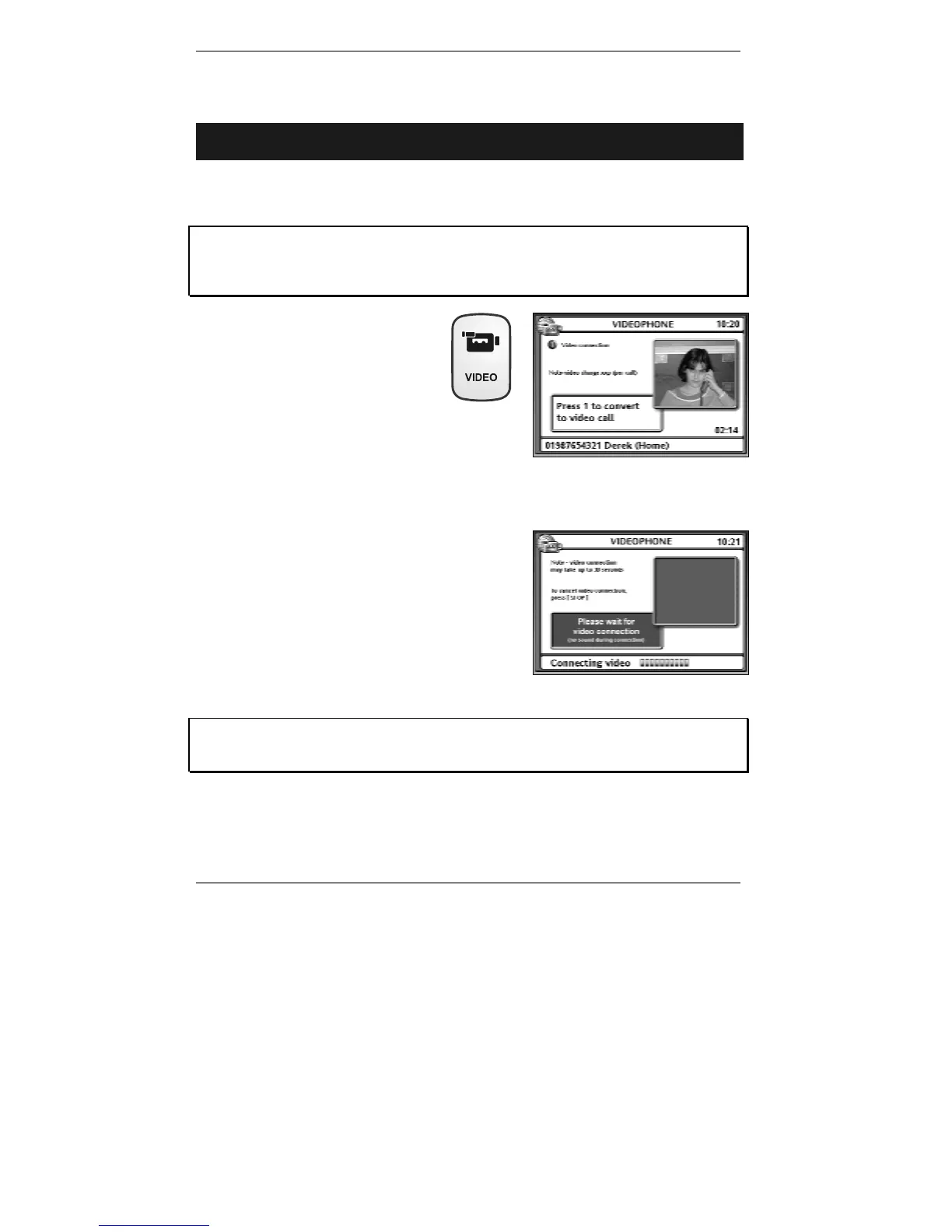
2. To convert to a video call, press
VIDEO. The following display
will appear (see example right):
At first, you will see yourself on-screen. This is the
view that the other person will see when you make
a video connection. Therefore, make sure you’re
positioned correctly in front of the camera and that
there’s adequate lighting for you to be seen
clearly.
3. Press 1 to start the video connection. Your
image will disappear and you will see the red
flashing message: Please wait for video
connection.
The other person will receive a message on their
videophone to let them know that you wish to
convert to a video call. Note, the video
connection won’t take place until they have
pressed their VIDEO button to accept.
Once the other person has accepted, wait 10 - 30 seconds for the video
connection to be made. During this connection period, you won’t be able to hear
the other person and they won’t be able to hear you.
& Press STOP if you change your mind and wish to stop the video connection.



 To Next Page