Surfing the internet
- 80 -
Navigation
The e-m@iler is factory-set to Narrow Screen Navigation. (To select Wide Screen
Navigation, see Advanced settings page 142.) The following instructions show you how
to navigate around the screen and select and adjust items.
♦ Use the pull-out keyboard for surfing.
To go to a particular site, you can navigate via links (described
ahead) to get to the page you want.
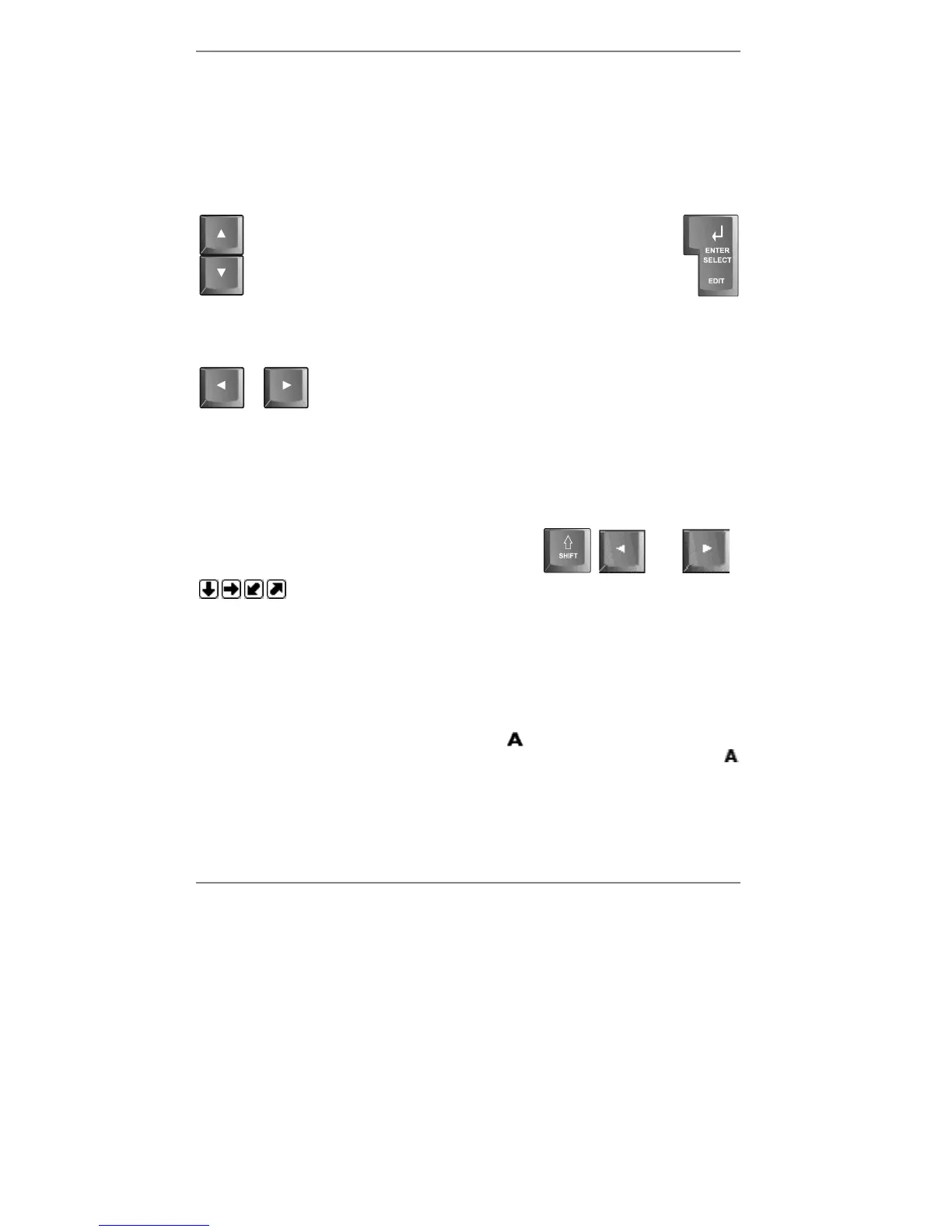
To navigate, use the up and down arrow buttons U D and
SELECT.
On sites displaying many links within the page, you will find it quicker to move page up
and page down using "SHIFT and U D.
On some sites, you may need to adjust a highlighted item –
to do this use the left and right arrow buttons L R and SELECT.
Often you will use
U D and SELECT to highlight and select a 'button' on the screen.
When you move to a button it will be highlighted either as # (un-selected) or
) (selected). Once highlighted, you can press SELECT to change from # to ).
Note, if you’ve selected Wide Screen Navigation (described on page 142), some of
the page will be located off-screen to the left or right.
You can view these areas of the screen using
"SHIFT and
L (left) or "SHIFT and R (right).
At the bottom right of the screen, symbols such as
show you which way you can move.
or
Notes
♦ If you know the address of the site, you can type it in and go there directly
(information on page 84). Alternatively, you can select the site on your favourites
menu (information on page 88).
♦ During surfing, when you see the 'spinning' symbol at the bottom right of the
display, this means that the
e-m@iler is searching for a page. Wait for the
symbol to disappear before continuing (also check that the word Complete is
displayed at the bottom left).
♦ During surfing, do not pick up the telephone handset (or any extension
phone) otherwise the surfing call will be disconnected. Try to surf at a time when
no-one else will be using the phone.



 To Next Page