Page 69
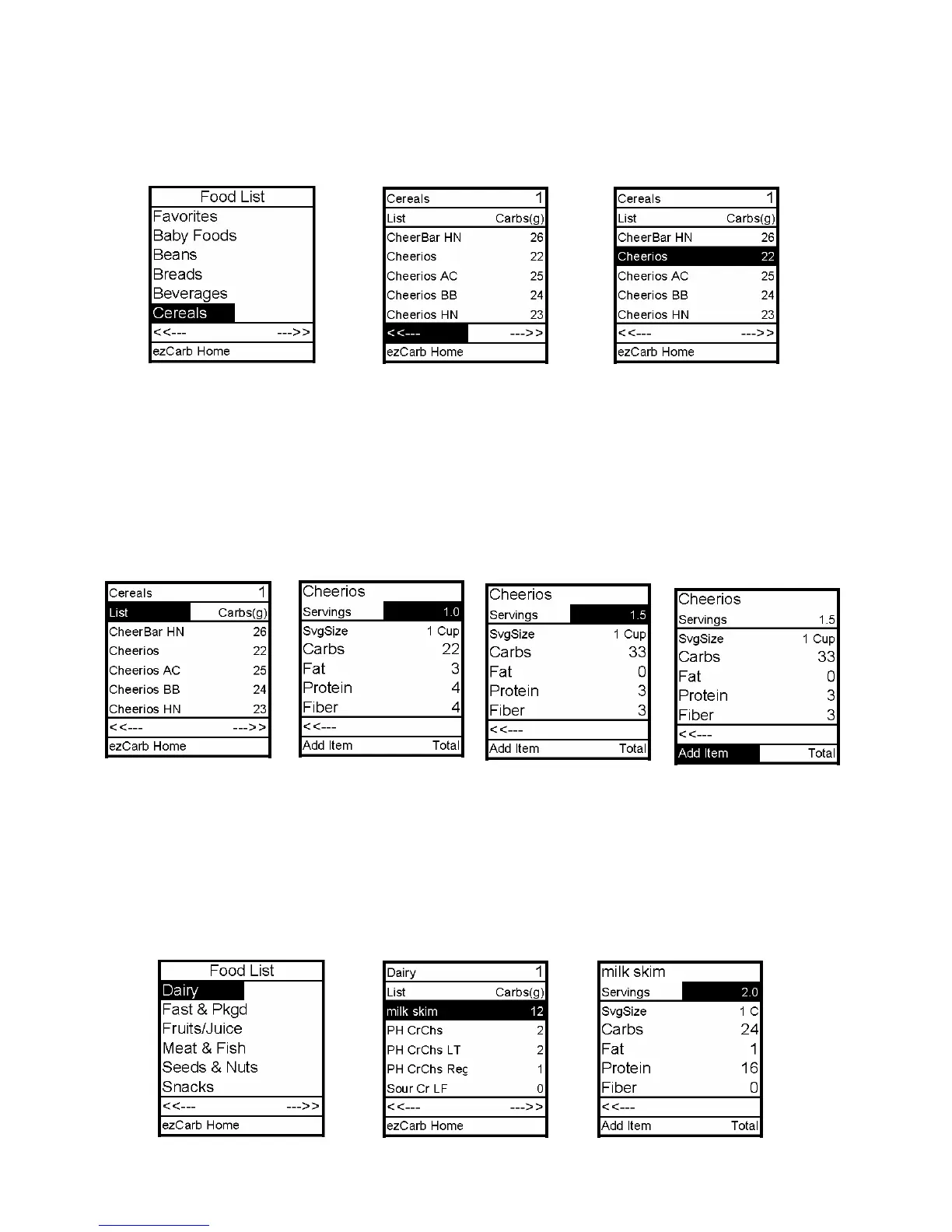
4. Scroll up to the desired Food List category. Press OK to select.
5. The category list is displayed (Cereals, in this example). To move from page to page,
scroll to the backward or forward arrows and press OK.
6. Scroll up to select desired food item. Press OK.
Note: To return to the Food List to select a different category, scroll up to highlight List and
press OK.
7. The food item detail screen is displayed, showing nutritional information and standard
serving size. The Servings field is highlighted. Use the Up/Down arrows to enter your
serving size. Press OK.
8. Add Item is highlighted. If you wish to add an item to your meal, press OK. The Food
List is displayed. Follow steps 3 through 7 until you have added all your meal items
(maximum of 9 items can be entered for one meal).
12



 To Next Page