2-7 GUI Overview Instrument Overview
2-18 PN: 10580-00444 Rev. U MS2090A UG
Text Entry and EZ Keyboard
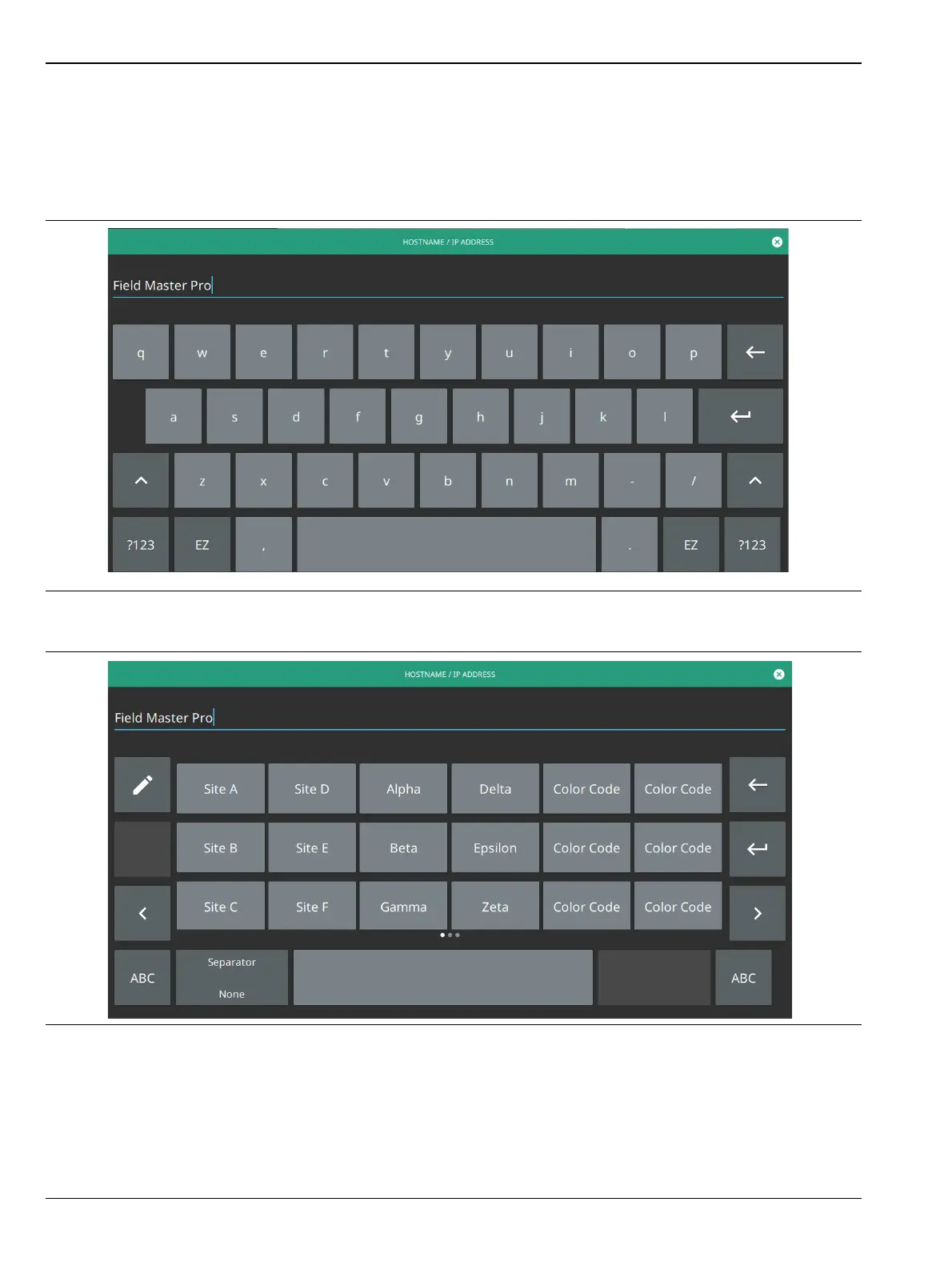
When an instrument function requires you to enter text, such as entering an Ethernet hostname or IP address,
a touch screen alphabetic keyboard is displayed. See Figure 2-13. Select the “?123” key to switch to the digits
and symbols keyboard. Use the left arrow key (backspace) to delete the character to the left of the insertion
point. The insertion point can be moved to a selected position in the data entry field. You can enable caps lock
by double tapping the shift key.
The EZ key switches to a configurable EZ keyboard, illustrated below.
Use the EZ keyboard to enter frequently used text strings with a single screen tap. The EZ keyboard is initially
populated with default values. Each key enters the entire string as shown on the key. For convenience, you can
set an automatic Separator character to be placed between each EZ key string.
Figure 2-13. Touch Screen Keyboard
Figure 2-14. Touch Screen EZ Keyboard













 To Next Page