113
Wi-Fi/Bluetooth
®
AQUOS R compact
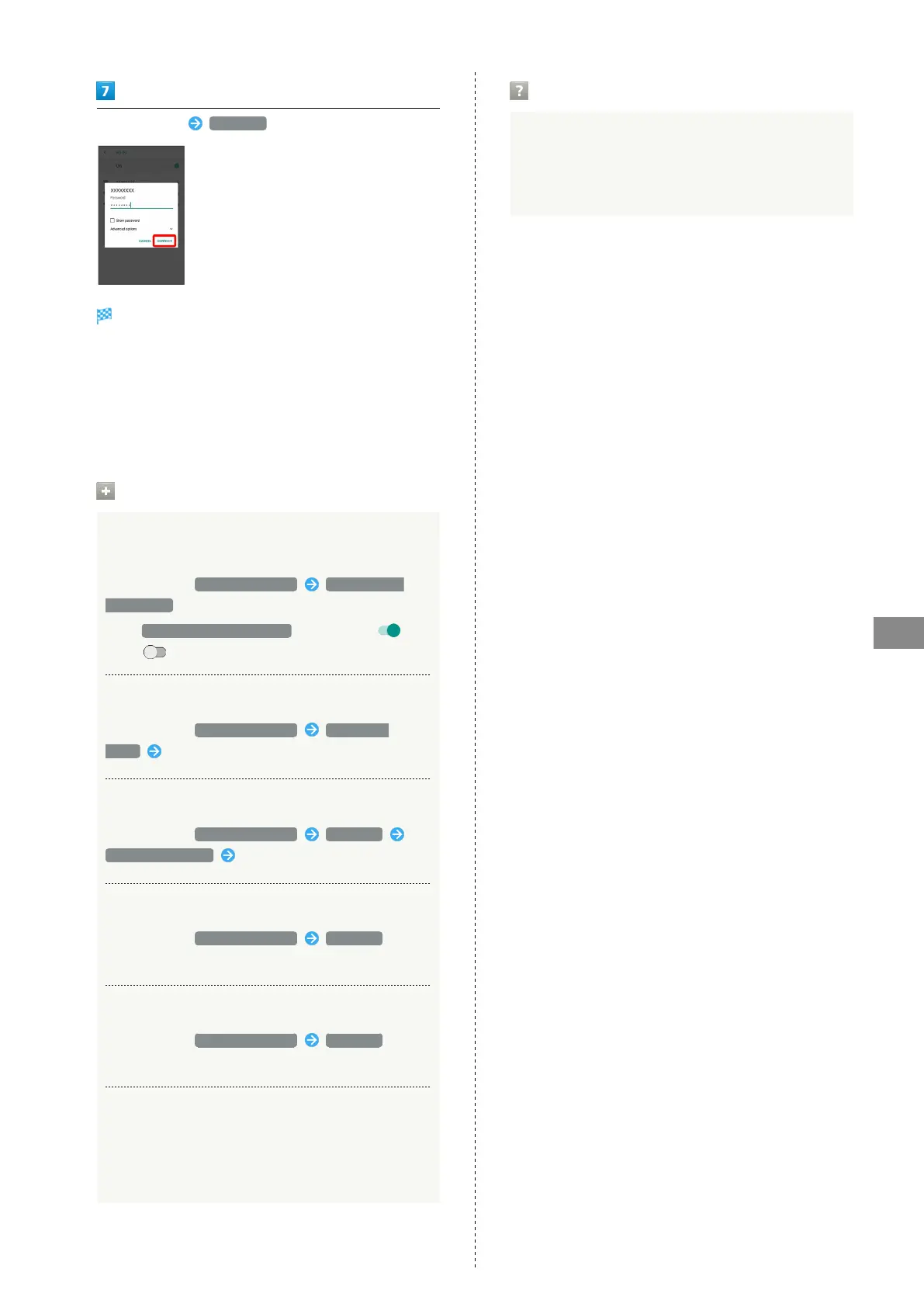
Enter password CONNECT
Handset connects to the access point.
・Password (indicated by WEP, WPA, KEY, etc.) may be found
on a label on your Wi-Fi router. For details, contact the
vendor of the router. For public wireless LAN services, check
the password with your ISP.
・Depending on access point, password entry may not be
required.
Wi-Fi Operations
Enabling/Disabling Available Network
Notifications
In Wi-Fi menu, Wi-Fi preferences Open network
notification
・
Tap Open network notification to toggle on ( )/
off ( ).
Selecting a Wi-Fi Sleep Option
In Wi-Fi menu, Wi-Fi preferences Wi-Fi sleep
policy Tap option
Installing Certificates
In Wi-Fi menu, Wi-Fi preferences Advanced
Install certificates Follow onscreen prompts
Checking MAC Address
In Wi-Fi menu, Wi-Fi preferences Advanced
・MAC address is shown below "MAC address."
Checking IP Address
In Wi-Fi menu, Wi-Fi preferences Advanced
・IP address is shown below "IP address."
Checking Access Point Activity while Connected
In Wi-Fi menu, Tap access point
・Connection activity, signal strength, frequency, security,
link speed, etc. appear.
Troubleshooting
Q. Cannot detect access points
A. There may be multiple access points using neighboring
channels. In this instance, handset may not detect
access points correctly.



 To Next Page