100
Applications
Activating Applications
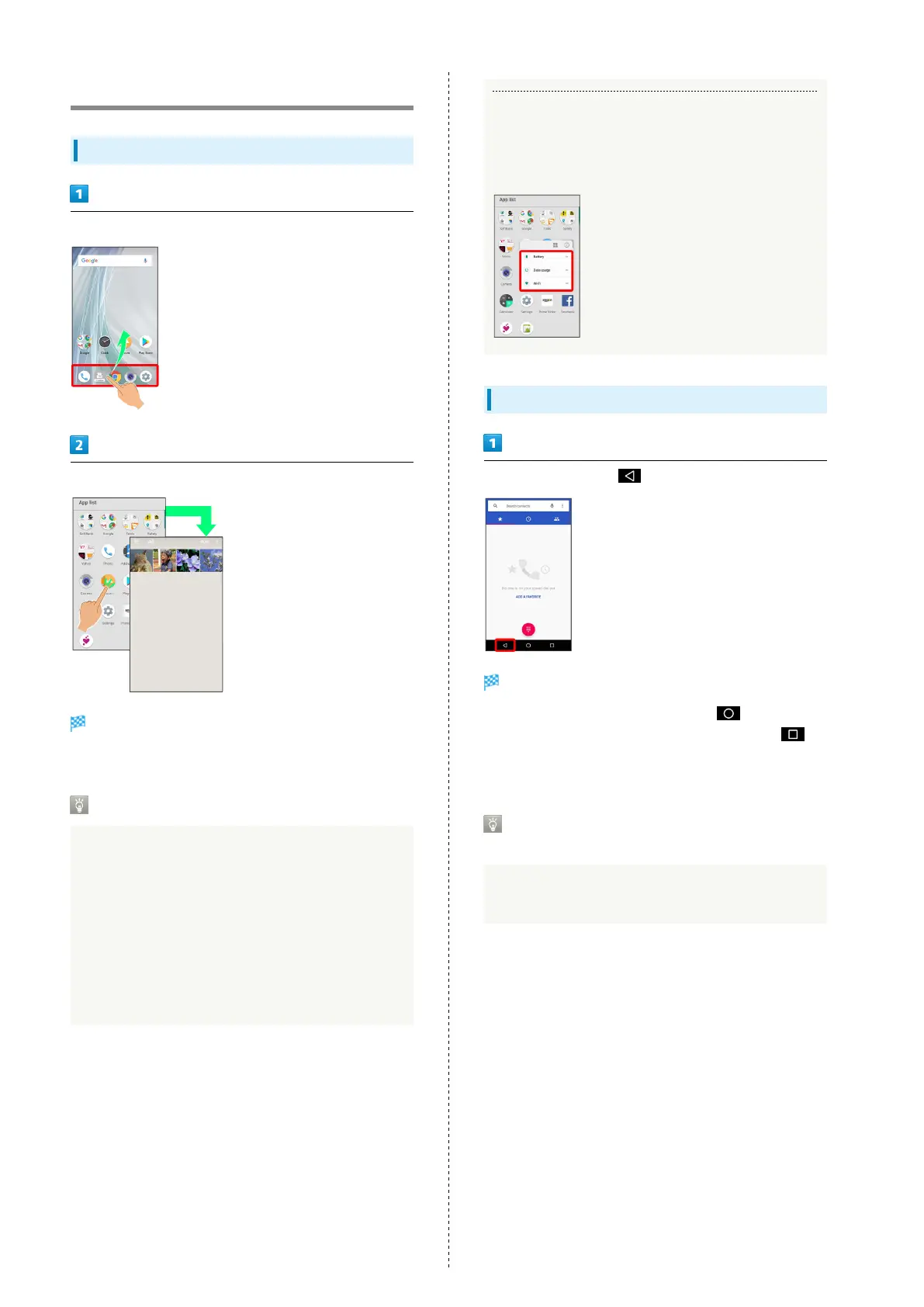
In Home Screen, Flick Favorites Tray up
Tap application
Application activates.
・If confirmation appears, follow onscreen prompts.
Using Applications
Setting Required Privileges for Using
Applications
Some applications first require permission to access
handset data or privileges to access important functions
such as photographing.
Confirmation appears for applications requiring permission
when first activated. Follow onscreen prompts.
・See "Confirmation when First Activating Applications" for
details.
Function Shortcuts
With some applications, Touch & Hold for shortcuts to
functions. Tap function shortcut to launch function
directly.
Exiting Applications
In any application, Tap repeatedly
Home Screen returns and application exits.
・
Home Screen also returns when Tapping on Navigation
Bar, but application does not exit. In this case, Tap
and exit it from recent apps window. See "Opening Recent
Apps Window" for details.
Where to Obtain Applications &
Updates
Use Google Play™ to obtain new applications or update
installed ones. See "Google Play" for details.



 To Next Page