37
Handset Interface
AQUOS R compact
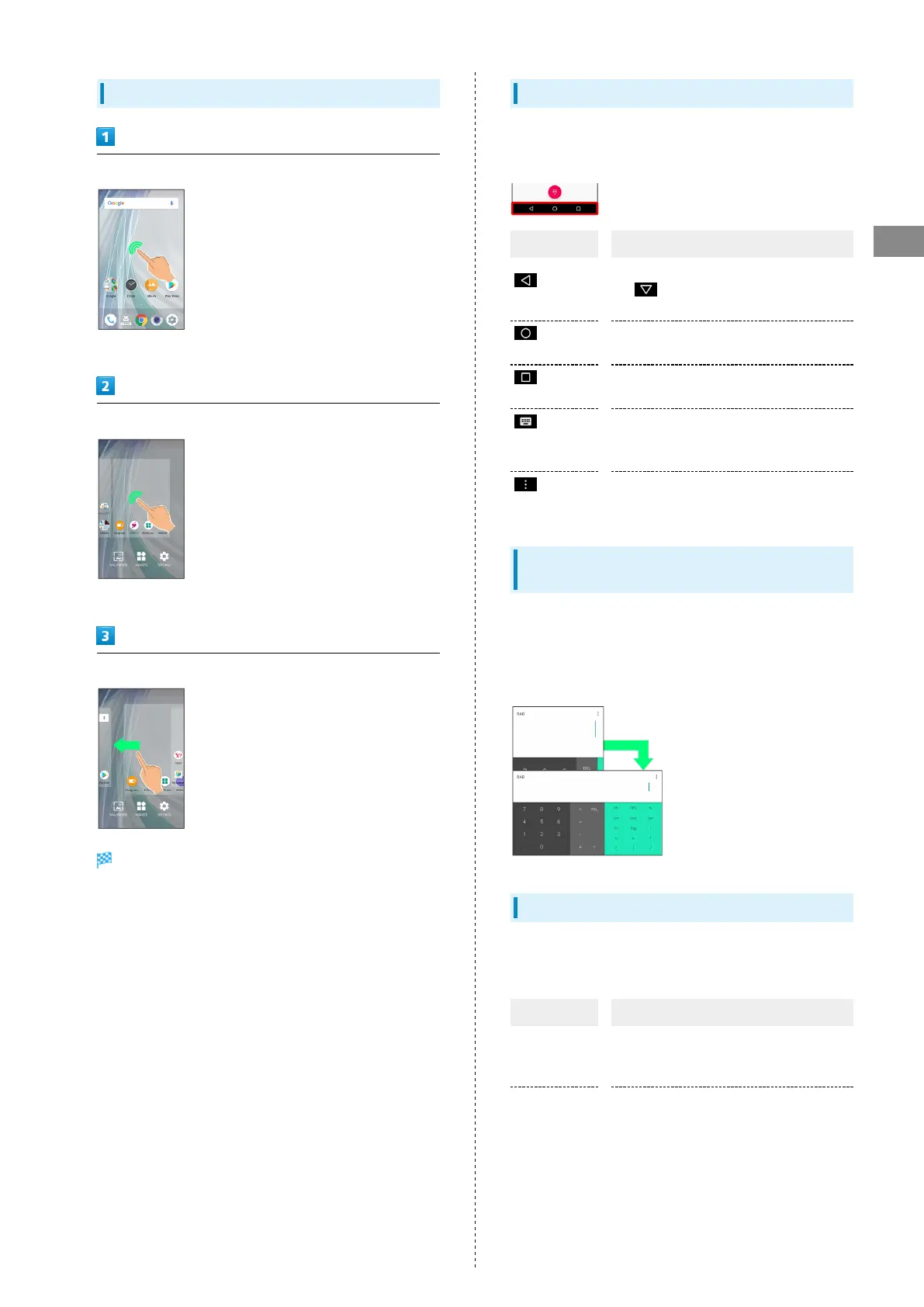
Rearranging Home Screen Sheets
Touch & Hold open area of Home Screen
・Alternatively, Pinch Home Screen to rearrange sheets.
Touch & Hold sheet to move
・The leftmost sheet cannot be moved.
Drag to location to change place
Sheet is moved.
Navigation Bar
Tap icons on Navigation Bar (Display bottom) for the
following functions/operations.
Name Description
(Back
key)
Return to the previous screen. Appears
as for onscreen keyboard; Tap to
close keyboard.
(Home
key)
Return to Home Screen.
(Recents
key)
Open a list of recently used applications
to activate or remove them from the list.
(Keyboard
key)
Change keyboard/input method. Appears
when keyboard is open.
(Menu
key)
Open menu. Appears for some applications.
Portrait Orientation & Landscape
Orientation
The screen changes to landscape orientation when handset is
rotated sideways.
・Depending on the current screen, the orientation may not
change even by changing handset orientation.
Wider Display Area
Change setting for wider Display.
Widen Display in the following ways.
Item Description
Using
standard
mode
In standard mode, use Display wider at
top (left-right areas of Front Camera).
See "Using Standard Mode" for details.
Hide
Navigation
Bar
Hide Navigation Bar for wider Display. Use
Fingerprint Sensor as Back key/Recents
key to hide Navigation Bar.
See "Fingerprint Sensor Settings" for
details.



 To Next Page