145
Handset Settings
AQUOS R compact
Setting VeilView Pattern
In Display menu, Advanced VeilView Pattern
setting Tap item OK
Setting VeilView Density
In Display menu, Advanced VeilView Density
setting High / Normal / Low OK
Setting Whether to Play Slideshow while
Charging with Display Off
In Display menu, Advanced Screen saver Off
/ On
・
Tap Off to toggle On ( ), On to
toggle Off ( ).
Setting Screen Saver Display Options and
Images
In Display menu, Advanced Screen saver
Clock / Colors / Photos
・Available when Screen saver is enabled.
・
After Tapping Clock / Photos , next Tap and
follow onscreen prompts.
・
To check set screen saver, Start now .
Glove Mode Cautions
Observe the following when using glove mode.
・Touch operation may not be possible depending on
materials of your gloves.
・Disable Glove mode when not wearing gloves or when
using handset in a bathroom.
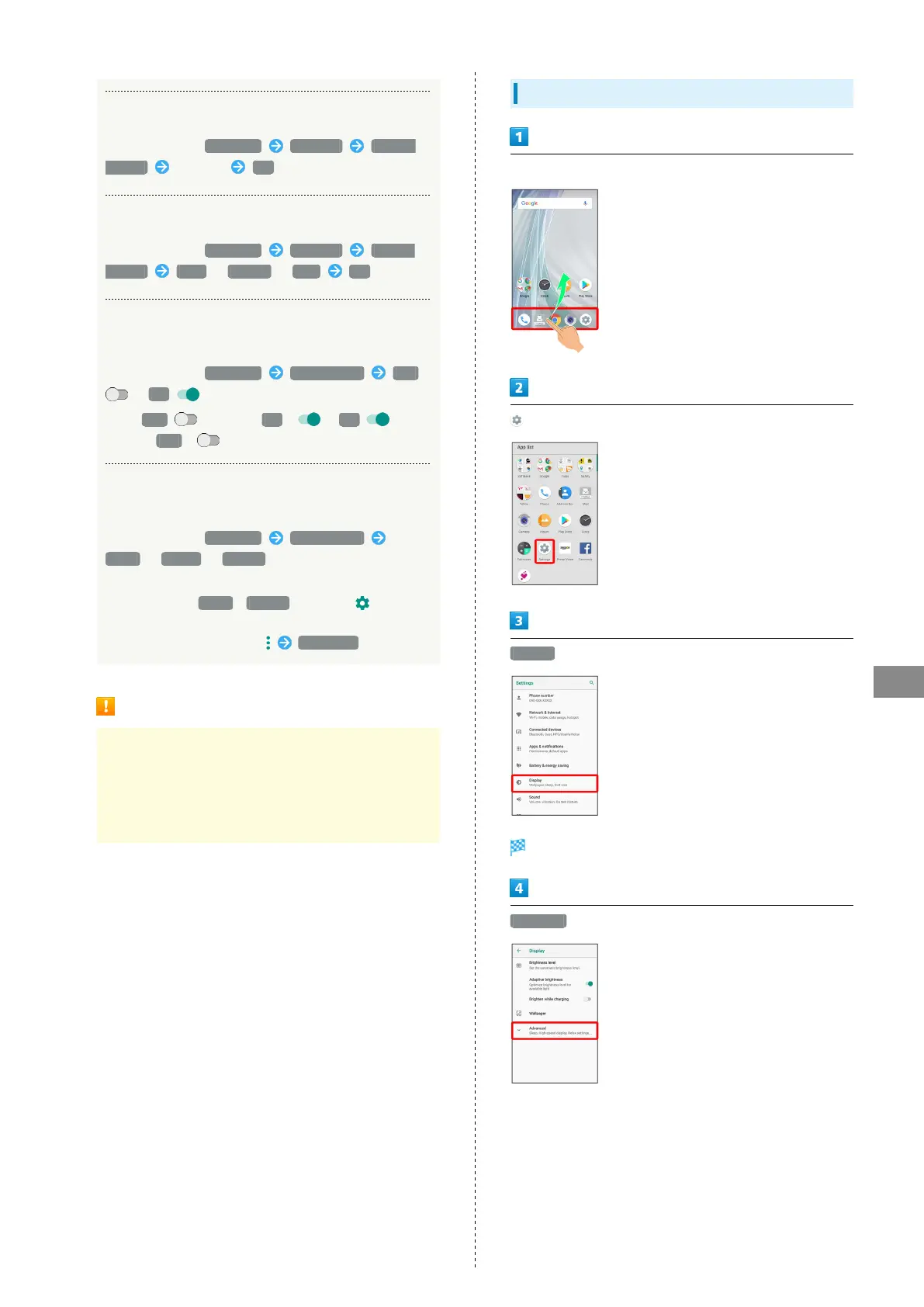
Setting Display Timeout
In Home Screen, Flick Favorites Tray up
(Settings)
Display
Display menu opens.
Advanced



 To Next Page