144
Display Operations
Setting Display Brightness
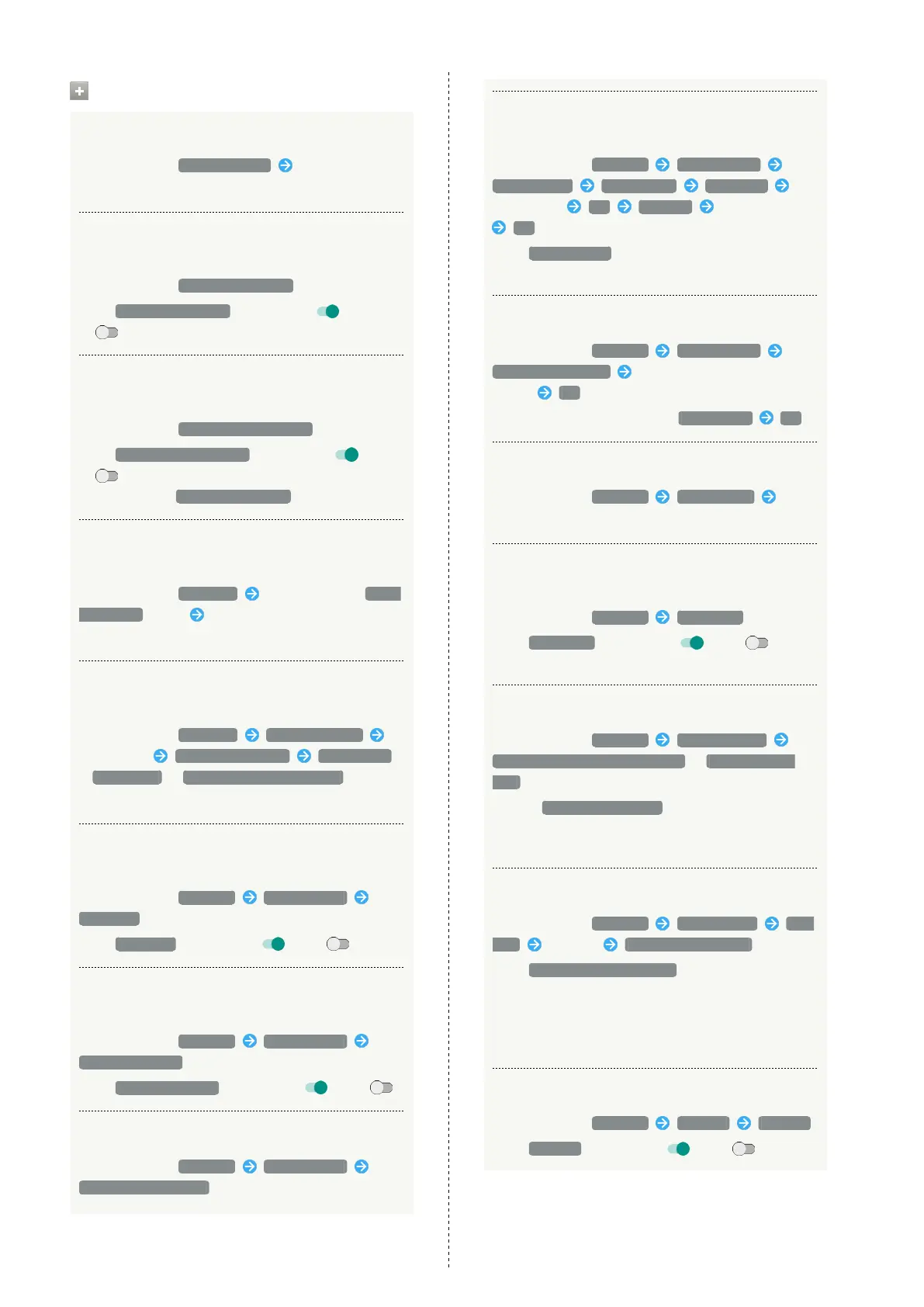
In Display menu, Brightness level Drag bar to adjust
brightness
Enabling Automatic Adjustment of Display
Brightness for Surroundings
In Display menu, Adaptive brightness
・
Tap Adaptive brightness to toggle on ( )/off
( ).
Enable Display to be Bright while Charging
Regardless of Surrounding Brightness
In Display menu, Brighten while charging
・
Tap Brighten while charging to toggle on ( )/off
( ).
・
Available when Adaptive brightness is enabled.
Setting Image in Internal Storage or on SD Card
as Wallpaper for Home Screen and Lock Screen
In Display menu, Wallpaper Tap application ( Album
(wallpaper) , etc.) Follow onscreen prompts
・If confirmation appears, follow onscreen prompts.
Setting Preloaded Image as Wallpaper for Home
Screen and Lock Screen
In Display menu, Wallpaper Preset wallpaper
Select image SET TO WALLPAPER Home screen
/ Lock screen / Home screen and lock screen
・If confirmation appears, follow onscreen prompts.
Enabling/Disabling RelaxView for Eye-friendly
Image Quality
In Display menu, Advanced Relax settings
RelaxView
・
Tap RelaxView to toggle on ( )/off ( ).
Setting Whether to Enable RelaxView during
Specified Hours
In Display menu, Advanced Relax settings
RelaxAuto setting
・
Tap RelaxAuto setting to toggle on ( )/off ( ).
Viewing RelaxAuto Overview
In Display menu, Advanced Relax settings
Overview of RelaxAuto
Specifying Hours during which RelaxAuto is
Enabled
In Display menu, Advanced Relax settings
Time settings Manual mode Start time
Specify time OK End time Specify time
OK
・
Tap エモパー mode (emopa mode) to enable RelaxView
during your bedtime learned by emopa.
Setting Image Quality for RelaxView
In Display menu, Advanced Relax settings
Adjust image quality Drag slider to adjust image
quality OK
・
To restore the default setting, TO DEFAULT OK .
Setting Image Quality
In Display menu, Advanced Quality mode Tap
mode
Setting Whether to Enable Touch Operation
Even with Gloves On
In Display menu, Advanced glove mode
・
Tap glove mode to toggle on ( )/off ( ).
・If confirmation appears, follow onscreen prompts.
Enabling/Disabling Automatic Screen Rotation
In Display menu, Advanced Device rotation
Rotate the contents of the screen / Stay in portrait
view
・
Select Stay in portrait view to save battery power.
・The feature may not follow the setting with certain
applications.
Setting Text Font
In Display menu, Advanced Font Settings Text
font Tap font APPLY AFTER REBOOT
・
Tap SEARCH DOWNLOAD FONT to search for fonts on
Google Play.
・Depending on the application, changing the font may
prevent text from being shown correctly. Reset to the
preset font.
Enabling/Disabling VeilView
In Display menu, Advanced VeilView VeilView
・
Tap VeilView to toggle on ( )/off ( ).



 To Next Page