211
Safety Precautions
AQUOS R compact
Handset & Hardware Care
Handset & Hardware Care
・Use handset within 5
o
C - 35
o
C and 35% - 90% humidity.
For use in bathrooms, see "Cautions for Use in a Bathroom."
・Avoid extreme temperature or direct sunlight.
・Handset/Internal Battery may become warm during operation
or while charging. This is normal.
・Warranty does not cover malfunctions resulting from
misuse.
・Clean handset with a soft dry cloth. Alcohol/solvent use
may fade color/print.
・Avoid scratching Display.
・Avoid heavy objects or excessive pressure. May cause
malfunction or injury.
・Do not sit on handset in back pants pocket.
・Do not place heavy objects on handset inside handbags,
packs, etc.
・Handset back cover is not removable. Do not try to remove
it; may cause damage or malfunction, or affect water and
dust resistance.
・Connect only specified products to Jacks. Other devices may
malfunction or cause damage.
・Do not power off while using SD Card; may result in data
loss or malfunction.
・When walking outside, moderate handset volume to avoid
accidents.
・If thunder is audible while outdoors, discontinue use; there
is a risk of lightning strike or electric shock.
・When holding handset, do not block Earpiece, Mic, Speaker,
or Recorder Mic.
・Proximity Sensor prevents Touchscreen misoperation during
calls. Do not cover or place a sticker/label over Proximity
Sensor; Display may remain off during calls, disabling
handset operation.
・If your hair is between Earpiece and your ear during calls,
Proximity Sensor may not function properly.
Display may remain on; touching Display accidentally may
end the call.
・Do not cover Light Sensor or place a sticker/label over it;
may hinder ambient light detection, resulting in malfunction
of Light Sensor.
・Handset Earpiece is located at the center of Display upper
end. If other party's voice is hard to hear during calls, hold
handset so that Earpiece is next to your earhole for better
audibility.
Display (Touchscreen)
Handset Display is Touchscreen.
If Display is wet, wipe it with a soft cloth.
・Touchscreen may not respond in these situations:
・Use with gloves/long fingernails
・Use of pens, pencils or sharp objects
・Use with objects on/against Display
・Use while wet
・To prevent malfunctions, do not:
・Touch Display with wet fingers
・Use if Display is wet
・Subject Display to force/pressure
・Place a sticker or shield (commercially-available protective
film, privacy protector shield, etc.) on Display
・
In the following cases, Press to turn off Display,
Press again to turn on Display and then operate
handset.
・Handset operates automatically without touch input
・Handset does not respond to touch input
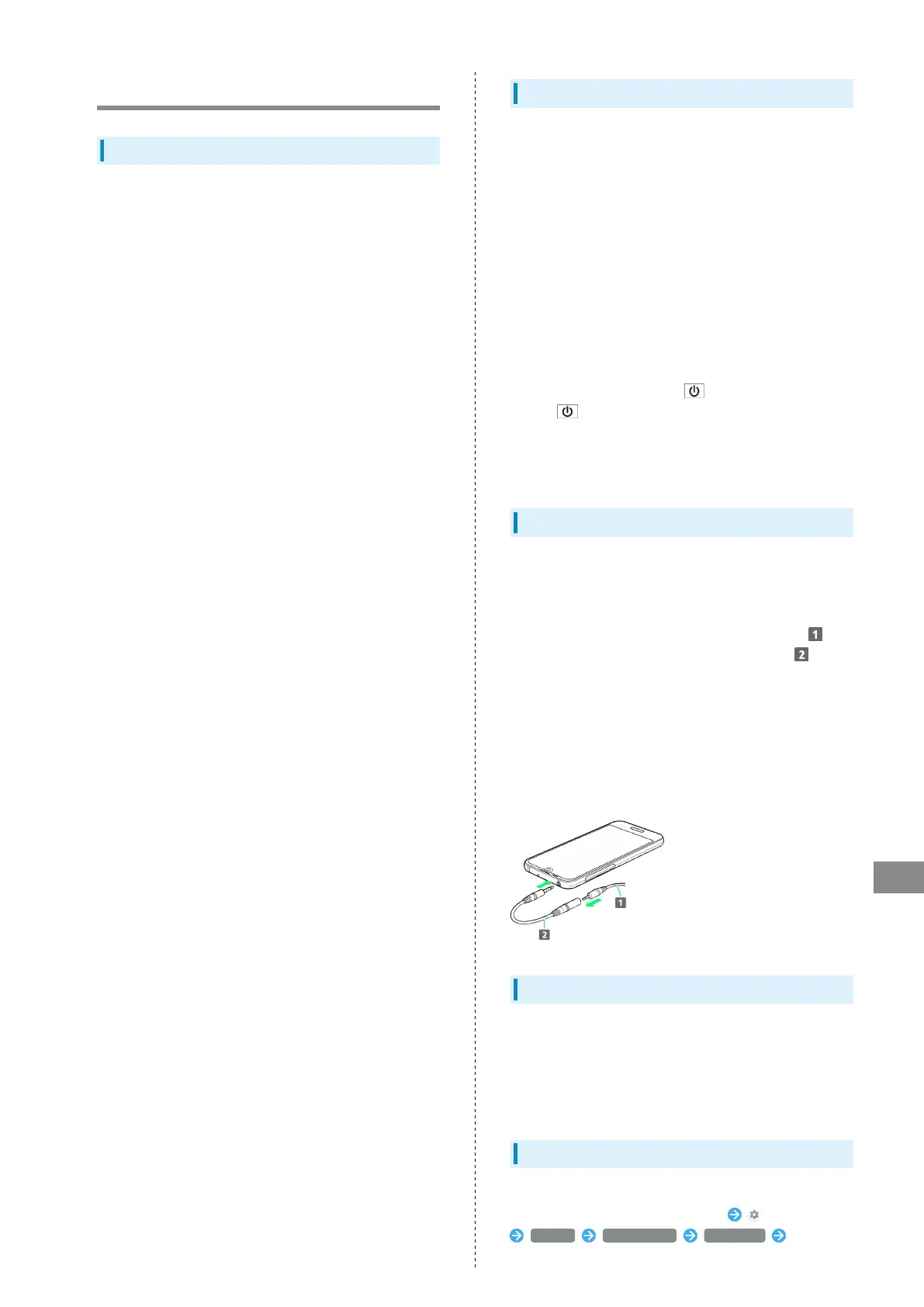
TV Antenna Cable
To view or record TV, connect TV Antenna Cable to
Earphones-Microphone Jack.
・To use earphones while using TV Antenna Cable, connect
stereo earphones with mic (commercially available) ( ) to
earphones-microphone jack on TV Antenna Cable ( ).
・Insert plug firmly. If plug is not inserted all the way,
broadcasts may not be received or audio may not be heard.
・As connection may be poor if Jack is dirty, clean with a dry
cotton swab, etc. Avoid damaging Jack when cleaning.
・Do not deform TV Antenna Cable plug or Earphones-
Microphone Jack. Deforming may cause malfunction.
・Bringing earphone cord, etc. close to handset may result in
noise.
Earphones-Microphone
Some earphones-microphones may not work properly.
・Do not subject Earphones-Microphone Jack to strong impact
while using earphones-microphone; may affect water and
dust resistance.
Self Check
If handset is unstable, diagnose the cause as follows.
In Home Screen, Flick Favorites Tray up (Settings)
System About phone Self check Follow
onscreen prompts



 To Next Page