155
Handset Settings
AQUOS R compact
High-Speed Display Settings
Set whether screen display is smoother.
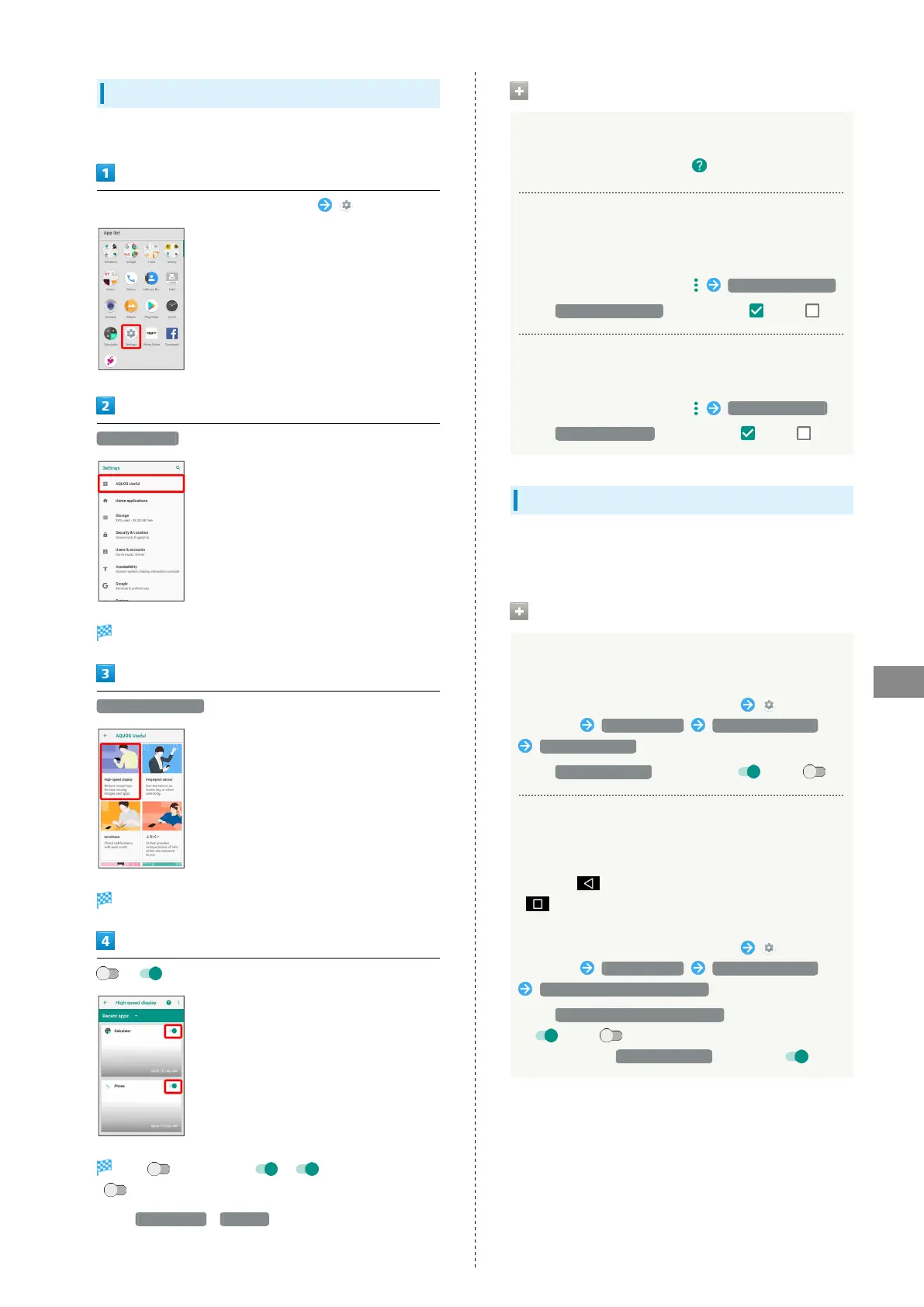
In Home Screen, Flick Favorites Tray up (Settings)
AQUOS Useful
AQUOS Useful menu opens.
High-speed display
High-speed display window opens.
/
Tap to toggle on ( ), to toggle off
( ).
・
Tap Recent apps / All apps to change applications shown
in high-speed display window.
High-Speed Display Operations
Viewing Information on High-Speed Display
In high-speed display window,
Setting Whether High-Speed Display is
Automatically Enabled when Installing
Applications
In high-speed display window, ON when installing
・
Tap ON when installing to toggle on ( )/off ( ).
Setting Whether Notification Appears when
First Launching Compatible Application
In high-speed display window, Notify valid apps
・
Tap Notify valid apps to toggle on ( )/off ( ).
Fingerprint Sensor Settings
See "Using Fingerprint Authentication Function" for details on
Fingerprint Sensor settings.
Fingerprint Sensor Operations
Setting Whether to Use Fingerprint Sensor as
Home Key
In Home Screen, Flick Favorites Tray up
(Settings) AQUOS Useful Fingerprint sensor
Use as Home Key
・
Tap Use as Home Key to toggle on ( )/off ( ).
Setting Whether to Use Fingerprint Sensor as
Back Key/Recents Key
When enabled, slide finger from left to right to use as
Back key ( ), or from right to left as Recents key
( ). Also, hide Navigation Bar for wider Display. Flick
bottom of Display up for Navigation Bar when hidden.
In Home Screen, Flick Favorites Tray up
(Settings) AQUOS Useful Fingerprint sensor
Use Back key/Recent apps key
・
Tap Use Back key/Recent apps key to toggle on
( )/off ( ).
・
Available when Use as Home Key is enabled ( ).



 To Next Page