162
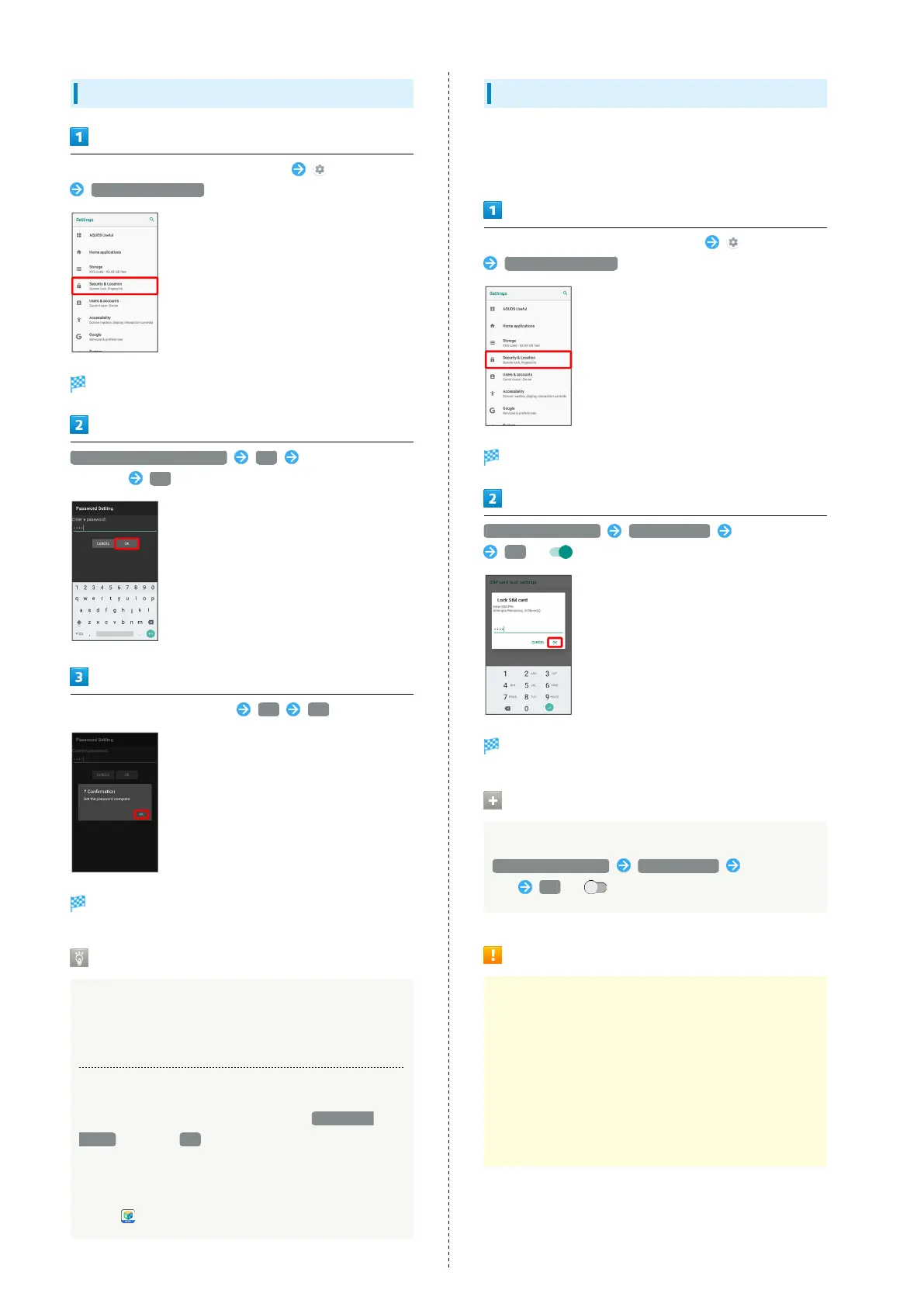
Setting Operation Password
In Home Screen, Flick Favorites Tray up (Settings)
Security & Location
Security & Location menu opens.
Operation password setting OK Enter Operation
Password OK
Re-enter Operation Password OK OK
Operation Password is set.
Operation Password Usage Notes
Changing Operation Password
Refer to the steps for setting Operation Password.
(Current Operation Password is required to proceed.)
Resetting Operation Password
If prompted for Operation Password, Tap PASSWORD
RESET then Tap OK . Continue by following onscreen
prompts.
・My SoftBank authentication is required to reset
Operation Password. Set My SoftBank authentication
from (My SoftBank Plus).
Enabling SIM PIN
When SIM PIN is enabled, PIN entry is required for handset use
each time handset is powered on with SIM Card installed. It is
effective for preventing unauthorized use by others.
In Home Screen, Flick Favorites Tray up (Settings)
Security & Location
Security & Location menu opens.
Set up SIM card lock Lock SIM card Enter SIM PIN
OK ( )
SIM card lock is enabled.
Disabling SIM Card Lock
While SIM Card is locked, in Security & Location menu,
Set up SIM card lock Lock SIM card Enter SIM
PIN OK ( )
SIM PIN Entry Cautions
SIM PIN entry is required when changing SIM PIN, when
powering handset on with SIM card lock enabled, etc.
・Entering incorrect SIM PIN three consecutive times
activates PIN Lock. To cancel, Personal Unblocking Key
(PUK) is required; contact SoftBank Customer Support,
Customer Service.
・Entering incorrect PUK ten consecutive times activates
PUK Lock, disabling handset. For recovery, SIM Card must
be reissued at a SoftBank Shop (fees apply).



 To Next Page