50
Capturing and Opening Temporary
Screenshot
Capture screenshot of webpage, etc. for saving it temporarily.
Captured screenshot can be opened while using other
applications as well.
・Only one temporary screenshot can be captured. It cannot be
saved as a file.
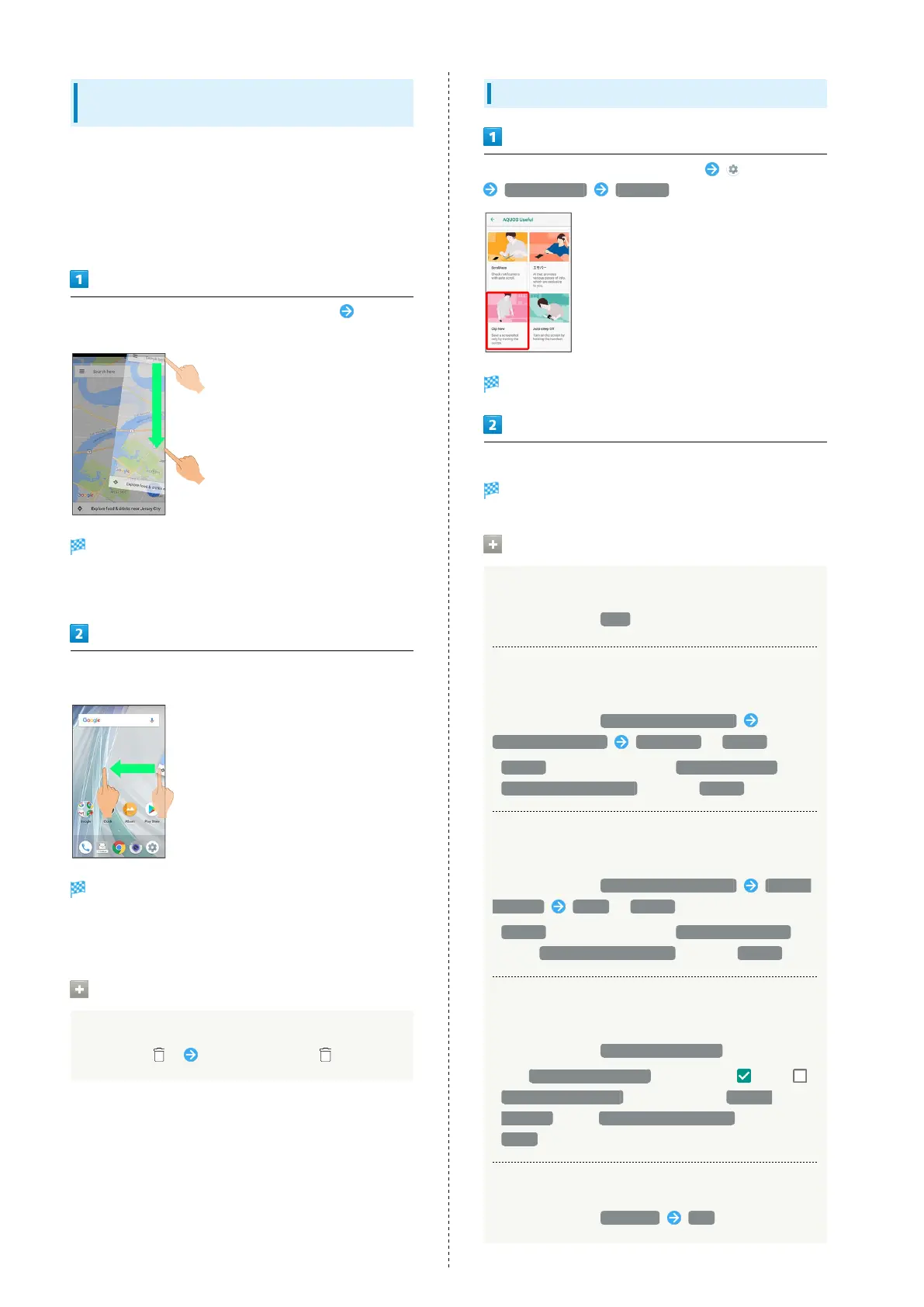
Touch upper right (upper left) corner of Display Slide
finger down along the edge of Display
Temporary screenshot is captured; portion of screenshot
appears at the right (left) of Display.
・If confirmation appears, follow onscreen prompts.
Drag portion of screenshot at the right (left) of Display to
the left (right)
Temporary screenshot appears.
・To move screenshot aside, Drag it to the right (left) of
Display.
Deleting Temporary Screenshot
While temporary screenshot appears, Touch & Hold
screenshot ( ) Drag screenshot to
Setting Clip Now
In Home Screen, Flick Favorites Tray up (Settings)
AQUOS Useful Clip Now
Clip Now menu opens.
Set each item
Setting is complete.
Clip Now Setting Operations
Viewing Instructions for Clip Now
In Clip Now menu, Help
Setting Whether to Capture Permanent
Screenshots by Sliding Operation
In Clip Now menu, Slide operation settings
Horizontal direction Screenshot / Disable
・
Disable is not available when Vertical direction under
Slide operation settings is set to Disable .
Setting Whether to Capture Temporary
Screenshot by Sliding Operation
In Clip Now menu, Slide operation settings Vertical
direction Memo / Disable
・
Disable is not available when Horizontal direction
under Slide operation settings is set to Disable .
Setting Whether to Show Sharing Options after
Capturing Temporary Screenshot
In Clip Now menu, Display share options
・
Tap Display share options to toggle on ( )/off ( ).
・
Display share options can be set when Vertical
direction under Slide operation settings is set to
Memo .
Deleting All Permanent Screenshots
In Clip Now menu, Delete All YES



 To Next Page