71
Messaging
AQUOS R compact
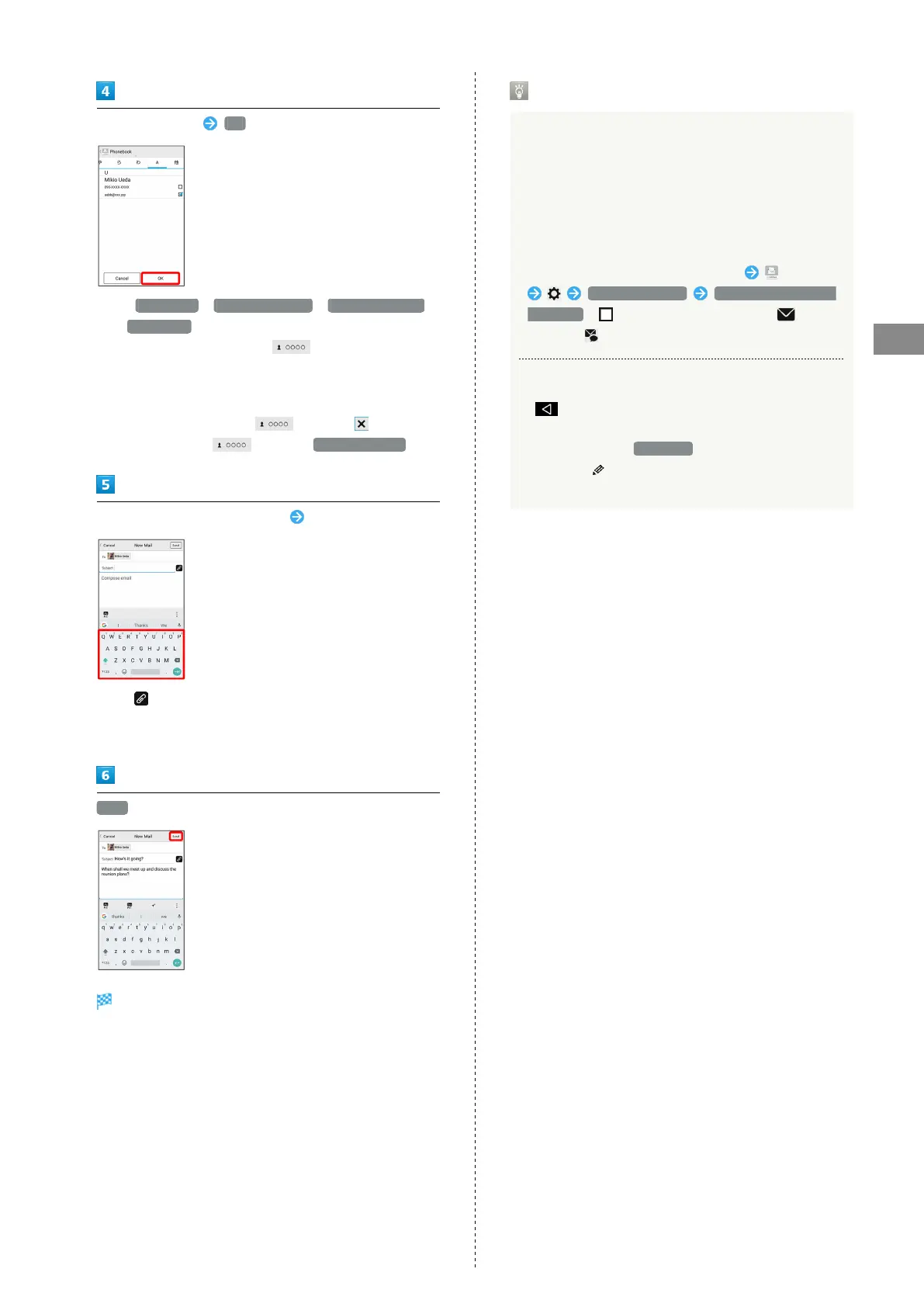
Select recipient(s) OK
・
Tap Phonebook , Outgoing History , Incoming History ,
or Mail Group to change the recipient list.
・
After setting recipients, Tap to check recipients'
phone numbers/mail addresses or set them to Cc/Bcc.
・If recipients are set to Cc/Bcc, the message is sent as S!
Mail.
・
To delete a recipient, Tap and then .
Alternatively, Tap and then Delete recipient .
Tap Subject field/Text entry field Enter subject/text
・
Tap to attach a file.
・If a subject is entered or a file is attached, the message is
sent as S! Mail.
Send
S! Mail/SMS is sent.
・Failed S! Mail/SMS messages are saved as drafts.
Sending of S! Mail/SMS
S! Mail and SMS Switching
S! Mail and SMS automatically switch at sending, depending
on whether a subject is entered, text length, etc.
・When creating a message, check which it is sent as at top
of Display.
・"New Mail" appears: message is sent as S! Mail.
・"New SMS" appears: message is sent as SMS.
・
In Home Screen, Flick Favorites Tray up (Mail)
Common Settings SMS/S!Mail Automatic
Switching ( ) to allow selection between (S!
Mail) and (SMS) when creating a message.
About Drafts
If is Tapped while creating S! Mail or SMS, the
message is saved as a draft.
Drafts are saved to Draft Box in folder list, and are
indicated as in thread list. Open an S! Mail/SMS draft
to edit and send it.



 To Next Page