Page 42 of 78
6.3.3 MXNet Events
This section provides commands for rebooting, removing, and factory resetting various MXNet
devices. It also includes options for managing different user levels for limiting access and
permission settings.
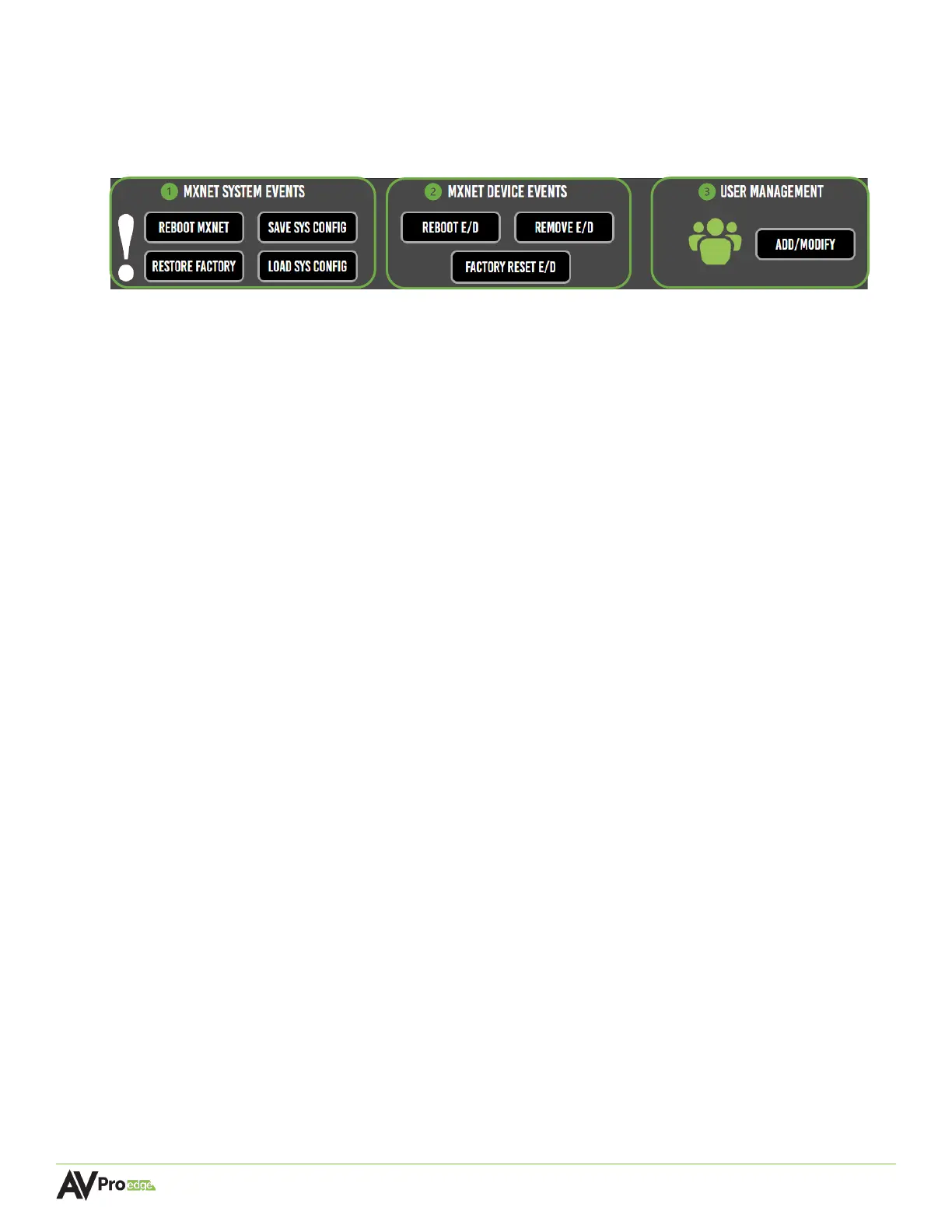
1 MXNET SYSTEM EVENTS (system-wide)
The following commands are provided in this section:
• Select the reboot MXNet button to restart all the devices in the system.
• Select the restore factory button to restore all the devices in the system back to
factory default settings.
• Select the save sys config button to download a .cfg file of all the current system
settings and configurations.
• Select the load sys config button to upload a previously saved .cfg file and apply it to all
system settings and configurations.
2 MXNET DEVICE EVENTS (device specific)
The following commands are provided in this section:
• Select the reboot E/D button to restart one or multiple encoders and decoders.
• Select the remove E/D button to remove one or multiple encoders and decoders from
Mentor.
• Select the factory reset E/D button to restore one or multiple encoders and decoders
back to factory default settings.
3 USER MANAGMENT
• Select the add/modify button to change the admin user login credentials or to add a
limited user account.
• Select the enable limited user toggle button to add a limited user account, including a
separate username and password. The limited user account will only have access to the
Auto-Matrix and Video Wall pages within Mentor.
• If the toggle button is set to OFF after entering a username and password for the
limited user account, the limited user account’s username and password will be saved
within Mentor, and the limited user account cannot access Mentor until the admin
account is accessed and the toggle button is set back to ON again.



 To Next Page