Page 72 of 78
6.15.2 Uploading a Fallback Logo or “No Signal” Image
1 Select the display from the list of decoders on the left side, indicated by a highlighted
orange border. To send the custom image to all the displays, check the select all decoders
box .
2 Select the paperclip icon to browse through local files and select the desired image file.
3 Select the update button to upload the selected file image to the selected display(s).
Then select the save changes button .
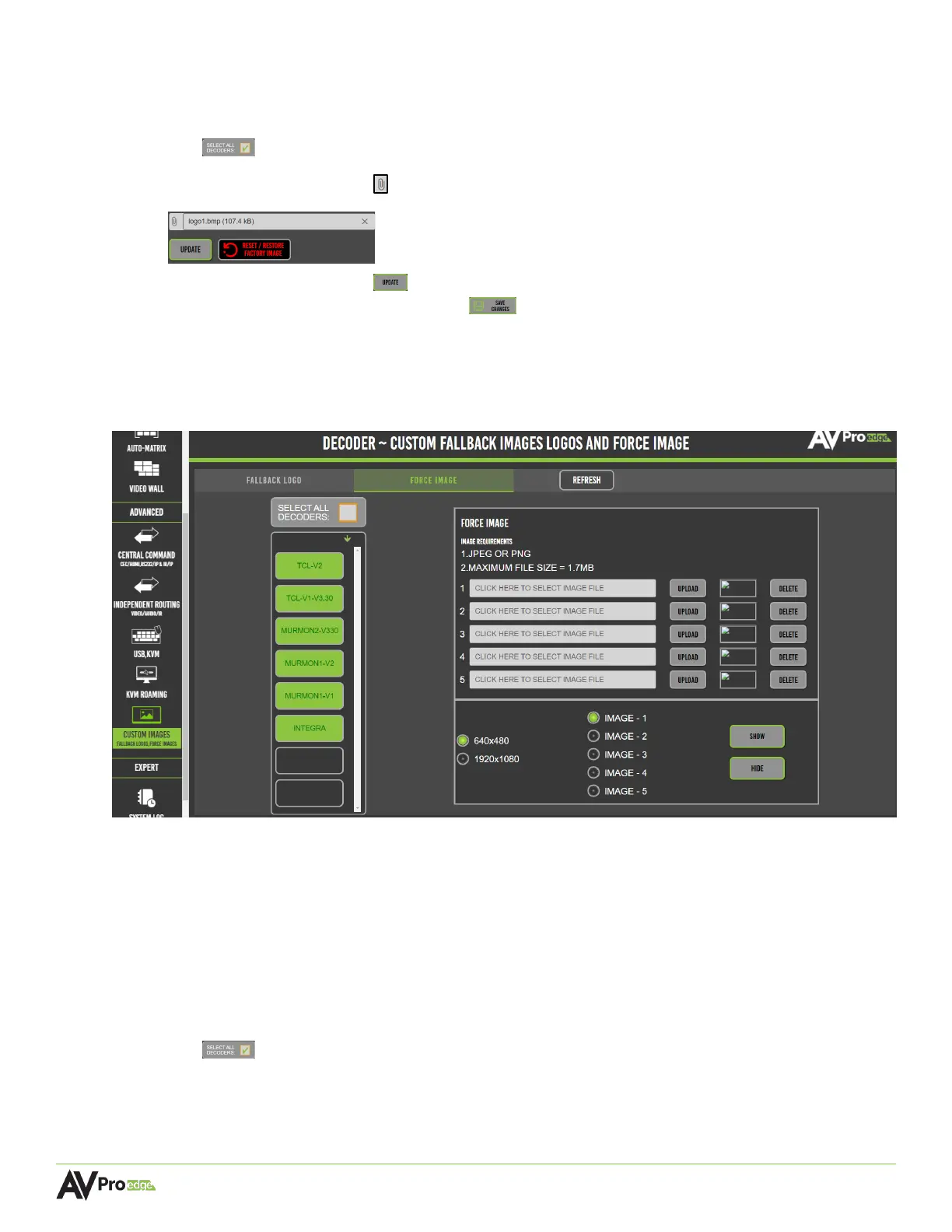
6.15.3 Force Image
This tab provides tools and features that allow the displays to switch to a custom image or logo for
more personalized media content.
Image Requirements:
BOOT/STARTUP IMAGE
• JPEG or PNG file format
• 1.7MB maximum file size
6.15.4 Uploading a Force Image
1 Select the display(s) from the list of decoders on the left side, indicated by a highlighted
orange border. To send the custom image to all the displays, check the select all decoders
box .
2 Select one of the fields, numbered 1-5, to browse through the local files and select the
desired image file. Up to 5 images can be uploaded at a time.



 To Next Page